Java Data Types
Java programming language is a “strongly” typed language. Every variable declared must have a data type that determines the size of the variable in memory.
Expressions in Java have types. Although data types are strictly defined, there is compatibility between certain data types. This allows type conversion and casting of variables.
The data types are
- Integers
- Floating-point numbers
- Characters
- Boolean
| Main Type | Data Type | Size (in bits) | Range |
| Integer | Long
Int Short Byte | 64
32 16 8 | -9,223,372,036,854,775,808 to 9,223,372,036,854,775,807
-2,147,483,648 to 2,147,483,647 -32,768 to 32767 -128 to 127 |
| Floating-point number | Double
Float | 64
32 | 4.9e-324 to 1.8e+308
1.4e-045 to 3.4e+038 |
| Character | Char | 16 | 0 to 65536 |
| Boolean | Boolean | 8 |
Long
As per the table above, the long type is 64-bit signed type with a large range. The int type is the first choice for an integer type, but the long type is chosen when the number cannot be stored with int type.
long distance;Int
The int type is the most common type used as an integer type. The int type is signed 32-bit type. Here is an example of int type.
int area;short
The short type is the least used type in Java. It is signed 16-bit type with range -32,768 to 32767/ Here is an example of short type.
short total;byte
The byte type is smallest of the integer type. It is signed 8-bit type suitable to store raw binary data. Other than that byte type can handle a stream of information from network, or file.
byte queue;double
The double precision is also known as.double It has a storage of 64-bit. Also, it is faster in some optimized processors when compared to single precision. To maintain the accuracy of mathematical calculations, built-in functions like sin(), cos(), etc returns.double Here are some examples of.double
double radius;
double PI;
float
The float is a single precision that use32-bit of storage. Here are some examples of the.float
float length;
float height;
char
The char type is unsigned 16-bit to store Unicode characters. It has a range of 0 to 65536. The character is expressed in many ways.
- Using single quotes.
- Escape sequence
- Unicode escape sequence
Here is the example for each type.
Example #1
char answer = 'Y';
char day = 'f';
The escape sequence does work for all characters, but only a few. Here is the list.
| Escape Sequence | Description |
| ‘\n’ | newline |
| ‘\r’ | a carriage return |
| ‘\f’ | form feed |
| ‘\b’ | backspace |
| ‘\t’ | a tab |
| ‘\\’ | a backslash |
| ‘\”‘ | a double quote |
| ‘\” | a single quote |
Example #2
char ret = '\r';
char nwline = '\n';
Example #3
char a1 = '\u0041'; //The code '\u0041' is same as 'A'Boolean
The boolean type has two values called boolean literals. Here are some examples of boolean type.
boolean finished = true;
boolean off;
off = false;Java Program Elements
Java program has a structure which is made of several elements. These elements are tokens, white-spaces, literals, comments, separators, and identifiers.
Read next article to know the list of keywords in Java.
Tokens
Tokens are the smallest element in a Java source code. The Java compiler break source into lines of code whenever it encounters terminator such as (;) semicolon. The compiler goes through the line and mark end of each token, then ignores all whitespaces, until a non-whitespace character is encountered. A token mismatch will cause a syntax error. The goal is to make a token list.
For example,
int number = 2000 ;The above is the same as
int number = 2000;We have the following tokens.
int
number
=
2000
;Whitespaces
A Java whitespace is a newline character, space, or tab space. Java is a free form programming language, means you can leave lot spaces between tokens. You can write your program any way you like without worrying about the whitespaces.
Identifiers
Identifiers are names of different program elements such as class, package, variables, etc. An identifier uses letters, numbers, a special character like a ($)dollar sign and (_)underscore. The identifiers must follow certain rules.
- An identifier must start with letter, dollar, or underscore.
- The identifier can be of any length (but, we restrict to 15)
- Reserved words known as keywords cannot be used as identifiers.
Comments
Comments are lines ignored by the Java compiler. Two types of comments allowed in Java.
- Single line comments
- Multi-line comments
For example,
// This is a single line comment - ignored by compiler
int x = 2000;
The multi-line comment span multiple lines without any special indentation rules.
For example,
/*

This is multi-line comment used to describe program information at the beginning

of the program source code.

*/
Note that each comment must not be nested.
Separators
Separators are program elements that separate items like class, objects, a block of code, a line of code, function arguments. The most common separator is a semi-colon. If you remember from previous example codes, each statement ends with a semi-colon in Java.
Here is a list of separators in Java,
| Separator | Symbol | Description |
| Braces | { } | Contains a block of code. |
| Parentheses | ( ) | Keep method arguments |
| Brackets | [ ] | Define the size of an array |
| Semi-colon | ; | Line terminator |
| Comma | , | Separates argument list |
| Dot | . | Separates packages, object methods |
Literals
A literal is a constant of a specific type. Here is a list of literal types in Java.
| Literal Type | Example |
| Integer | 568 |
| Floating-point | 45.90 |
| Boolean | True / False |
| Character | ‘M’ |
| String | “Sports” |
How to Install NetBeans IDE 8.2 on Windows
Netbeans is a popular Java Integrated Development Environment(IDE). It is a software tool to compile your java program, but real compilation is done using Java JDK behind the scenes.
So, why install NetBeans IDE? because IDE manages you program files, classes within a programming project, support different languages and help in other management tasks. This article is limited to NetBeans installation on a windows computer.
Java SDK is a prerequisite for installing NetBeans. To install the latest Java SDK version, read the following article.
Steps to Install NetBeans IDE 8.2
To install NetBeans on your windows computer you must follow these steps.
Download NetBeans IDE 8.2
We start our installation by downloading the latest version of NetBeans IDE 8.2. Visit the site http://netbeans.org to download it.
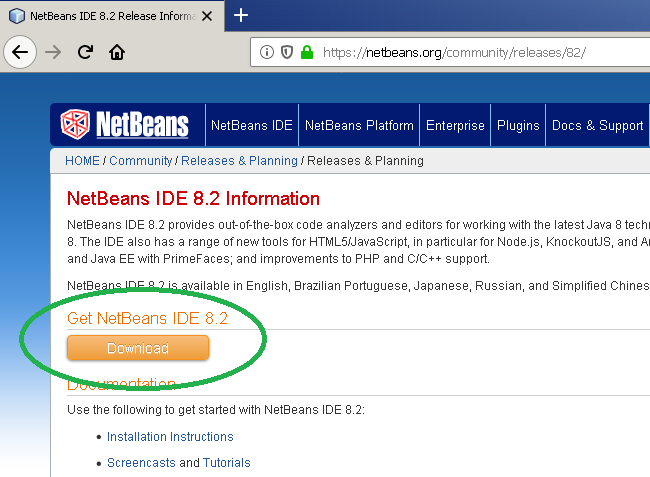
When you click on the download option, it will take you to the download page. You can download any package suitable for your computer, but for the sake of this tutorial, download the full version.
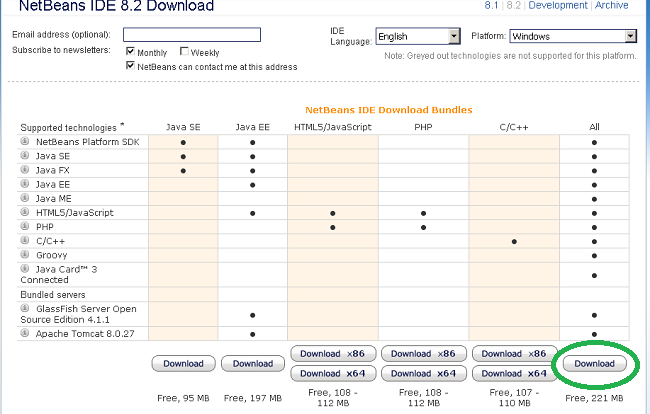
The full version contains most of the packages. Now, create a new folder NetBeans and download the software.
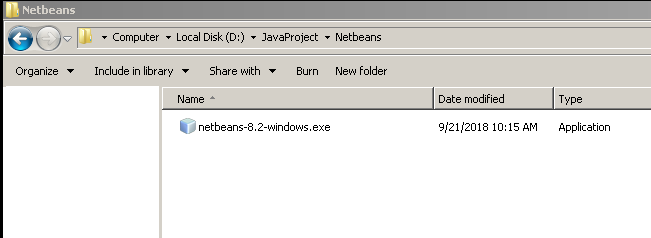
You cannot run the setup immediately before you run setup to make sure that the Java JDK 10.0.2 is installed correctly.
Sometimes, you may receive an error when you start the setup. The screenshot for error is shown below.
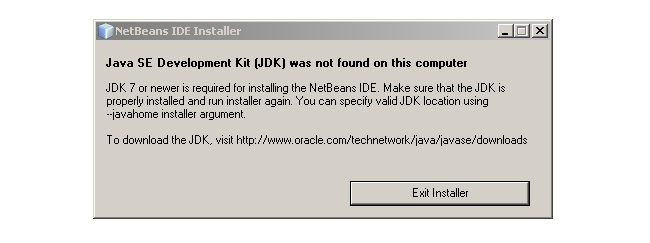
We have Java JDK installed, but you may still get this message. To solve this problem, download and install Java JDK 8u111 update from the Oracle site.
Download and Install JDK 8u111 Update
Once downloaded JDK 8u111 updates, you can begin the installation.
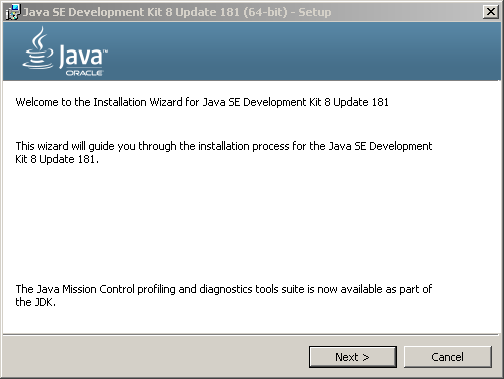
Click next to continue with the installation.
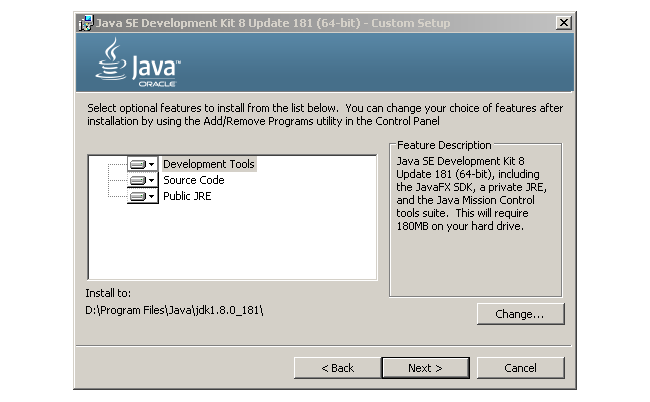
The custom setup window will show, here you can change the default installation directory if required. Click next to continue installation.
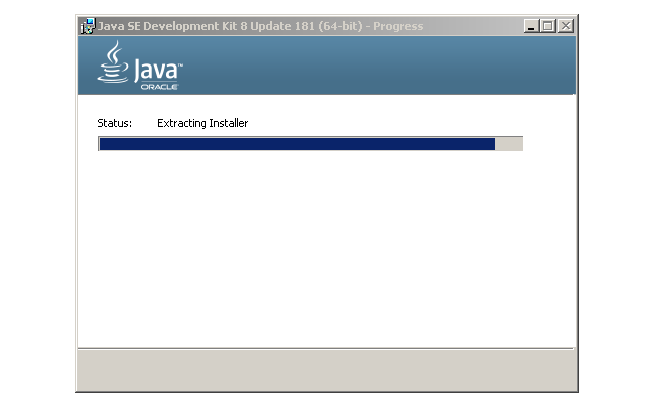
The JDK setup prepares an installer for further installation. The installer also requests a custom destination for installation.
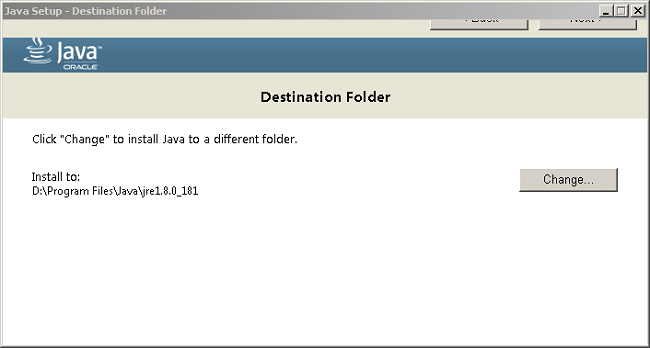
Click next on the top to continue.
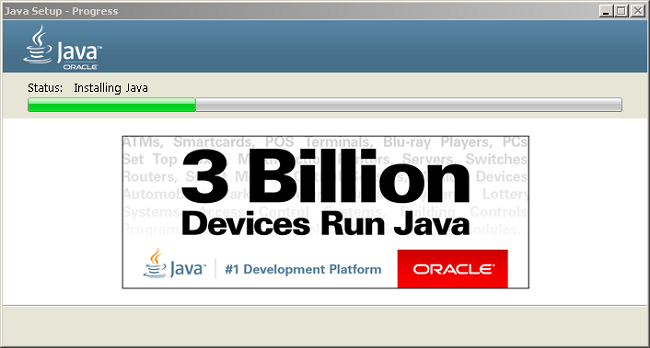
Once the installation begins it takes few minutes to complete the setup.
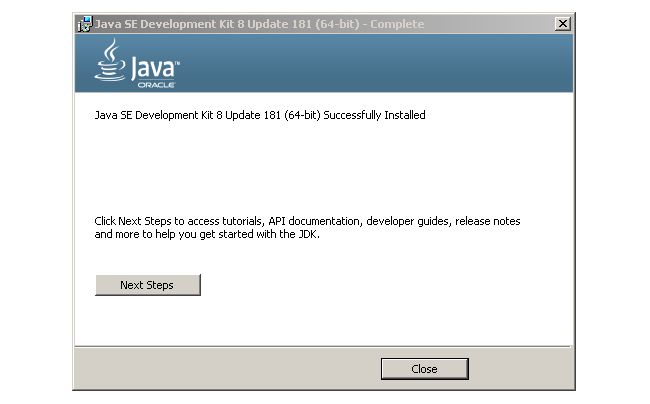
Close the window when installation is finished.
Install NetBeans IDE 8.2
With all prerequisites in place, you can begin installing NetBeans IDE 8.2. Double click the setup again.
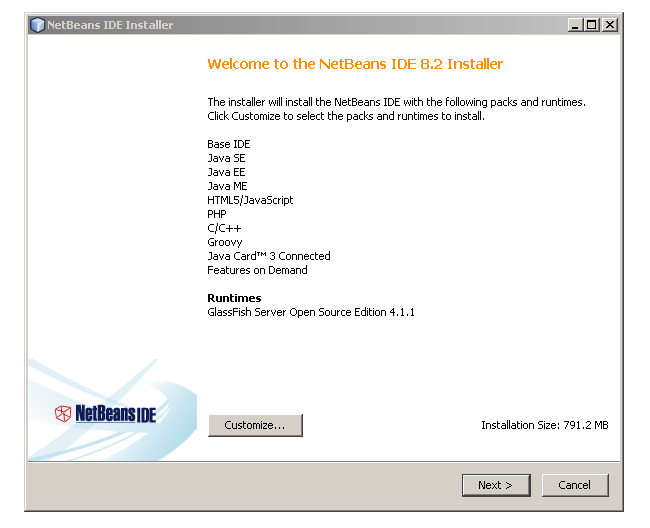
This the screen where you can customize, by choosing what to install. Click on next to continue.
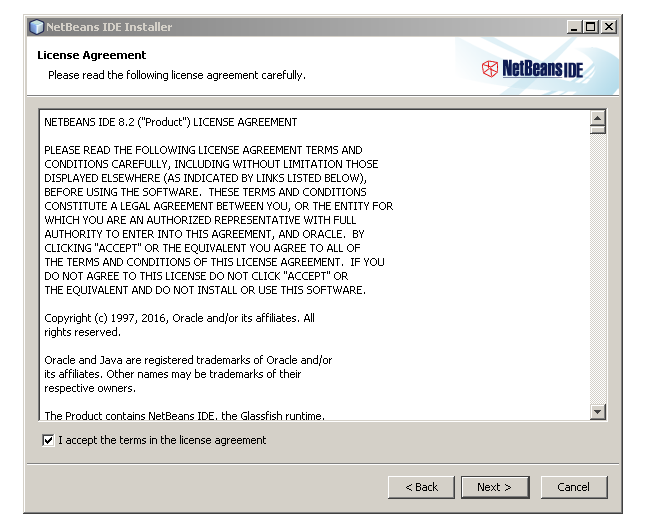
Put a check on “I accept the terms in the license agreement” after you have read the license agreement. Click next to continue with the setup.
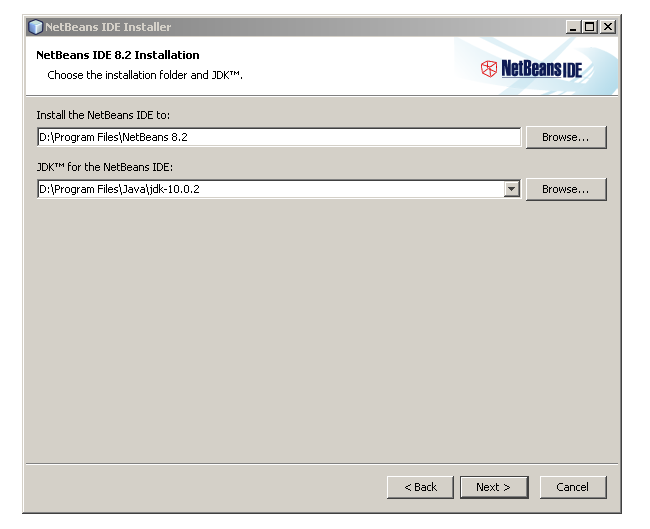
On the next screen, you get an option to change the installation directory. You can change the location of the installation if a specific drive does not have enough space.
Click next to continue otherwise.
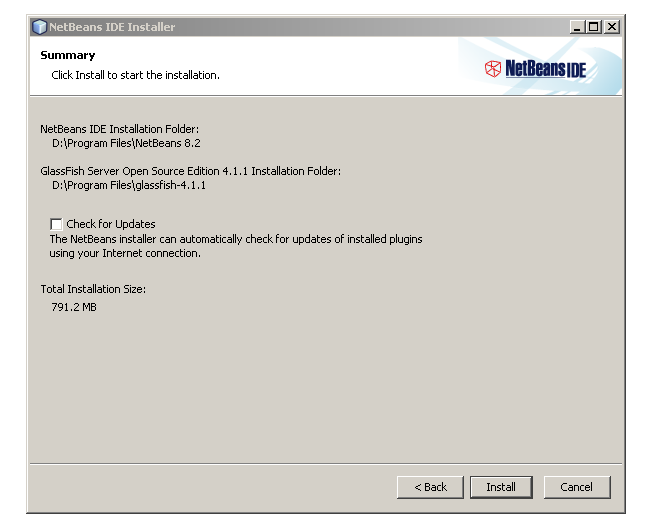
A summary of all options is given on the next screen, review them before clicking Install.
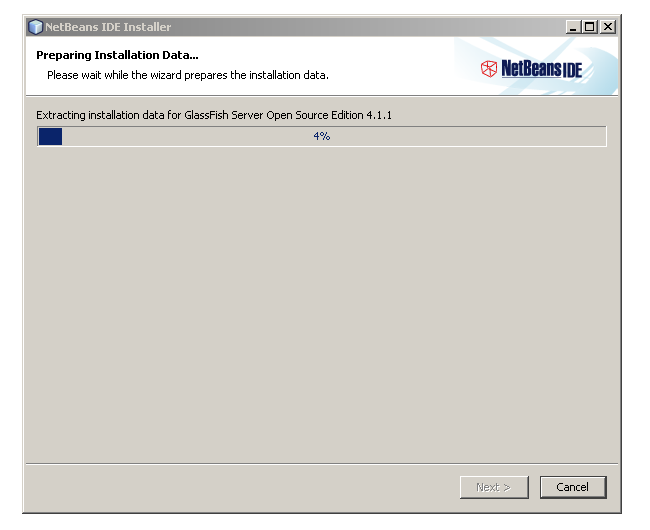
The installation may take some time depending on the speed of your computer.
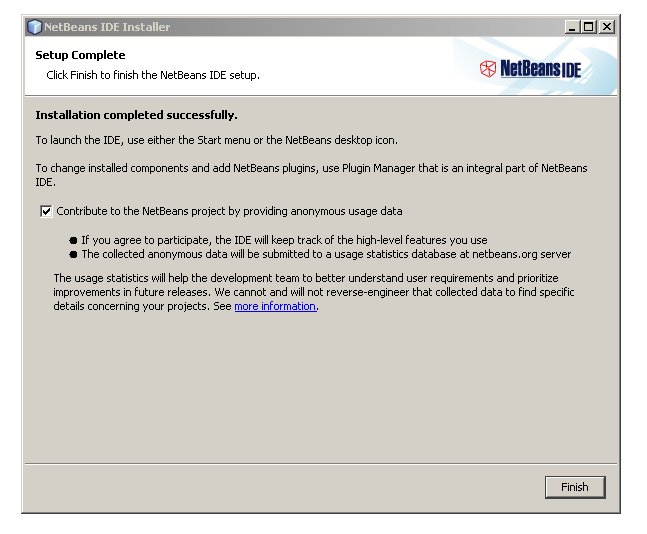
After the installation completes click on Finish to complete the setup process.
Now you have successfully installed NetBeans IDE 8.2 on your computer.
Java Keyword List
Keywords are reserved words in Java programming language. You cannot use these words for any other purpose such as variable names. The Java keywords are instructions to the compiler which interpret the meaning of these keywords and execute the command.
Here is the list of commonly used keywords in Java language.
| Keyword | Description |
| abstract | To declare a class abstract for abstract method. |
| boolean | Boolean data type with values – true or false. |
| break | Breaks a case or a loop in java program. |
| byte | Data type that stores 8-bit signed integer or byte value. |
| case | Part of switch-case block |
| catch | Part of try block that catch exceptions |
| char | Character data type |
| class | Template for objects in Java |
| const | Not allowed to use, replaced by final keyword |
| continue | In a loop skip an interation and continue |
| default | To declare default values and methods |
| do | Part of do-while loop |
| double | Double data type |
| else | Part of if-else block |
| extends | To Declare a sub-class |
| final | Final variables cannot be reassigned |
| finally | The finally block used in exception handling |
| float | Floating point data type |
| for | For loop |
| goto | Does not use goto statement which is to jump to a specific location in program |
| if | if block |
| implements | To implement an interface |
| import | Import packages |
| instanceof | To test if an object is instance of a specific class, subclass or interface |
| int | Integer data type |
| interface | To declare interfaces |
| long | long data types |
| native | |
| new | To create new objects |
| package | Package contains classes |
| private | Private scope of a class |
| protected | Protected Scope of a class |
| public | Public scope of a class |
| return | Returns a value from function |
| short | short data type |
| static | |
| strictfp | |
| super | |
| switch | |
| synchronized | |
| this | |
| throw | |
| throws | |
| tranient | |
| try | |
| void | |
| volatile | |
| while |
How to Write and Compile Your First Java Program
Previously we discussed how to download and install java compiler. As a beginner, you need to practice a lot of programs to learn java programming language. The minimum requirement is a text editor program and Java SDK.
Learn how to install a java compiler before you begin writing your programs.
To practice writing Java programs, you must do three activities given below.
- Write your program source code
- Compile your program
- Execute your program to see if it is working
All java program goes through the three activities mentioned above. But, large java software projects are not so simple, they follow a software development lifecycle along with these three main activities. In other words, these activities are part of the software development process.
Let us begin writing our first Java program.
Writing Program Source Code
You can write a Java program code on any text editor, there are no special requirements. A lot of programmer like to use Java IDE (an Integrated Development Environment) such as Netbeans, Eclipse.
A Java IDE helps to add more packages and manage your project files efficiently, but the real compilation is done by Java SDK. For the sake of learning, you will interact and compile all your programs using Java SDK.
Follow these steps to writing your first java program.
Step 1: Create a directory
The first step is to create a directory called JavaProjects in any drive of your choice.
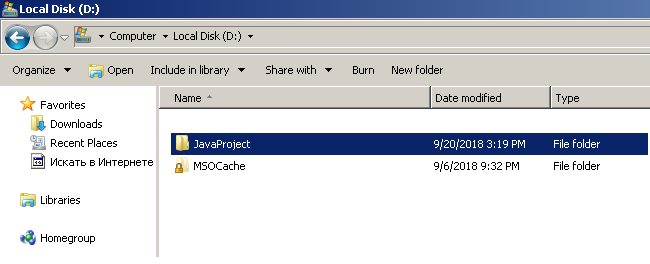
Step 2: Open notepad and write following Java code
The next step is to open a notepad file on your windows computer and enter the following code.
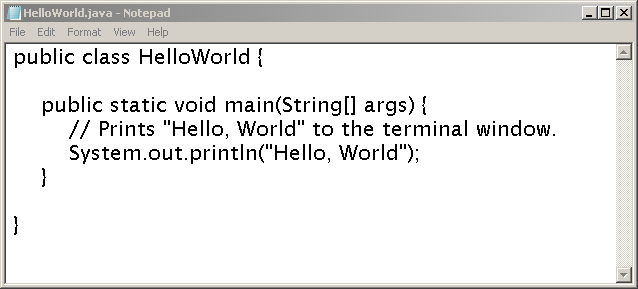
Note that the public class name is HelloWorld, therefore, you must save the file as HelloWorld.java in the directory JavaProject.
The source code part of writing your program is completed. In the next section, you will learn to compile a java program into a format that is understandable by machines.
Compiling Java Source File
The Java compiler may not work correctly in some cases when installing for the first time. There are a few things to take care of before compiling your source code for the program.
You need to set the PATH and the CLASSPATH to making your compiling process work. The PATH let you run java command from a command prompt on a windows computer.
The CLASSPATH provides necessary resources and classes to compile and execute your program.
You can set the PATH and CLASSPATH from command line itself. Run the following command to set the values. Note that the command is case sensitive.
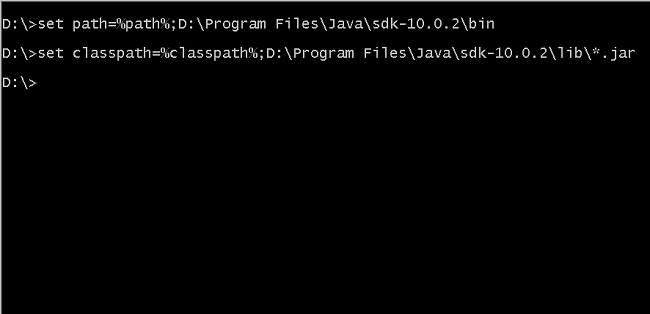
Now you are ready to compile your java source code into the program. Go to the project directory from the command prompt.
Make sure HelloWorld.java file is in the JavaProject directory and type the following command.
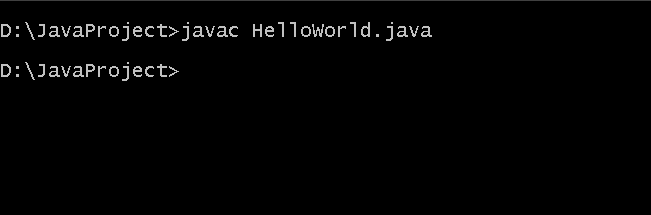
After compilation, you may see a new file – HelloWorld.class, which is a binary file in java.
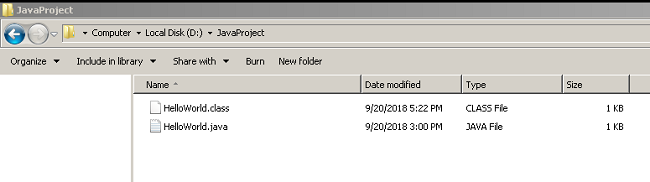
In the next section, you will execute the class file and get an output from the program.
Executing Java Program
The Java class file is executable. To run the class file stored in the JavaProject directory, open command prompt, and type following command.
Make sure that you are in JavaProject directory in command prompt.
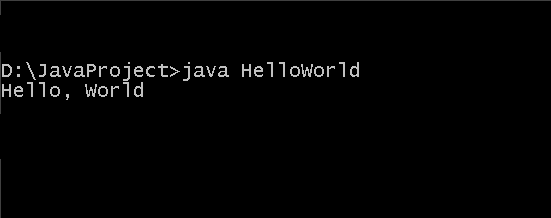
The program prints the output successfully. You only have to remember these two commands – javac and java.
Related Articles:
Java Program Structure
Java is an object-oriented programming language but also retains all features of a high-level programming language. An object-oriented programming language is class-based where a class represents a real-world entity.
The class itself does not do anything, but it is used to create objects that have properties and functions ( called methods) and it behaves like the real world entity that it represents. The object derives its set of properties and methods from the class.
For example,
A fruit is a class that represents a fruit, is a real-world entity. You can create objects from class fruit such as mango that has properties like color, taste, shape, and methods like hang_from_tree( ), fall_from_tree( ).
A person is a class that represents a real-world entity person. The driver, teacher are objects of class Person, the driver has properties like legs, arm, dress_code, salary and method like driving( ), starting_vehicle( ) and stopping_vehicle( ).
All properties and methods correspond to the real-world entity such as mango, driver whose properties and functions we already know.
Structure of a Java Program
In the previous section, we learned about classes and objects. Every java program has at least one class, if the program has only one class, then it is a public class.
The Java language put a lot of restrictions on classes such as class visibility. Class visibility decides who will access a particular Java class from outside of class or from another class.
The public class is visible to other classes, but the private classes are strictly restricted for other classes and functions outside of the class. We will discuss more on visibility in future articles.
Java File Name
The source code is saved in a file with specific extensions. In c/c++ language, the extension is .c or .cpp. The java has certain rules for a file name.
In a java program, there is only one public class. If the public class name is the car then the file name should be car.java. No restriction on what or how to decide a name for your class.
Import command
The java program starts with an import statement located at the top of the program source code. The import statement has the same task as the #include statement in C language. We import packages that hold some predefined classes.
When java program runs it looks for two places for classes, first, in the current user-defined package and second, inside imported packages.
Let us understand what packages does in java program. Consider the following example.
String name = "Jack";A string is a class and its location is in java.lang package.
The above command is the same as
java.lang.String name = "jack";By using the import statement you can avoid the lengthy prefixes in the program.
import java.lang.*;The asterisk (*) represents all classes inside the java.lang package, but you can also specify a specific class if you know about it.
The Main Function
Similar to c/c++ language, Java also has a main function. Since Java is a object-oriented programming, it is hard to decide which object to create first and which method to invoke at the beginning. To solve this problem, the main function in java is a static function which does not belong to any particular object and starts even before other objects are created.
The main resides in the public class of java, which happens to be the only public class in java program. It is time to write to you first program.
Your First Program in Java – Hello World!
It is a convention to write a “hello world !” program when you start a programming language. The source code for ‘hello world” program is given below, that consists of all the elements we discuss above.
/*
 * File name   : helloworld.java
 * Data Created: July 12, 2018
 * Author      : Notesformsc.org
 * File Size   : Na
 * Licence     : Free
*/

import java.lang.*;

public class helloworld
{

    public static void main(String[] args)
    {

        //prints the output

        System.out.println("Hello World!");

    }

}
Output
Hello World !Comments in Java
Comments are very useful in the java program to bring clarity to the program, especially if the program has a huge amount of code.
There are two types of comments available in java.
- Single line comments ( // ) – It is used for writing short comments that span only a single line.
- Multiline comments ( /* … */) – It is usually for writing long-form comments at the beginning of the program providing all sorts of information about the author and the program.
There are no restrictions on commenting as far as position or placement is concerned, but common practice is to put a comment above or below the code block.
Also, you cannot nest or mix two types of comments.
Related Articles:
How to Install Java Compiler
This article will help you get started with Java programming. You need to practice writing Java programs and the minimum requirement is a Java compiler. A compiler is a software program that converts the program code or source code into machine code which a computer hardware can understand and execute.
Before we begin to discuss about installing a compiler program, let us understand how you can write you code in Java. The Java offers two ways to write you source and compile it.
- Java Software Development Kit (SDK)
- Java IDE such as Netbeans
Java SDK is absolutely necessary for compiling Java programs. In the next section, we discuss about installing and running Java SDK.
Note that you must install the latest version all the time and this article applies only for windows system.
Downloading Java JDK
The first step in installing Java compiler is to download the latest version of SDK form oracle website.
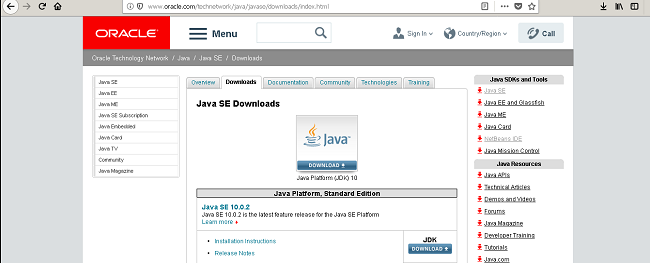
On the download page, you will get the latest version of Java SDK standard edition. For this tutorial, standard edition is perfect, but you may download other versions also. Before you download you have to accept the “Oracle Binary Code License Agreement for Java SE” and proceed with the download.
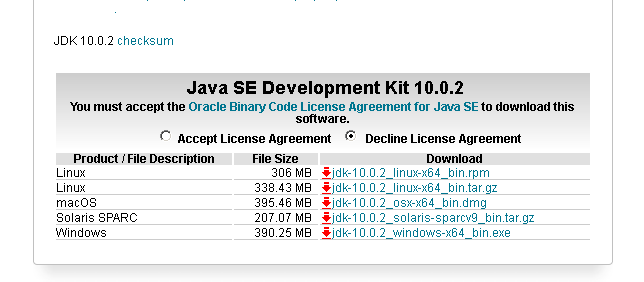
The download may take some time depending on the speed of your computer and network.Once completed you may see a file like the one given below.

Installing Java SDK
To install the Java SDK , double click the downloaded file and setup will prepare to install.
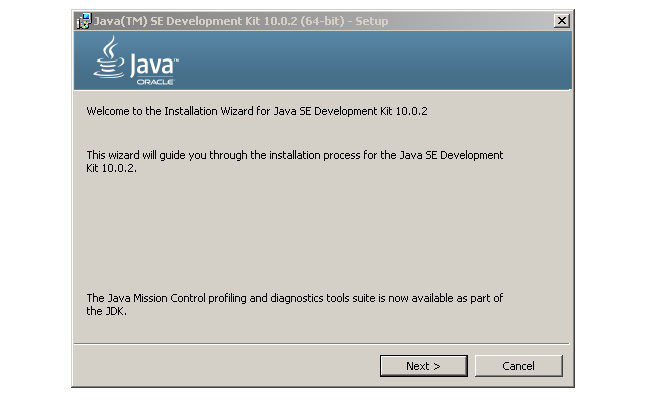
Click next to continue the installation process.
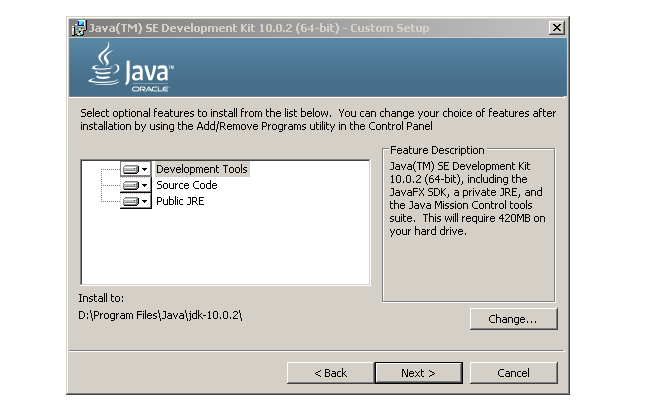
The Java SDK setup offers you chance to customize your setup, make changes only when necessary. You can change the installation directory if the default installation directory or drive does not have enough space.
Click next to continue installation.
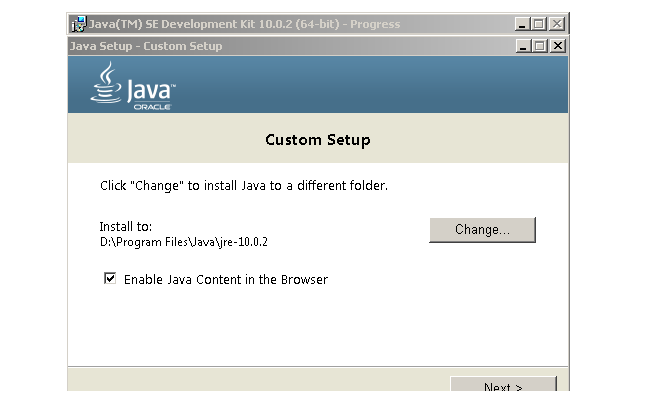
You will see custom setup dialog from setup installer. Once again if necessary change the default installation directory, otherwise continue with next.
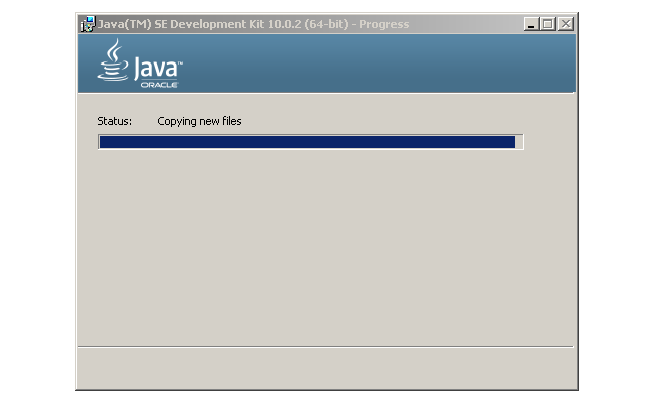
The installer will take some time to complete the Java SDK installation. After installation you should see a completion screen, click close to complete the installation.
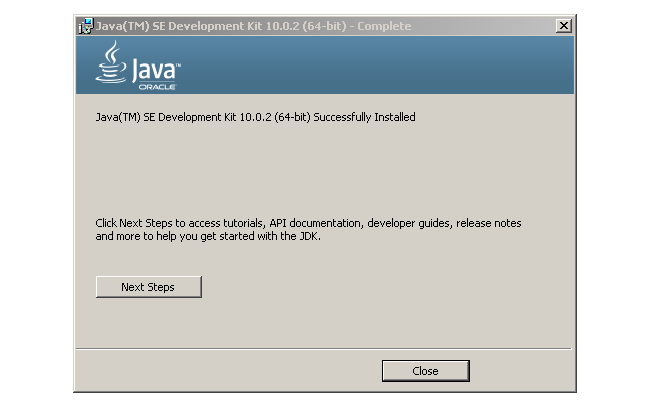
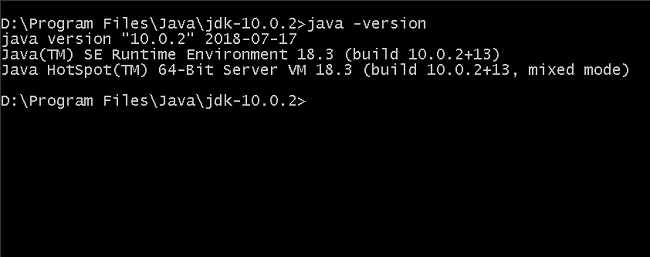
You may like to check the Java version installed, open command prompt (start > search > cmd) on your computer. Change directory to Java installation directory (C or D:\program files\Java\jdk-10.0.2) and run the following command.
java -version
You will see complete information about the current Java SDK installation.
It is very difficult to run java.exe from Java\jdk-0.0.2\bin directory every time. You must set the PATH to Java bin directory to run Java compiler from any directory.
To set the PATH, go to system properties > Advanced > Environment variables. Under User variables locate path and add path to bin directory(D:\Program Files\Java\jdk-10.0.2\bin).
Ssimilarly, go to System Variables, add the path to bin directory(D:\Program Files\Java\jdk-10.0.2\bin) , click OK and close the windows.
You can set the PATH and CLASSPATH using command line.
set path=%path%;D:\Program Files\Java\jdk-0.0.2\bin
set classpath=%classpath%;D:\Program Files\Java\jdk-10.0.2\lib\*.jar
To write your Java source code use any text editor program and save your file with .java extension. You need to compile the program using command prompt using javac command which will create a <filename>.class file.
In the next article we will discuss, installing Netbean IDE 8.2, another popular way to write and compile Java code.
Java Programming Notes – Concepts, Examples, and Exam-Ready Revision
Java Programming is a foundational subject in Computer Science and Information Technology (IT) curricula and a key requirement for university exams and competitive examinations.
On this page, you will find structured resources to learn Java programming concepts, along with clear explanations, examples and exam-ready revision notes.
What Will You Learn
On this page you will find:
- Core Java programming concepts explained clearly and systematically
- Exam-oriented explanations supported with relevant examples
- MCQ-based practice posts to test your understanding
- Detailed articles along with exam-ready revision PDFs
This Page is for:
- Computer science and IT students
- GATE and other competitive exam aspirants
- University exam preparation
- Self learners who want to revise Java programming knowledge.
Topic Sections
Find Java Programming topics here.