VB 6 – Sqr() Function
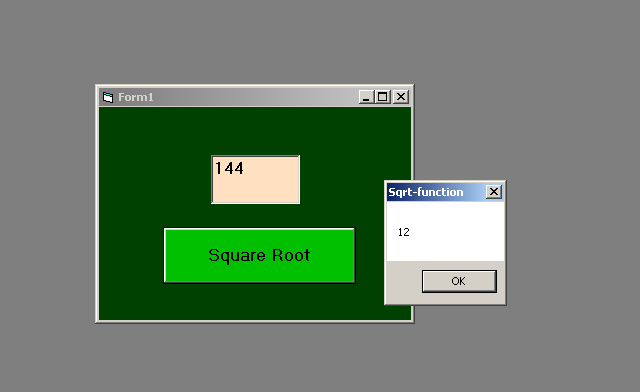
In VB 6, the sqr() function gives the square root of any number. The argument for the sqr() function must be a Double mean a real number.
In the example program below, we accept a number and return its square root.
Program Code: Sqr() Function
Private Sub Command1_Click()
Dim result As Double
result = Sqr(Val(Text1.Text))
MsgBox (result)
End Sub
Output: Sqr() Function
VB 6 – Exp () Function
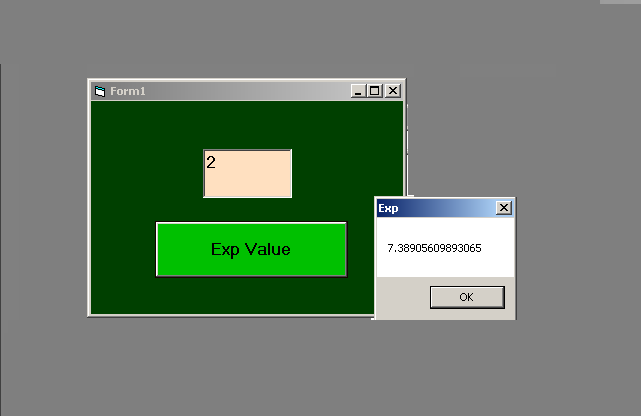
The Exp() function is antilogarithm. Suppose there is a number 1000 which is 103 and its log value is 3. The the anti-log value of 3 is the number 1000. The VB 6 Exp(1) the value of constant e which is equal to 2.71828182845905 .Any value that gives result more than 709.782712893 will be an error.
A simple program to compute the Exp value is given below:
Private Sub Command1_Click()
Dim result As Double
result = Exp(Val(Text1.Text))
MsgBox (result)
End Sub
Output: Exp () Function
VB 6 – Cos Function
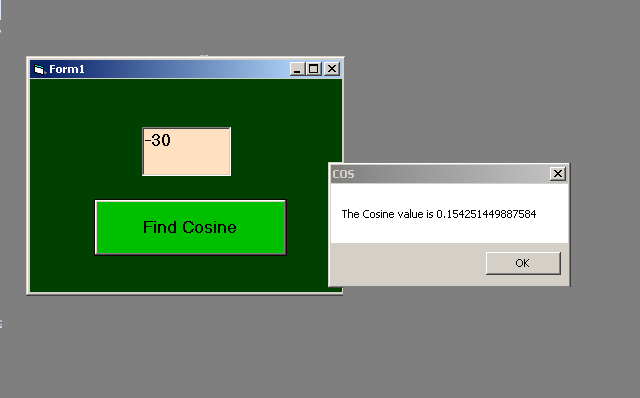
The Cos function in VB 6 returns the cosine value of a degree. When you enter a degree value in the program, it gives you a real value, that is, the Cosine value.
The program code is given below along with output.
Program Code: Cos Function
Private Sub Command1_Click()
Dim Cosine As Double
Cosine = Cos(Val(Text1.Text))
MsgBox ("The Cosine value is" & " " & Cosine)
End Sub
Output: Cos Function
VB 6 – Abs() Function
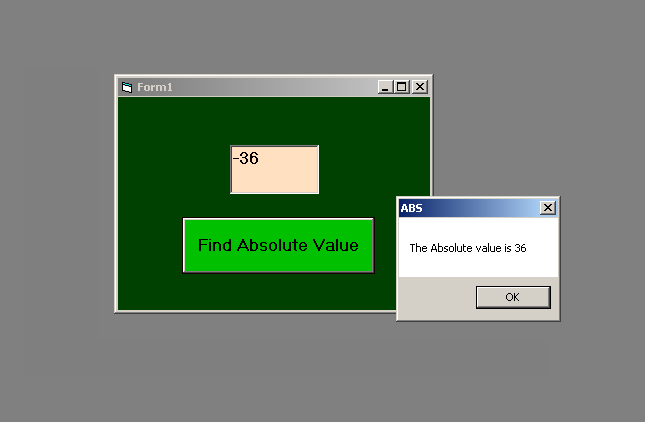
In this example, we will use Abs() math function of Visual Basic 6 to find absolute value of a number.
Program Code: Abs( ) Function
Private Sub Command1_Click()
Dim Absolute As Integer
Absolute = Abs(Val(Text1.Text))
MsgBox ("The Absolute value is" & " " & Absolute)
End Sub
Output : Abs ( ) Function
VB 6 – Math Functions
In this article, you find a list of mathematical functions. The math functions are built-in feature of Visual Basic 6.0.
| Function | Meaning |
| Abs | Find Absolute value |
| Atn | Find Arc tangent |
| Cos | Find Cosine of a given angle |
| Exp | Find Exponential value of a number |
| Fix | Fix places |
| Int | Return integer value |
| Log | Log |
| Rnd | Generate Random numbers |
| Sign | Sign |
| Sine | Find Sine value of a given angle |
| Sqrt | Find Square root |
| Tan | Find tangent value of a given number |
VB 6 Collections
In the previous article, you learned about different types of loops and know about arrays. In VB 6, there is also a container called Collection.
The collections are interesting because they have following properties:
- Can contain different data types
- Have their own index
- Have their own methods
The collection have different types of methods to manage the collection and its items. They are listed below.
Add – to add items to collection
Remove – to remove an item from collection
Count – to count number of items in the collection.
Item – access any item in the collection using its index.
Example Program: Collection
In this program we will accept the items through a textbox and use Add method of collection. We can display and show the collection items respectively.
Dim myCollection As New Collection
Dim studentName As String, i As Integer

Private Sub Command1_Click()

myCollection.Add (Text1.Text)
Text1.Text = ""

End Sub

Private Sub Command2_Click()

For i = 1 To myCollection.Count

studentName = myCollection.Item(i)
MsgBox (studentName)

Next i

End Sub

Private Sub Command3_Click()

MsgBox (myCollection.Count)

End Sub
Output – Collection
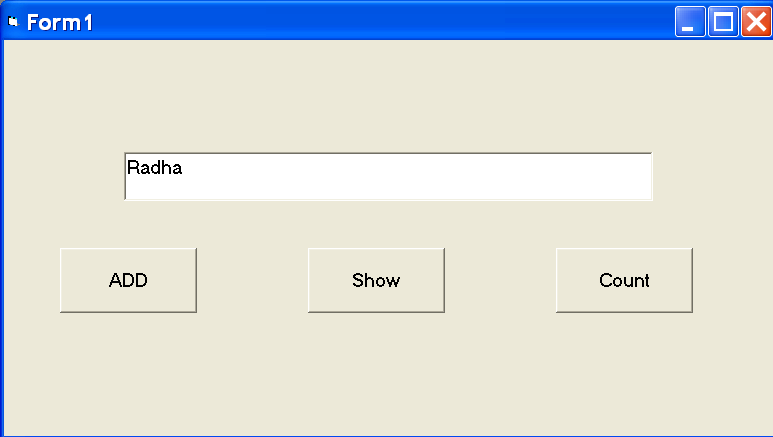
Add item to the collection from the text box.
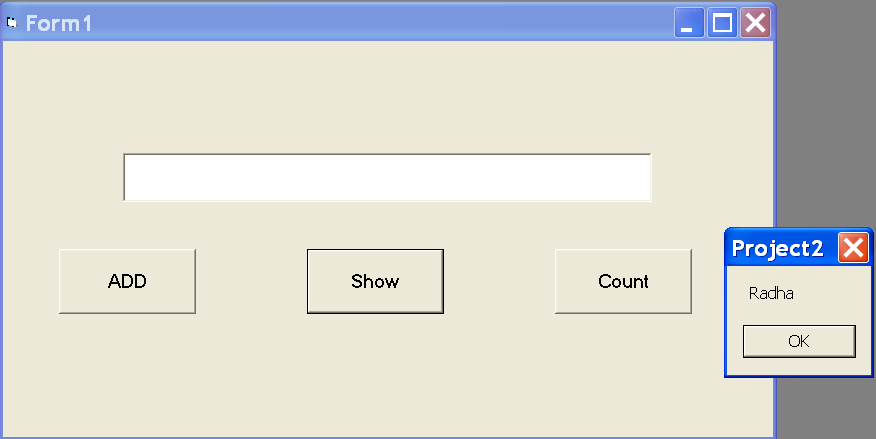
Show the item from the collection by clicking on the Show button. All the items will be displayed one at a time.
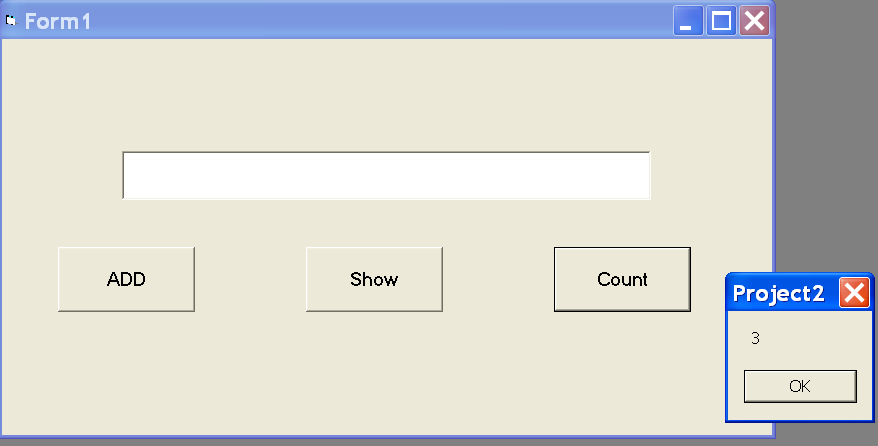
Display the number of items in the collection.
VB 6 For … Each Loop
In the previous article, you learned about the For loop, however, there is another loop called For...Each loop similar to For loop.
The For...Each loop is suitable to go through each item of a collection or an array.
Syntax: For…Each Loop
The syntax for the For..Each loop is given below.
For Each element In group
[Statements]
[Exit For] [Statements]
Next [element]
The keywords are very much similar to for loop but with a difference that the For...Each loop is suitable for array.
Example Program: For…Each Loop
Private Sub Command1_Click()
Dim NumArray(2) As String
NumArray(0) = "Ram"
NumArray(1) = "Jaya"
NumArray(2) = "Bruce"
For Each ArrayItem In Num Array
MsgBox (ArrayItem)
Next ArrayItem
End Sub
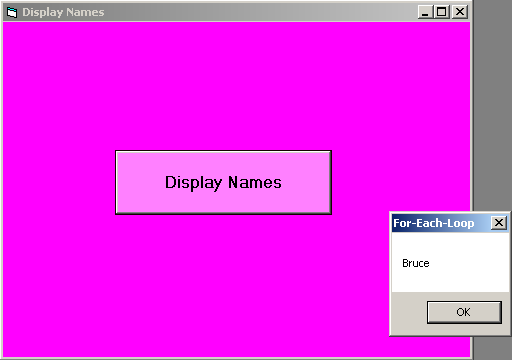
The above program goes through each item of the array and display the result.
Output – For…Each Loop
In the program above, each time you click on the “OK” button, a different name from the array is displayed.
VB 6 For Loop
The For loop is another simple loop structure, which is different from other loops like Do loop and While Loop because it specifies a range before the loop could start.
The syntax for the For loop is given below.
Syntax
For index = start To end [Step step]
  [Statements]
Exit For
  [Statements]
Next index
Let us discuss the For loop structure.
For – keyword indicating the type of loop structure.
index – a variable that acts as index for the loop.
start To end – values that indicates start of the loop and end of the loop
Step step – The integer value that indicate how much to increment the loop at each iteration. Default is 1.
statements – some expressions or statements that the loop will execute at each iteration.
Exit For – immediately exit the For loop.
Next Index – increment the loop index for next iteration.
Example Program: For Loop
In this example, we will create an index for the loop and create a variable called sum. Each iteration of the For loop, we will add a value of 10 to the sum and display the results when the loop terminates.
Private Sub Command1_Click()
Dim sum As Integer, index As Integer
sum = 0
For index = 1 To 15
sum = sum + 10
Next index
MsgBox ("Sum is equal to" & " " & sum)
End Sub
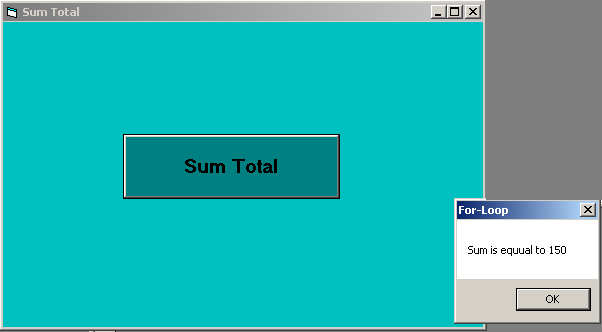
In the code above the index is between 1 to 15 and each time it adds 10 to sum. After the loop is terminated, the total amount of sum is display using a MsgBox.
Output – For Loop
VB 6 – Choose() Function
The VB 6 Choose() function is another function that let you choose values based on an index. However, do not confuse it to be an array. The Choose () function is very useful in menu based program where you can display a menu and let user input there choice.
When the user makes a choice, the value corresponding to the choice is returned and stored in another variable. Let us see the syntax for Choose () function.
Dim Variable As String
Variable = Choose(indexNo, "Value1", "Value2", "Value")
The value in the above program could be numbers. We have chosen the string type to demonstrate the usage.
Example Program: Choose() Function
In this example, we will read an input number and based on the input, the program will find the name of the student and display it on the screen.
Private Sub Command1_Click()
Dim indexNo As Integer
Dim Student As String

indexNo = -1

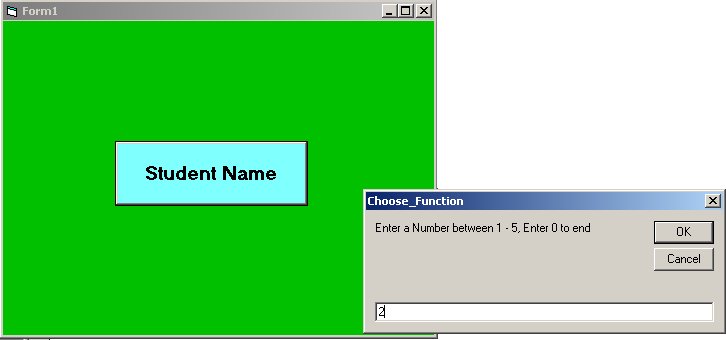
indexNo = InputBox("Enter a Number between 1 - 5, Enter 0 to end")

If indexNo >= 1 Then

Student = Choose(indexNo, "Peter", "Ram", "Mary", "Abdul", "Lee")

End If

If indexNo = 0 Then

End

End If

MsgBox ("Student Name is" & " " & Student)

End Sub
User Input
Output: Choose () Function
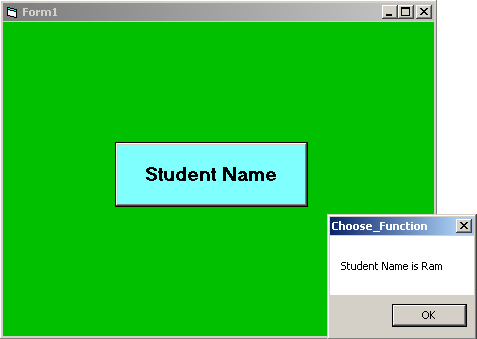
The output of the program is the name of the student whose index number matches in the Choose() function.
VB 6 – Switch Function
The Switch() function works similar to If-Then-Else construct, but in a different way. The function checks few conditions and if one of the condition is passed, then the statement corresponding to that condition is evaluated or displayed.
Syntax: Switch Function
The syntax of the Switch() function is given below.
Variable = Switch(condition 1, Value 1, condition 2 , Value 2,..., condition n, Value n)The switch statement goes through each condition and whichever evaluate to true, the value part is returned and assigned to a variable on left hand side.
Example Program: Switch Function
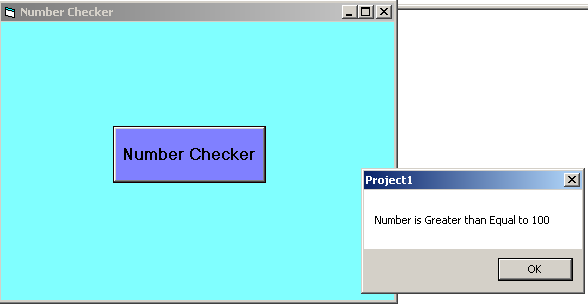
In this example, we are going to accept an input number, then check the number if it is greater than or equal to 100 or less than 100 and display the result.
Private Sub Command1_Click()
Dim number As Integer, Result As String
number = InputBox("Enter a Number")
Result = Switch(number < 100, "Number is Less than 100", number >= 100, "Number is Greater than Equal to 100")
MsgBox (Result)
End Sub
Input to Switch() Function
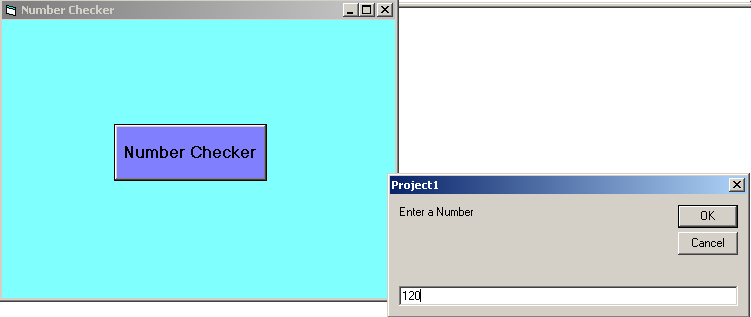
When the user enters a number, the program checks the number and display the result as follows.
Output – Switch() Function