JavaScript typeof operator
In JavaScript, the typeof operator can check primitive types which you learned in the previous post. Let’s find out the data types of primitive types using the typeof operator. The typeof operator shows the current data type of the variable when executed.
How to use <mark style="background-color:rgba(0, 0, 0, 0);color:#b20f0f" class="has-inline-color">typeof</mark> operator?
There are two ways to use this operator.
//Syntax #1
typeof <instance of the data type>;
//Syntax #2
typeof (<instance of the data type>);
Numbers
Numbers are integers, float type and NaN that we can check using typeof operator.
//check integers
var myInt = 43;
var myFloat = 34.53;
var myNaN = NaN;
console.log(typeof myInt);
console.log(typeof myFloat);
console.log(typeof myNaN);

//Output
"number"
"number"
"number"
String
Strings are types that are either enclosed within double quotes or single quotes. There are special characters which are inserted into a string using escape character(\).
//string type checking
var myStr = "Notesformsc";
var myStr2 = "Educa\tion");
console.log(typeof myStr);
console.log(typeof myStr2);
//Output
"string"
"string"
BigInt
The BigInt types are also number, but same as number because they comes with a suffix – n.
// Checking BigInt type
var myBI = BigInt(224);
console.log(myBI);
//Output
"bigint"
Boolean
Boolean value are only two – true or false. The result of a logical operation is also true or false.
//checking boolean values
var myBool = true;
var myBool2 = false;
console.log(myBool);
console.log(myBool2);
//Output
"boolean"
"boolean"
undefined
A variable is not created in JavaScript until it has a value of some type. The undefined is the default value of variables not initiated.
// variable declaration
var number;
console.log(number);
//output: undefined
// above variable is not created since not value assigned
number = 23.44; // now number is exist with a type "number"
console.log(number);
// output : "number"
In the next section, we have discussed about complex types such null, object, function, and array.
Complex Types
The complex types are the one which acts as a data structures or are structural types such as functions. The typeof operator does retrieve the type of such types, but it is not meaningful.
Objects are created from object() constructor and function are using the function() constructor. The function constructor is part of object constructor.
Each object has a prototype property in JavaScript that link to another object creating a chain of prototypes; therefore, typeof operator is not that helpful in checking the object and instead you can use instanceof operator to verify the prototype chain and inheritance of objects.
null
The null is almost like undefined, but with a small difference. The assignment of null means that the variable exists, where it does not exist in the case of undefined. The null has a type of “object” .
//variable declaration
var x;
x = null; // assigned null for empty variable
//checking type
console.log(typeof x);
//output: "object"
Object
As we mentioned earlier, object type can be constructed using Object constructor and its type is also object.
 var obj = new Object(); // constructor
obj = { name: "car", price: 1200000};
var arr = [23,45,55,66];
//checking type
console.log(typeof arr);
console.log(typeof obj);
//output:
"object"
"object"
Function
The function as mentioned earlier is a structural type constructed from function() constructor.
//function definition
function add()
{
    var A = 34 + 45;
}
//checking function type
console.log(typeof add);
//output : "function"
In the next post, you will start learning about various operators in JavaScript programming.
JavaScript Data Types
JavaScript is a loosely typed and dynamic language. Variable can be assigned or reassigned anytime. In JavaScript, there is no need to declare the type of variable like C/C++, Java,etc.You can assign a value directly. JavaScript also allows values called primitive types. These are well known types in all programming langauges.
Primitive Types are:
<mark style="background-color:rgba(0, 0, 0, 0);color:#c21e1e" class="has-inline-color">undefined</mark><mark style="background-color:rgba(0, 0, 0, 0);color:#c21e1e" class="has-inline-color">Boolean</mark><mark style="background-color:rgba(0, 0, 0, 0);color:#c21e1e" class="has-inline-color">Number</mark><mark style="background-color:rgba(0, 0, 0, 0);color:#c21e1e" class="has-inline-color">String</mark><mark style="background-color:rgba(0, 0, 0, 0);color:#c21e1e" class="has-inline-color">BigInt</mark><mark style="background-color:rgba(0, 0, 0, 0);color:#c21e1e" class="has-inline-color">Symbol</mark>
Special primitive type is <mark style="background-color:rgba(0, 0, 0, 0);color:#b71212" class="has-inline-color">null</mark>.
undefined
The <mark style="background-color:rgba(0, 0, 0, 0);color:#b71111" class="has-inline-color">undefined</mark> is a primitive type assigned to variables automatically when
- they are newly created, and nothing is assigned to them.
- They are formal argument of a function for which there is no actual argument.
You can check the type of a variable using the command – <mark style="background-color:rgba(0, 0, 0, 0);color:#a71313" class="has-inline-color">typeof <variable name></mark>
For example,
var x; //variable declaration
typeof x;
//Output : "undefined"
When an object does not exist, we use “<mark style="background-color:rgba(0, 0, 0, 0);color:#aa1717" class="has-inline-color">undefined</mark>“, however, when the object does exist and empty, use <mark style="background-color:rgba(0, 0, 0, 0);color:#c03a3a" class="has-inline-color">null</mark>. Therefore, <mark style="background-color:rgba(0, 0, 0, 0);color:#b90f0f" class="has-inline-color">null </mark>has exactly one value.
Boolean
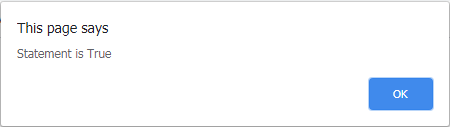
Boolean type has either true or false values. It is used in conditional statements and loops.
Example #1
bool x = True;
if(x)
{
   alert("Statement is True");
}
else
{
   alert("Statement is False");
}
Output #1
Number
Number in JavaScript is a double precision 64-bit floating point number. Therefore, 64-bits are used to represent integers, floats, double ,etc found in other programming languages such as C/C++. Java. The range of numbers are between  and
and  , that is, between
  and
and  .
.
We can check if a number falls between the maximum or minimum range  and .
and .
<mark style="background-color:rgba(0, 0, 0, 0);color:#b60d0d" class="has-inline-color">. Number.isSafeInteger()</mark><mark style="background-color:rgba(0, 0, 0, 0);color:#b60d0d" class="has-inline-color">. Number.MIN_SAFE_INTEGER</mark><mark style="background-color:rgba(0, 0, 0, 0);color:#b60d0d" class="has-inline-color">. Number.MAX_SAFE_INTEGER</mark>
The integer is a whole number, both positive and negative and does not contains any fractional components. However, the float and double values need more bits to represent the fractional component of the number. Also, numbers are not written without quotes. In other words, any number that is not enclosed using quotation marks is a number type in JavaScript.
Number type has symbolic values to represent:
<mark style="background-color:rgba(0, 0, 0, 0);color:#d61414" class="has-inline-color">. negative infinity(-Infinity),</mark><mark style="background-color:rgba(0, 0, 0, 0);color:#d61414" class="has-inline-color">. positive infinity(+infinity)</mark><mark style="background-color:rgba(0, 0, 0, 0);color:#d61414" class="has-inline-color">. NaN(Not a Number)</mark>
-0 and+0 is only integer with two signs and -0 == +0, the different is known when you divide by zero. Here 0 is same as +0.
For example,  and
and 
String
A sequence of characters used to represent textual information is called a string. A string is primitive type found in many programming languages.
In javascript, strings objects are use to represent primitive string. It is just a wrapper class.
In simple words, any character or group of character enclosed in double quotes or single quotes is called a string. Each character in the string has a index number that indicates its position within the string. The very first character has an index of 0. The length of the string is total number of characters in the string. Some of the characters that JavaScript support are “invisible” means when you type them no character will be printed on the screen. These special characters are used with escape character (\). Here is a list of special characters frequently used with escape character.
<mark style="background-color:rgba(0, 0, 0, 0);color:#b51010" class="has-inline-color">\" ( double quote)</mark><mark style="background-color:rgba(0, 0, 0, 0);color:#b51010" class="has-inline-color">\' ( single quote)</mark><mark style="background-color:rgba(0, 0, 0, 0);color:#b51010" class="has-inline-color">\\ ( backslash)</mark><mark style="background-color:rgba(0, 0, 0, 0);color:#b51010" class="has-inline-color">\b ( backspace )</mark><mark style="background-color:rgba(0, 0, 0, 0);color:#b51010" class="has-inline-color">\t ( tab )</mark><mark style="background-color:rgba(0, 0, 0, 0);color:#b51010" class="has-inline-color">\n ( new line )</mark><mark style="background-color:rgba(0, 0, 0, 0);color:#b51010" class="has-inline-color">\r ( carriage return)</mark><mark style="background-color:rgba(0, 0, 0, 0);color:#b51010" class="has-inline-color">\f (form feed)</mark>
Example #2
var str = "Notesformsc";         // string declaration
var str2 = "Educational Site";
var str3 = str + " " + str2;     // string concatenation
console.log(str3);
var number = "F" + 233;
console.log(number);
console.log(typeof(number));     //implicit type conversion
var str4 = " I\'ll do the job.";
console.log(str4);               //escape character to insert a single quote
Output #2
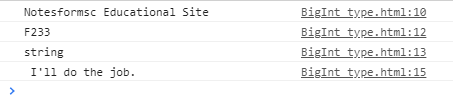
Note that all other types can be converted to string type implicitly in JavaScript except a few types.
BigInt Type
BigInt are those numbers that does not fall under the  or
or  and or .
There are two ways to represent the BigInt values
- use
<mark style="background-color:rgba(0, 0, 0, 0);color:#af0d0d" class="has-inline-color">n</mark>at the end of the integer<mark style="background-color:rgba(0, 0, 0, 0);color:#be0d0d" class="has-inline-color"> 9007199254740991n</mark> - or use the constructor
<mark style="background-color:rgba(0, 0, 0, 0);color:#ac2121" class="has-inline-color">BigInt()</mark>
Example #3
var x = 120;           //variable declaration
var p = BigInt(x);     //creating big int using constructor
alert("p =" + " " + p);              //output: 120n
Output #3

BigInt are not same as integers except when you compare them using logical operators, will get a proper boolean value.
Symbol Types
In JavaScript, a symbol is a primitive value whose data type is symbol. The function <mark style="background-color:rgba(0, 0, 0, 0);color:#b91414" class="has-inline-color">symbol()</mark> creates an anonymous unique value in JavaScript runtime environment when invoked.
Use of Symbol
It is used as an object property. The symbol can have optional description.
For example,
let sym1 = symbol( "foo"); // variable declaration
let sym2 = symbol( "foo"); // variable declaration
Description is “foo” for the symbol and it is unique.
if(symbol('foo") === symbol("foo")) //false
or
if( sym1 === sym2) // false
Function <mark style="background-color:rgba(0, 0, 0, 0);color:#b11717" class="has-inline-color">Symbol() </mark>As Constructor
The function symbol is incomplete constructor; therefore, it is not possible to use <mark style="background-color:rgba(0, 0, 0, 0);color:#ac0e0e" class="has-inline-color">new </mark>operator to create objects of type symbol.
let sym1 = new Symbol("foo") // will give type errorSymbols are new feature in ECMAScript 2015.
Auto-Conversion of Symbols
Implicit conversion to string is a builtin feature in JavaScript. You can auto-convert any data type in JavaScript except symbols. For example,
Example #4
var sym1 = Symbol('foo');
var p = "F" + sym1;
alert(sym1);//type error
Output #4
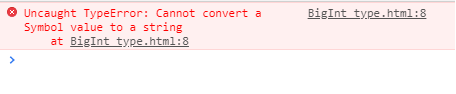
To convert symbols to strings, use the following
alert(sym1.toString());
Or you can output symbol description directly.
alert(sym1.description);
Example #5
var sym = Symbol('foo');
console.log(sym.toString());
console.log(sym.description);
Output #5

Global Symbol Registry
A global symbol registry holds a list of all symbols but it is not available to JavaScript Runtime Environement, instread there are two builtin methods
<mark style="background-color:rgba(0, 0, 0, 0);color:#c00c0c" class="has-inline-color">Symbol.for(tokenString); //returns a symbol value from registry</mark><mark style="background-color:rgba(0, 0, 0, 0);color:#b62222" class="has-inline-color">Symbol.keyFor(symbol value); //returns a tokeystring from the registry</mark>
Groups And Range Of Characters
In regular expression, sometimes we need to match a group of characters or a range of characters. These kind of expressions are written within a bracket notation. In this post, we will explore these kind of expressions with examples.
List of Range Expressions
The following table demonstrate the grouped expressions and their meaning.
| Expression | Meaning |
| a|b | Find either a or b in the string. |
| [abcd] | Match any characters within the bracket. |
| [a-e] | Match any character in the range [a-e]. |
| [^abc] | Match any character EXCEPT the given characters in the expression. |
| [^a-c] | Match any character EXCEPT the range of characters given in the expression. |
a|b
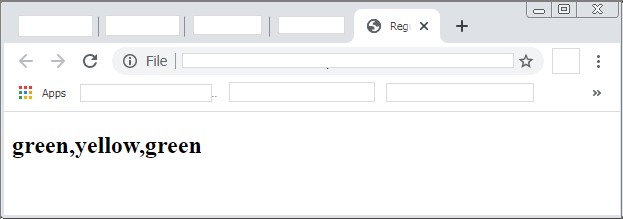
In this expression, the expression matches all instances of “a” and “b” and return the values.
Example #1
<h2 id="out"></h2>
<script>
     var aString = "The bag is green and the book is yellow. I wanted both to be green.";
     var value = aString.match(/green|yellow/g);
     document.getElementById("out").innerHTML = value
</script>
Output #2
[abcd]
In this type of expression, any character from the range [abcd] is matched and if there is match character is returned successfully.Consider the following example.
Example #2
<h2 id="out"></h2>
<script>
var aString = "Brisbane and Thailand";
var value = aString.match(/[abcd]/g);
document.getElementById("out").innerHTML = value;
</script>
The characters of the string is matched with each character of the pattern and the search is global; therefore, whole of the string is searched for all instances of characters given in the pattern.
Output #2
![Output - [abcd]](https://notesformsc.org/wp-content/uploads/2020/09/abcd-regex.png)
In the output, the characters – “b”,”a” match from “Brisbane”, “a”,”d” matches from “and”, the characters “a”,”a”,”d” matches from “Thailand”.
[a-e]
The expression [a-e] is similar to [abcd] and all character between a-e are matched and returned.
Example #3
<h2 id="out"></h2>
<script>
var aString = "Great Britain And Scotland";
var value = aString.match(/[a-e]/g);
document.getElementById("out").innerHTML = value;
</script>
Output #3
![Output - [a-e]](https://notesformsc.org/wp-content/uploads/2020/09/a-e-regex.png)
[^abcd]
This expression will match everything except the characters given in the bracket.
Example #4
<h2 id="out"></h2>
<script>
var aString = "Chocolate";
var value = aString.match(/[^abcd]/g);
document.getElementById("out").innerHTML = value;
</script>
The code will search the characters of the string and match all that is NOT in the expression.
Output #4
![Output - [^abcd]](https://notesformsc.org/wp-content/uploads/2020/09/not-abcd-regex.png)
[^a-e]
The expression means match all characters of the string except the one given in the expression.
Example #5
<h2 id="out"></h2>
<script>
var aString = "Spiderman";
var value = aString.match(/[^a-d]/g);
document.getElementById("out").innerHTML = value;
</script>
The script above, match all the characters except that are in the expression. The only character which is skipped is “d”,”a” in the word – “Spiderman”. See the output below that prints all the character other than “d” and “a”.
Output #5
![Output - [^a-d]](https://notesformsc.org/wp-content/uploads/2020/09/Not-a-e-regex.png)
Capturing Groups
So far we have seen matching individual characters from the string. However, sometimes we need to capture a group of characters from the given string. Consider the following example.
Example #6
var myStr = "Today is a very good day daddy";
var value = myStr.match(/da+/ig);
alert(value);
All characters that has ‘d’ followed by one or more ‘a’ will be captured, but we want to capture all instance of ‘da’ group.
Output #6
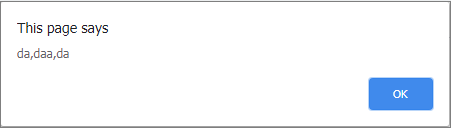
The output shows that the expression works correctly and capture the group “da” as long as there are no consecutive ‘a’s. Therefore, we change the script and use group within parenthesis ( and ) to get the desired instances of sub-string. We rewrite the same script again. See the example below.
Example #7
var myStr = "Today is a very good day daddy";
var value = myStr.match(/(da)+/ig);
alert(value);
The regular expression can be translated to ” find all instances of the group “da” in the string ignoring cases”.
Output #7
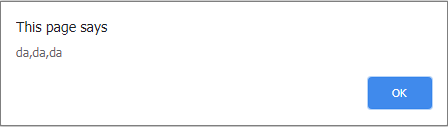
The output shows all the instances of “da” that get stored in the variable “value”. The variable “value” is not an array of these values. We can use the index to call any particular value just as you fetch a value from JavaScript array.
Example #8
alert(value[1]);Output #8
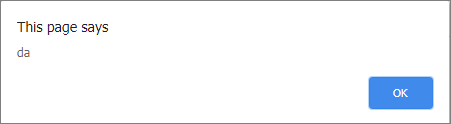
We can use index to get these individual values.
Named Groups
Since it is difficult to track the index numbers generated by the capturing group. We can use named capturing groups. It simply means capture all groups into a .group object of match(). We can easily understand this with an example.
 let str = "Enter Firstname: John, Enter Lastname: Rambo";
 let name = str.match(/Enter Firstname: (?<first>\w+), Enter Lastname: (?<last>\w+)/);
 console.log(name.groups);
The script above will capture the first name and last name and each of the group has label associated. If we check the .groups property of name variable. Note that the groups property is an object with key-value pairs. The value of the .group property are:
{ first: "John", last: "Rambo" }Here is the code for the example program;
Example #9
<!DOCTYPE html>
<html>
<head>
     <title> Named Capturing Group</title>
     <meta charset="utf-8"/>
</head>
<body>
<h4><u>Named Group</u></h4><br>
<h3 id="comp"></h3>
<script>
      let str = "Enter Firstname: John, Enter Lastname: Rambo";
      let name = str.match(/Enter Firstname: (?<first>\w+), Enter Lastname: (?<last>\w+)/);
      document.getElementById("comp").innerHTML  = "Hi , My name is" + " " + name.groups.first + " " + name.groups.last;
</script>
</body>
</html>
Output #9
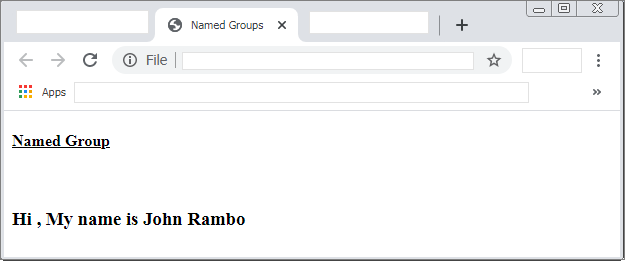
There are also non capturing group. We will discuss more about capturing groups in future articles.
Regular Expression Flags
In the previous article, you learned about regular expression being pattern of search. Regular expression uses flags that are optional and perform searches that are global or case-insensitive. You can use these searches separately or together to do search.
List of Flags
Here is a list of flags commonly used with regular expressions.
| Flag | Meaning |
| i | case-insensitive |
| g | global search |
| m | multi-line search |
| u | treat a pattern as Unicode code |
| s | A.B is a pattern where any character is allowed instead of “dot” except “\n”. s flag allows even |
| y | “sticky” search, means start from a current position in the string. |
The syntax to use a pattern with flags is as follows.
/pattern/flagsi – Case insensitive
The i flag is case-insensitive and ignore any upper or lowercase text for string search. For example, A or a are same in this search.
Example #1
var myStr = " He is very intelligent person and he reads lot of books";
var value = myStr.match(/he/i);
alert(value);
Output #1
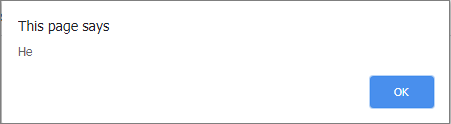
In the example above, the i flag will match with “He” and ignore the capital “H” immediately. Therefore, pattern match is successful.
g – Global
Usually the search pattern will stop right after the first match, but you can continue the search for whole string if the global flag is used. You may also use this flag with other flags such as i.
Example #2
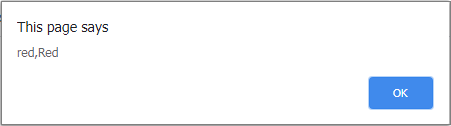
var myStr = " The red van is parked around the corner. I like Red vehicles like that only.";
var value = myStr.match(/red/ig);
alert(value);
The search does not stop at the first instance of “red” and also, it is case-insensitive. Finally, all word that spell “red” are matched successfully.
Output #2
m – multiline
When the sting span multiple line then to search a sub-string the pattern can include the m flag with other flags.
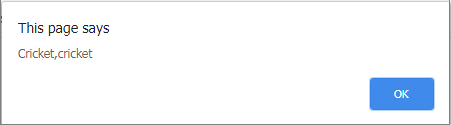
var myStr = " Cricket is a great sport. I play cricket
regularly and our team win matches";
var value = myStr.match(/cricket/igm);
alert(value);
The string about is started from a new line to complete the sentence. The search in this case could not find anything assuming that the line is incomplete. Therefore, a m flag will allow it to complete the search even in the next line.
Output #3
The rest of the flags will be discussed in more details when we talk about character classes.
Regular Expression Basics
The regular expression is sequence of characters that makes a pattern. The pattern is used for searching text in data. You can create a simple pattern or a complex regular expression in JavaScript.
The regular expression does two kind of work – search and replace text using several of available string methods.
Syntax
The regular expression has a very simple syntax as given below.
/pattern to be matched/ flags or modifiersConsider the following example to understand how it works.
Regular expression example #1
var firstExp = /brown/iThe expression is stored in the variable firstExp. The /brown/ is the pattern that you will search in the string. The i is a modifier that instructs the search to be case-insensitive. That is, doesn’t matter if the pattern is “BROWN” or “brown“.
RegExp Methods
The Regexp object is regular expression object used to match text with pattern. There are several ways to create this object which we will see later. The RegExp object uses two methods:
- exec()
- test()
Regular expressions are used with the above methods and few other string methods as listed below.
- match( ) – returns an array of all matches or null if not match found.
- matchAll( ) – returns an iterator including capturing group.
- search( ) – test for a match and return the first index or -1 if not found.
- replace( ) – find the match and replace the sub-string with another sub-string.
- replaceAll( ) – find all the matches and replace the sub-string with another sub-string.
- split( ) – use regex or a fixed string to break a string into array of sub-string.
Of these methods, search() and replace will be discussed next.
Searching a string
There are two ways to search for a string within another string.
- search with a string
- search with regular expression
Now we shall see examples of both these methods.
Search with string
Suppose we want to search for word -“red” in a string.
Regular expression example #2
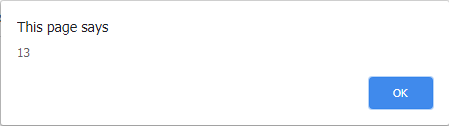
var myString = "This cake is red.";
var value = myString.search("red");
alert(value);
Output #2
search with regular expression
The second method of search uses a regular expression instead of a direct search. Consider the example below.
Regular expression example #3
var myStr = "This is a orange car.";
var value = myStr.search(/orange/);
alert(value);
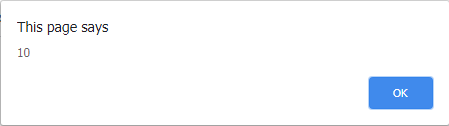
The string search will match the pattern with the string and find its location.
Output #3
Replacing a string
Similar to search, you have two ways to do the search and replace which are as follows.
- search with string and replace the sub-string.
- search with regular expression and replace the sub-string
The replace () function is used to search and replace a sub-string from the string.
Search with string and replace
In the first method, the replace () method will be given two strings – one search string and another string to replace the search string.
Regular expression example #4
var myStr = "The ball is green.";
var value = myStr.replace("green","red");
alert(value);
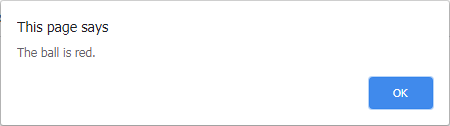
In the example script above, the color “green” is search string and the color “red” is the replacement string. If there is a match, the search string will get replaced. However, only one word get replaced, other instances of “green” remain as it is.
Output #4
Search using regular expression and replace
The second method of search and replace is using a regular expression instead of string.
Regular expression example #5
var myStr = "This bag is yellow";
var value = myStr.replace(/yellow/,"Orange");
alert(value);
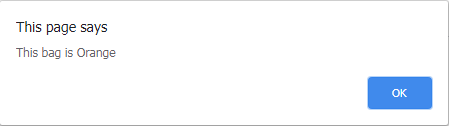
The search pattern will for “yellow” and replace it with the color “orange“. Only one instance of yellow is replaced, other yellow in the string will remain same. If you want to replace all instances then regular expression allows you to use flags or modifiers.
Output #5
Search with match() method
The match ( ) method search for a string and if there is match it will not return the position but return the matched string itself. With regular expression flags or modifiers you can return all instances of a search string from a text.
Regular expression example #6
<!DOCTYPE html>
<html>
<head>
     <title>Regular expression - match() method</title>
     <meta charset-"utf-8">
</head>
<body>
     <h2 id="demo"></h2>
     <script>
          var myStr = "This bag is yellow";
          var value = myStr.match(/bag/);
          document.getElementById("demo").innerHTML = value;
     </script>
</body>
</html>
In the example above, we search for sub-string “bag” and when a match is found, it is stored in the variable value. The value of variable is output to HTML document.
Output #6
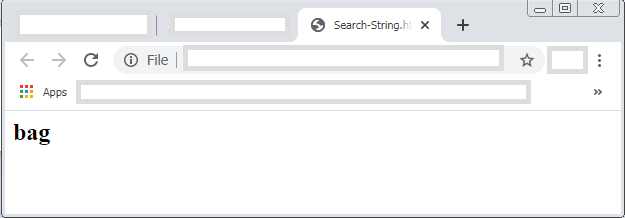
Therefore, the match() method is useful when we need to content of the search string, rather than the position. Another method to fetch the content from a string is split() method.
Split () Method
The split() method is a string method that breaks a string into array of characters or words. You can visit the following link to understand the working of split() method – string.prototype.split().
JavaScript Break And Continue
Sometimes you want to terminate a loop in the middle and not let the loop terminate after all iterations have exhausted. The JavaScript break statement will terminate a loop, switch block or any other conditional block with or without label.
Labeled Statement
The labeled statement is an identifier for a statement or a block that can be referred anywhere within the program. For example, the general syntax and example is given below.
//Syntax
label name :
     statements;
//Example
condition_1 :
  if( x > 0){
           x = x+ 10;
}
That label condition_1 identifies the if block and can be used to refer back to the if-block.
How to use break statement
There are two ways to use break statement.
- Without label
- With label
Without Label
If you use break without any label then it will terminate the innermost blocks such as for, while, do-while, switch, if and transfer the control to parent block or to the next statement. Consider the first example where break is used with a single for loop.
Example #1
<!DOCTYPE html>
<html>
<head>
     <title>break Example</title>
</head>
<body>
     <h3> break Statement Example</h2>
     <p id="out"></p>
     <script>
     // Finding a character in a string
     var my_string = "NOTESFORMSC";
     for (let i = 0; i <= my_string.length; i++)
     {
          if (my_string [i] == "M")
          {
               document.getElementById("out").innerHTML = "Item Found At Position" + "=" + i;
               //Break statement to come out of loop
               break;
           }
     }
     </script>
</body>
</html>
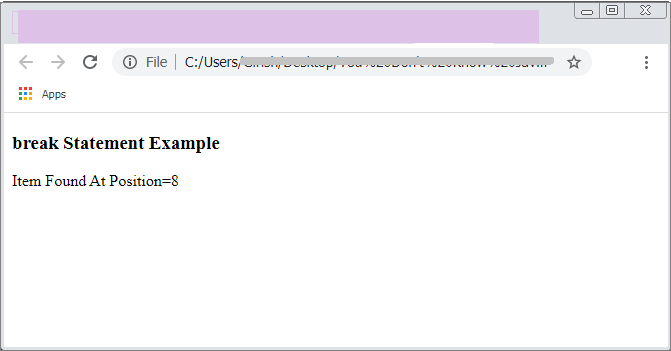
As soon as the program finds a matching character it will execute the break statement and terminate the loop. This kind of break is without any label and work on the current loop where it resides.
Output #1
In the next example you will see the break statement in the innermost loop or nested loop. The break statement in such cases will transfer the control back to the parent loop automatically.
Example #2
<!DOCTYPE html>
<html>
<head>
<title>Break Innermost Loop Example</title>
</head>
<body>
     <h3> Break Innermost Loop Example</h2>
     <p id="out"></p>
     <script>
     for(var i = 0; i <= 5 ; i++)
     {
          for( var j = 1; j <= 10;j++)
          {
               if( j == 4)
               {
                    document.getElementById("out").innerHTML +=  j + " " + "Inner Loop" + "<br>";
                    break;
               }
          }
               document.getElementById("out").innerHTML +=  i + " " + "Outer Loop" + "<br>";
      }
</script>
</body>
</html>
Output #2
The above program is very simple and it consists of two loops – an inner loop and an outer loop. The outer parent loop count from 0 to 5 and the inner loop counts from 1 to 10. Each iteration of parent loop we have a condition for the inner loop, that is, the inner loop will break if the count reaches 4. The transfer of control goes back to output loop and the next iteration starts.
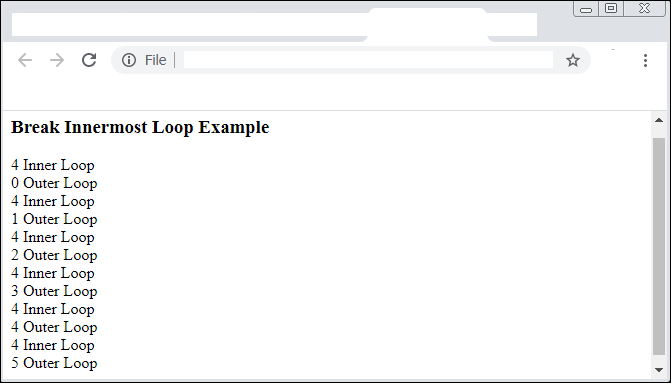
In the figure above, the inner loop cannot print beyond 4 because of the break, but outer loop continues to print new numbers. Also, break statement is executed for each iteration of outer loop.
Break With Label
Break statement can jump to a labeled block and terminate it successfully. This is also a method employed in Java programming. The syntax to use break with label is given below. Now consider our previous example with label.
Example #3
<!DOCTYPE html>
<html>
<head>
     <title>Break Innermost Loop Example</title>
</head>
<body>
     <h3> Break Innermost Loop Example</h2>
     <p id="out"></p>
     <script>
     myloop:
     for (var i = 0; i <= 5 ; i++)
     {
          for ( var j = 1; j <= 10;j++)
          {
               if ( j == 4)
               {
                 document.getElementById("out").innerHTML +=  j + " " + "Inner Loop" + "<br>";
                 break myloop;  // breaks out of both inner loop and first iteration outer loop
               }
           }
           document.getElementById("out").innerHTML +=  i + " " + "Outer Loop" + "<br>";
     }
</script>
</body>
</html>
Output #3
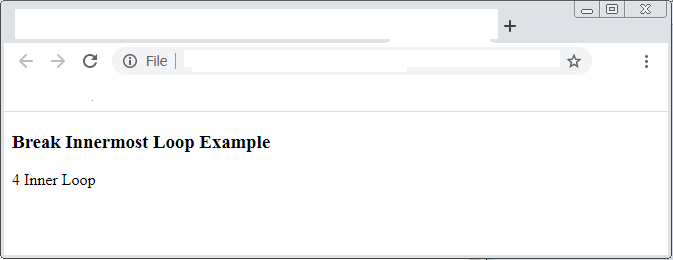
In the example above, the outer loop has a label and the inner uses that label to terminate the loop. The entire loop collapse right in one iteration and only inner loop prints the output.
Switch Statement
The switch-case probably make the best use of break statement. There are one break for every case this block. Consider the following example.
Example #4
<!DOCTYPE html>
<html>
<head>
     <title>Break in Switch-Case Example</title>
</head>
<body>
     <h3> Break in Switch-Case Example</h2>
     <p id="out"></p>
<script>
     var choice = prompt("Enter a choice between 1-- 4 !");
     switch(Number(choice))
     {
          case 1:
             document.getElementById("out").innerHTML = "Choice was Milk";
             break;
          case 2:
             document.getElementById("out").innerHTML = "Choice was Water";
             break;
          case 3:
             document.getElementById("out").innerHTML = "Choice was Juice";
             break;
          case 4:
             document.getElementById("out").innerHTML = "Choice was Icecream";
             break;
          default:
             document.getElementById("out").innerHTML = "Wrong Choice !";
          }
     </script>
</body>
</html>
Output #4
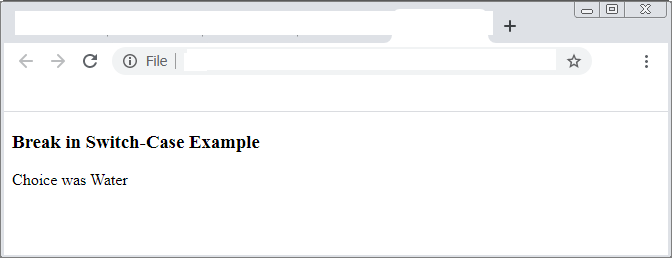
In the program above, the user supply the input through JavaScript prompt and then it converted to number using Number() function. The input number is compared with each case, if the case matches, the output is given. The script will exit the switch block right after the break because we don’t want to match with other cases. Therefore, it is best to break the entire block.
How to use continue statement ?
The continue is like break with a difference that it will skip the current iteration when a condition is met. Consider the following example.
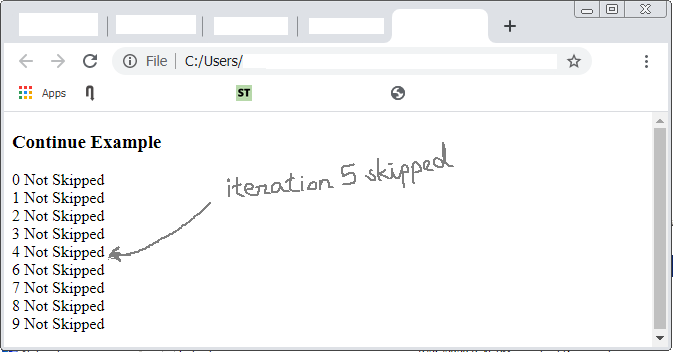
The output above clearly shows that due to continue the iteration 5 is not printed as output text. The loop was not terminated in this case but simply an iteration was skipped.
References
- W3schools.com. 2020. Javascript Break And Continue. [online] Available at: <https://www.w3schools.com/js/js_break.asp> [Accessed 29 August 2020].
- MDN Web Docs. 2020. Break. [online] Available at: <https://developer.mozilla.org/en-US/docs/Web/JavaScript/Reference/Statements/break> [Accessed 29 August 2020].
- POLLOCK, J., 2009. JAVASCRIPT. 3rd ed. McGraw-Hill Education (India) Pvt Limited: INDIA PROFESSIONAL.
- Javascript Bible. (n.d.). (n.p.): Wiley-India.
JavaScript Do-While Loop
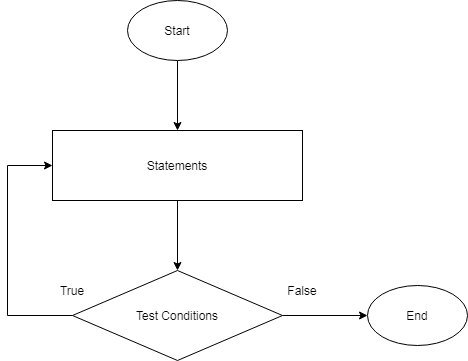
The JavaScript do-while loop is similar to the while loop about which you studied earlier. Instead of testing the condition at the beginning of the loop, a do-while loop test the condition after the loop body. This guarantees that the loop will execute at least once.
Syntax – do-while
Here is the syntax of the do-while loop.
do
{
      statements;
}while(test conditions);
Difference Between while( ) and do-while( )
The while loop is more popular which programmers than the do-while loop because it is very rare that you will need the loop to execute first and then test the conditions. The primary difference between while loop and do-while are two:
- do keyword at the beginning of the loop body
- the while condition in do-while ends with a semi-colon
The reason do-while ends with semi-colon is that the loop ends with a condition and not with } flower brace.
Example
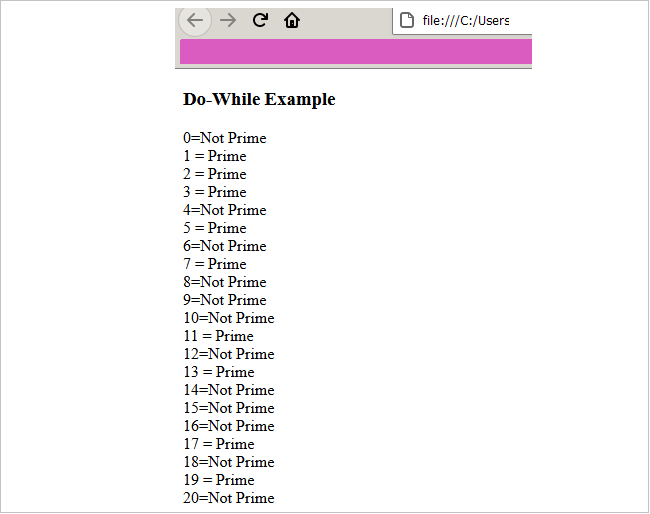
In this example, we will test first 10 numbers for prime and if the number is prime we write prime else we write not prime.
<!DOCTYPE html>
<html>
<head>
     <title>Do-While Loop Example</title>
     <meta charset = "utf-8">
</head>
<body>
      <h3> Do-While Example</h2>
      <p id="out"></p>
      <script>
      var i = 0;
      do
      {
           if ( (i % 2) == 0 || (i % 3) == 0 || ( i % 5) == 0 || (i % 7)== 0 )
           {
                if ( (i == 2) || (i == 3) ||( i == 5) || (i == 7))
                {
                     document.getElementById("out").innerHTML += i + " = " + "Prime" + "<br>";
                }
                else
                {
                     document.getElementById("out").innerHTML += i + "=" + "Not Prime" + "<br>";
                }
           }
           else
           {
                     document.getElementById("out").innerHTML += i + " = " + "Prime" + "<br>";
           }
           i++;
     }while(i <= 20);
     </script>
</body>
</html>
Output – do-while
In the program above, we started the loop with zero and there is not test to enter the do-while loop. Let us see how the body of the loop executes step-by-step.
Entering Loop
There is not condition to enter the loop and the loop start with i = 0. Then the first test is performed on the loop variable i.
Body of the loop
Test 1 ( is i divisible by 2, 3, 5, or 7 ?)
The first test program does is to check whether i is divisible by 2, 3, 5, or 7 by dividing the i with each number ( that is, 2, 3, 5, 7) and check if the remainder is 0. A number is divisible if the remainder is 0 and that number is not prime. The test 1 result in true and program enter the first nested if block.
Nested If Block
In the nested if block all numbers have a remainder 0 , even the 2, 3, 5, or 7 . But these numbers are prime while others are not prime. Therefore, we put a condition that if 2, 3,5 or 7 then output is “Prime” else it is “Not Prime“. We successfully excluded 2,3,5, and 7 from all non primes.
Test 1 is False
If the test1 fails and numbers are not perfectly divisible by 2, 3, 5, or 7 then it has to be a prime number. We simple output the number and “Not Prime”.
Terminating The Loop
The final step in the do-while loop is to exit the loop. The loop execute for number of times given in the final while (). This condition is tested for each iteration. The final iteration is false and loop is terminated automatically.
References
- Powers, S., 2010. Javascript Cookbook. 1st ed. Farnham: O’Reilly.
- Flanagan, D., 2002. Javascript. 3rd ed. Sebastopol, CA: O’Reilly.
- Simpson, K., 2015. Up & Going. Beijing [u.a.]: O’Reilly.
JavaScript While Loop
The JavaScript version of while loop is similar to other programming languages such as C++, Java. The loop takes initial value, checks for condition, and execute the loop and finally increment the loop.
The section below describe the syntax and each component of the JavaScript while loop.
Syntax – <mark style="background-color:rgba(0, 0, 0, 0);color:#b81414" class="has-inline-color">While</mark> Loop
The syntax to write a JavaScript while loop is given below.
//initial value
     var i = 0;
// test condition
while( i <= 10)
{
//statements to execute
     var sum = 0;
     var sum = sum + i;
     console.log(sum);
}
Initial value
The initial value is the one which holds the value of the loop variable i. Once the test condition is true for the initial value , the loop start to execute statements within the loop block. The initial value is either 1 or 0 most of the time.
Test Condition
The test condition checks the value of the loop variable i and if the value compared with test condition gives a boolean true , the loop iteration continues to execute a block of statement enclosed within { and }.
Suppose the test condition is false, then the loop terminates successfully. Therefore, JavaScript programmers must allow sufficient range of values to execute for the program. The program must not terminate abruptly in the middle. To write a test conditions you must use available logical and comparison operators in JavaScript. These are
<mark style="background-color:rgba(0, 0, 0, 0);color:#b51111" class="has-inline-color">greater than ( >)</mark><mark style="background-color:rgba(0, 0, 0, 0);color:#b51111" class="has-inline-color">less than ( <)</mark><mark style="background-color:rgba(0, 0, 0, 0);color:#b51111" class="has-inline-color">greater than or equal to (>=)</mark><mark style="background-color:rgba(0, 0, 0, 0);color:#b51111" class="has-inline-color">less than or equal to (<=)</mark><mark style="background-color:rgba(0, 0, 0, 0);color:#b51111" class="has-inline-color">equal to (==)</mark><mark style="background-color:rgba(0, 0, 0, 0);color:#b51111" class="has-inline-color">equal to ( strict) (===)</mark><mark style="background-color:rgba(0, 0, 0, 0);color:#b51111" class="has-inline-color">not equal to (!=)</mark><mark style="background-color:rgba(0, 0, 0, 0);color:#b51111" class="has-inline-color">not equal to (strict) ( !==)</mark><mark style="background-color:rgba(0, 0, 0, 0);color:#b51111" class="has-inline-color">or (| |) - comparison operator</mark><mark style="background-color:rgba(0, 0, 0, 0);color:#b51111" class="has-inline-color">and (&&) - comparison operator</mark><mark style="background-color:rgba(0, 0, 0, 0);color:#b51111" class="has-inline-color">not (!) - operator</mark>
The result of test operation is always boolean – True or False.
Increment value
The increment value is an expression such as i++ or j++ which expands to i = i +1 or j = j+1; therefore, by default we use 1 value to increment, but depending on the script we can increase it. For example, to skip one iteration use j = j + 2.
Example
In the example below we will add all even numbers from 0 to 10 and display the output.
<!DOCTYPE html>
<html>
<head>
        <title>While Loop Example<title/>
<script>
      var j = 0;
      var sum = 0;
      while ( j < 11)
    {
            sum = sum + j;
            console.log(sum);
            j=j+2;
     }
<script/>
<head/>
<body>
            <h3> While  Loop Example<h2/>
<body/>
<html/>
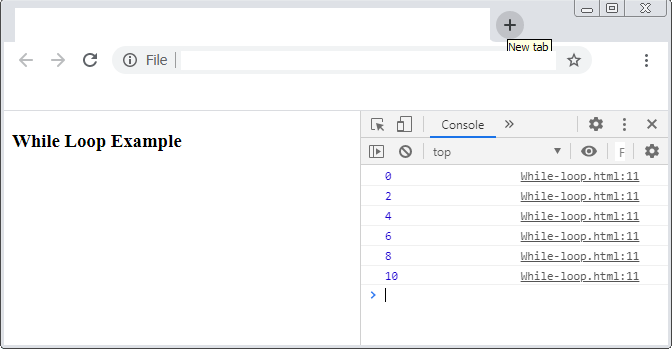
The program starts with a initial value of 0 and test whether the loop variable j has become equal to 11 or not. If the test condition is true then execute the body of the loop. The skip all the odd values and only adds even numbers because of the increment value of 2.
Next, a variable sum is declared and initialized with 0. With each iteration, the value of j is added to sum and output is printed to the console. Therefore:
when j =0 ,  sum = 0 + 0 = 0
when j = 2,  sum = 0 + 2 = 2
when j = 4,  sum = 2 + 4 = 6
when j = 6,  sum = 6 + 6 = 12
when j = 8,  sum = 12 + 8 = 20
when j = 10, sum = 20 + 10 = 30
Output – <mark style="background-color:rgba(0, 0, 0, 0);color:#c11919" class="has-inline-color">while </mark>loop
The output of the program in browser console is given below.
Loop Termination
There are different ways while loop terminates. The common case is a wrong initial value so the while loop never execute. If the loop initial value and test value are not compared properly resulting in a false, then while loop will not start even for once.
There two cases for final iteration comparison.
case 1:( i < 10 )
In the above case, the loop executes 9 times because it asks for a loop variable value less than 10. You have to carefully see the relational operator (<) and understand what it means.
case 2: ( i <= 10)
In case 2, the loop executes for ten times because after it has completed 9 iteration, the last iteration compared the equality of the values. This will result in addition iteration.
In the next article, we will talk about JavaScript do..while loop which works in a similar manner.
References
- W3schools.com. 2020. Javascript While Loop. [online] Available at: <https://www.w3schools.com/js/js_loop_while.asp> [Accessed 28 August 2020].
- Thau, D., 2007. The Book Of Javascript. San Francisco: No Starch Press.
- Powers, S., 2010. Javascript Cookbook. 1st ed. Farnham: O’Reilly.
JavaScript For Loop
JavaScript for loop is similar to the for loops in other programming languages like C, C++, and Java. The for loop takes and initial value, checks for terminating conditions, and increment the iteration as long as the continue is true.
This article we will talk about different for loop structures in JavaScript. Some of them are different from other programming languages in the sense than JavaScript also supports object-oriented programming.
Syntax – <mark style="background-color:rgba(0, 0, 0, 0);color:#a40f0f" class="has-inline-color">for </mark>loop
The syntax for the for loop is given below. It is same as other programming languages. We will discuss about each part in a moment.
for(initial value; conditional statement ;increment value)
Initial value
The initial value is to start the first iteration which can start from either 0 or 1, whichever is required in the script. JavaScript allows you to declare variable in the place of initial value. So that you can declare a variable just for the loop. For example
for (let j = 0; j < 10; j++)
Not only integer j is declared, but also initialized with a suitable value.
Conditional Statement
The conditional statement checks if the value of loop variable results in a true or false. Therefore, output of the conditional statement is boolean and that decides whether to run the next iteration of not. The loop continues as long as the condition remains true. It will terminate the for loop when condition becomes false.
Which statement to execute?
Assume that the for loop is true and can execute the body of the loop. Then there are two possibilities to execute statements.
- execute one or more statements directly.
- or execute a block of statements enclosed within { and }.
Here is an example that shows you both the cases.
//Executes a single statement
for(let i = 0;i < = 10; i++)
    console.log(i);
//Executes a block of statements
for(let j = 0; j < 10; j++)
{
    let sum = 0;
    sum = sum + j;
    console.log(sum);
}
Increment Value
The for loop is incremented by one after each iteration because the increment value is an self incrementing expression. The expression j++ is equivalent to j = j + 1. Therefore, the value of expression is self incremented after each iteration as a value of 1 is added to the previous value of variable j.
If necessary , you may change the default increment value to more than one. For example, j = j + 2 will skip one iteration after current execution. Such a structure is common in scripts.
Example #1
// This script will print numbers to the console
for( let i = 1; i < = 10; i++)
{
    console.log(i);
}
The loop starts from 1 and end with printing value of 10 because i becomes 11 which is greater than condition i <= 10. Here is the output of the script.
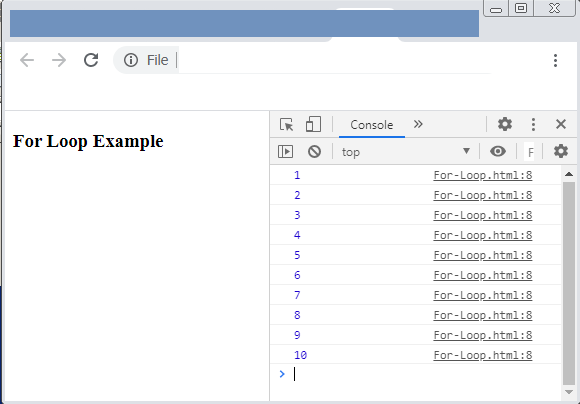
The output shows 10 numbers printed by each iteration of the script.
The <mark style="background-color:rgba(0, 0, 0, 0);color:#a81313" class="has-inline-color">For ... In</mark> Loop
Sometimes you need to loop through objects that have key-value pairs. The for … in loop can loop through such enumerable non-symbol properties , however, there is not guarantee that it will return values based on particular indexes. That is the reason for … in should not be used with array objects in JavaScript where index is important for each elements.Use for loop for arrays where order of access is maintained. To iterate through array object like for…in there is Array.prototype.forEach() method and for … of loop exists.
Syntax – <mark style="background-color:rgba(0, 0, 0, 0);color:#b51414" class="has-inline-color">for .. in</mark>
for ( variable in enumerable object)
{
      statements;
}
Example #2
<html>
<head>
     <title>For ... in Loop Example<title/>
     <script>
          let fruits = {A: Banana, B: Orange, C: Pineapple, D: Mango};
          for (item in fruits)
          {
               console.log(item + '=' + fruits[item]);
          }
     <script/>
<head/>
<body>
In the above script, the for … in check each item and get the item key and item value printed in the browser console successfully. The output of the program is given below.
Output – <mark style="background-color:rgba(0, 0, 0, 0);color:#bb1616" class="has-inline-color">for ... in</mark>
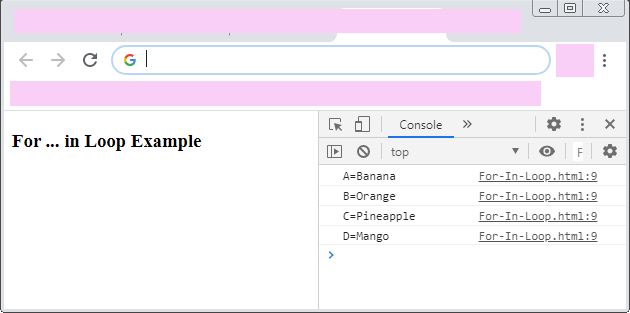
Now the key cannot be a symbol that is what non-symbolic properties mean. Suppose we change the key value of ‘Banana’ and run the loop again. It will produce and error shown below.
For-In-Loop.html:6 Uncaught SyntaxError: Unexpected token '&'
The error was generated because we tried to use an & instead of key value for “Banana”. To avoid situations like this or to use a symbol make sure you change it to string explicitly by enclosing it within quotes – “&”.
The <mark style="background-color:rgba(0, 0, 0, 0);color:#b71616" class="has-inline-color">For ... Of</mark> Loop
The for … of loop is specially built for iterating over iterable objects such as
- Array
- String
- Array like objects such as arguments of function or NodeList from DOM tree
- TypedArray
- Map
- Set
- User-defined iterables
The for … of loop goes through list of properties ( that are values ) of an iterable object. In other words, it returns values after iteration. In the case of for..in the loop iterates the enumerable properties and not elements.To learn about iterables in detail visit JavaScript data types section.
Syntax – <mark style="background-color:rgba(0, 0, 0, 0);color:#b31010" class="has-inline-color">for ... of</mark> loop
The syntax for the for … of loop is given below.
for ( variable of iterable object )
{
     statements to execute;
}
The Variable
Each iteration get a different property ( values) which is assigned to the variable. It is possible to declare a variable in the loop using keywords such as let, var, and const. You may use this variable to manipulate the values successfully.
Iterable object
The iterable objects are special type of objects that define iteration behavior used in for .. of loop. They all implement a method called Symbol.iterable. The JavaScript built-in objects like array, strings uses this Symbol.iterable by default.
Example #3
<html>
<head>
     <title>For ... Of Loop Example<title/>
     <script>
          let iterable_numbers = [23, 44, 53, 66];
          for (const val of iterable_numbers)
          {
               console.log(val);
          }
     <script/>
<head/>
<body>
     <h2>For .. Of Example<h2/>
<body/>
<html/>
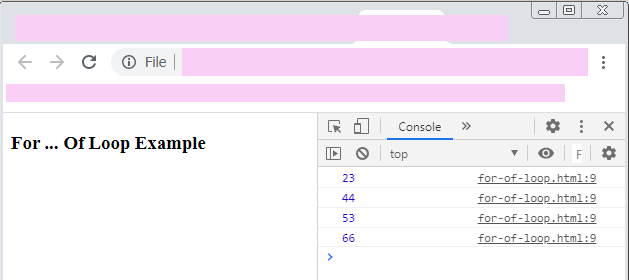
The for .. of loop iterates over each element of the array and display it.
Output – <mark style="background-color:rgba(0, 0, 0, 0);color:#b31818" class="has-inline-color">for .. of</mark>
The <mark style="background-color:rgba(0, 0, 0, 0);color:#a80f0f" class="has-inline-color">Array.Prototype.forEach ( )</mark> Method
The forEach () method is of class array and help to iterate over each element of the array. This method needs a function that can access to the currentvalue, array index, and the array object. The index and the array object are optional.
Syntax – <mark style="background-color:rgba(0, 0, 0, 0);color:#b50a0a" class="has-inline-color">forEach ()</mark>
array.forEach(function(currentvalue,index, arr), thisvalue));
Example #4
In this example, you will execute a print function for each element of an array. The function has access to the current value , the array index, and the array object. The function can access one or more parameters as per the requirement.
<!DOCTYPE html>
<html>
<head>
        <title>forEach ( )  Loop Example<title/>
<script>

     //First you must declare the array
     num = [4,5,6,88];

     //Next use the for-each loop
     num.forEach(print);

     //Now declare this function name
     function print(item, index)
     {
          console.log(item, index);
     }
<script/>
<head/>
<body>
           <h3> forEach ( )  Loop Example<h2/>
<body/>
<html/>
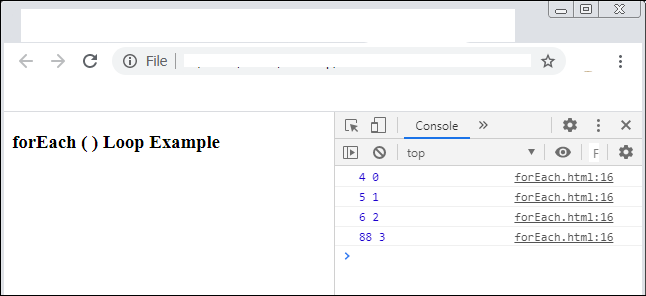
The function will take two parameters for each element in the array and then print them to the console. Here is the output from the function.
Function Variable
If you only want to access a single element then you can write a shortcut function and print that element using forEach() loop.
Example #5
<!DOCTYPE html>
<html>
<head>
        <title>forEach ( ) Shortcut<title/>
<script>
         // declare the array first
             array = [23, 354, 32, 251 ];;
          // now use the for-each loop
          array.forEach(print => console.log(print));
 <script/>
<head/>
<body>
           <h3> forEach ( )  Shortcut<h2/>
<body/>
<html/>
Output – <mark style="background-color:rgba(0, 0, 0, 0);color:#af0d0d" class="has-inline-color">forEach( ) </mark>Shortcut
there is no need to define the print function which is the function variable now and the function will print each element from the right.
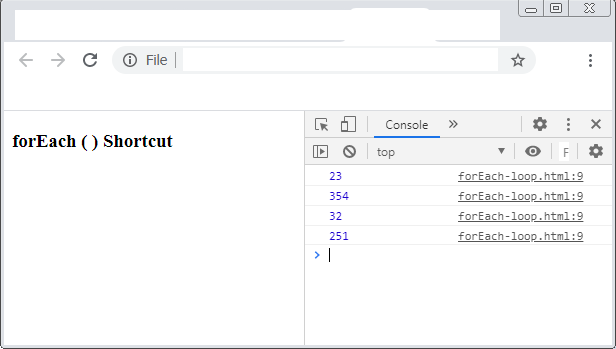
A function variable is a small function or shortcut function. You will learn more about function in JavaScript function section. Note that the function variable print access only one parameter – the currentvalue.
References
- Javascript.info. 2020. Iterables. [online] Available at: <https://javascript.info/iterable> [Accessed 27 August 2020].
- W3schools.com. 2020. Javascript Array Foreach() Method. [online] Available at:<https://www.w3schools.com/jsref/jsref_foreach.asp> [Accessed 27 August 2020].
- MDN Web Docs. 2020. For…In. [online] Available at: <https://developer.mozilla.org/en-US/docs/Web/JavaScript/Reference/Statements/for…in> [Accessed 27 August 2020].
- Powers, S., 2010. Javascript Cookbook. 1st ed. Farnham: O’Reilly.
JS: splice() Method
The js<span style="color:#cf2e2e" class="tadv-color">splice()</span> method is like the slice() method and extract/remove or change/add new specified elements from/to an array. This method changes the original array.
The js splice method takes three parameters – start index, number of elements to removed/added, and items that need to added.
array.splice(index, how many to add/remove, item1, ... item n)Index – This parameter tells where to start removing or adding elements in the array. If you want to remove elements from the end of the array use negative value.
No of Elements – This parameter is about number of element to be removed from or replaced/added to the array.
[Item1 .. item n] – If you want to add elements to the array and know the index and number of elements , then this parameter requires you to put the items that you want to add.
In this article, we will see examples of splice() method that manipulate a simple array.
Removing Elements Using splice()
To remove elements from array we need to provide the start index and the number of characters to remove.
Consider the following example.
//declare the array
myArray = ["red", "blue", "green", "yellow", "pink"];

//remove two elements from position 1
result = myArray.splice(1,2);
document.body.innerHTML = result
The output of the above script is given below.
green, yellowThe index value of “green” is 1 and two items are removed. Let’s find the status of the original array.
document.body.innerHTML = myArrayThe output is <span style="color:#cf2e2e" class="tadv-color">red,yellow,pink.</span>
The original array is modified successfully.
Adding An Element Using splice()
The js<span style="color:#cf2e2e" class="tadv-color">splice() </span>method is also used for adding elements in a JavaScript array. To add elements you need to enter the index position, 0 (to represent no number are being replaced), the value you want to insert.
Consider the following example.
//list of beverages
myArray = ["tea", "coffee", "juice", "wine"];

//now we want to add beer
myArray(1,0,"beer");
console.log(myArray);
In the above script, the new value “beer” is inserted at position <span style="color:#cf2e2e" class="tadv-color">1</span>, no element is replaced, and item is ‘beer‘. Let’s look at the output value.
["tea", "beer", "coffee", "juice", "wine"]Replacing Elements In An Array
Replacing elements of an existing array is similar to adding a new element using splice() method.
The only difference is that you have to specify how many elements you want to replace. See the example below.
//list of beverages
myArray = ["tea", "coffee", "juice", "wine"];

//now we want to add beer and replace 'wine'
myArray(3,1,"beer");
console.log(myArray);
The output shows that we have one more parameter this time – number of elements to replace.
["tea", "coffee", "juice", "beer"]Removing Elements From End Of The Array
Most of the things you can do which positive index of splice() method. However, the splice() method also supports all operations using negative index. It means you can specify position within array using negative index value.
//list of beverages
myArray = ["tea", "coffee", "juice", "wine"];

//now we want to delete the last element having index -1
myArray.splice(-1,1);
console.log(myArray);
The output of the above is as follows.
["tea", "coffee", "juice"]The last item has the index of -1 and the second last has -2 and so on. The splice() method is removes one element from the end as a result the entry<span style="color:#cf2e2e" class="tadv-color"> "wine"</span> is removed.