CSS float with clear property
In the previous article, you learned about float property which float any element in left or right side of its containing block. The next element in the HTML flow is stacked right or left after the floated element. What if you don’t want this to happen ?
Float without clear
If you wish to prevent right or left floating element for some HTML element, then use clear property. Let us understand the problem with an example first;
<!DOCTYPE html>
<html lang="en">
<head>
    <meta charset="UTF-8">
    <meta name="viewport" content="width=device-width, initial-scale=1.0">
    <title>Page without Clear Property</title>
    <style>
        .container{
            width:50%;
            border: 1px solid black;

        }

        .box{
            float: left;
            width: 190px;
            height: 100px;
            background-color: red;
            padding: 10px;
            margin:10px;
        }
    </style>
</head>
<body>
    <h1>Page without clear property</h1>
    <div class="container">
        <div class="box">

        </div>
        <p>Lorem ipsum dolor sit amet consectetur adipisicing elit. Autem a illo, rem adipisci quae dicta
            at pariatur perspiciatis iusto ut quam in ab doloribus ipsa officiis? Dolorum recusandae repellat perferendis?
            Lorem ipsum dolor sit amet consectetur adipisicing elit. Tempora amet repellendus soluta enim veritatis vero, rem,
            laboriosam quia sequi incidunt dolorum! Tempora fugiat animi voluptas eaque culpa, molestias dolorem asperiores.</p>
    </div>

</body>
</html>
In the above example, there are two elements – a div box and a paragraph element. The div element is floated to the left. So far, no clear property is set on any element.
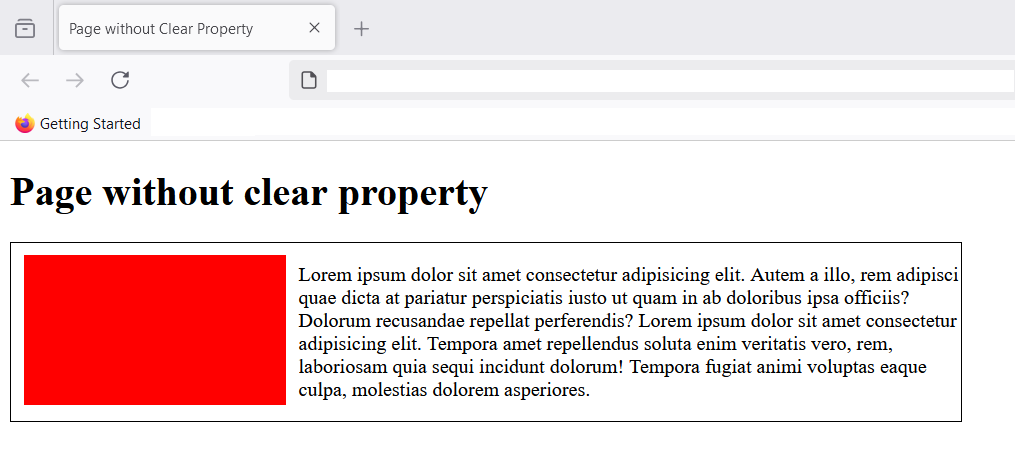
Float with clear
There is no clear property set on the paragraph element which comes next after the floating red box (a div element). Since, there is a floating element next to the paragraph, and we want to get remove the floating element , use the clear property. Also, note that we do not want to cancel the floating element.
p{
clear: left;
}
The above CSS code, will clear the floating element to the left of the paragraph. You can see the output after clear property is set on the paragraph element (<p>).
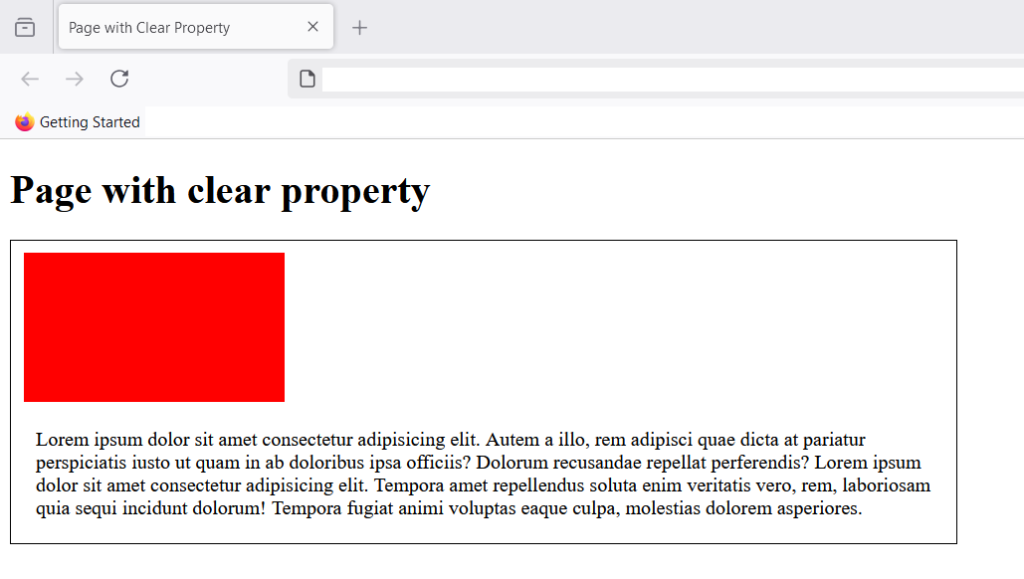
The clear property has removed the left float from paragraph and it starts on its own block. The original floating red div box is still floating left.
Values for clear property
The clear property can have any one of the listed values.
- none
- left
- right
- both
clear: none;
This value explicitly allows floating left and right for any element. If not set , you can still float elements on both sides.
clear: left;
If there A is a left floating element for an element B that have clear left set, then element B will start in a new block below floating element. You have already seen an example previously. Here is another one.
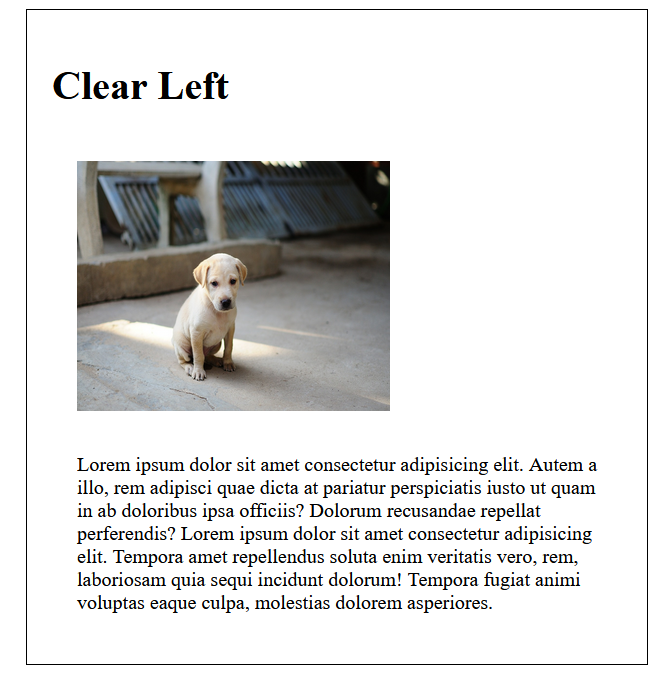
The paragraph is not allowing any left floating element and starts in a new block. Note that a paragraph is also a block level element , but the image floating left is an inline element. Read HTML tutorial to know more about block and inline elements.
clear: right;
If A is a right floating element for an element B that have clear right set , the element B will start in a new block below floating element. Consider following example.
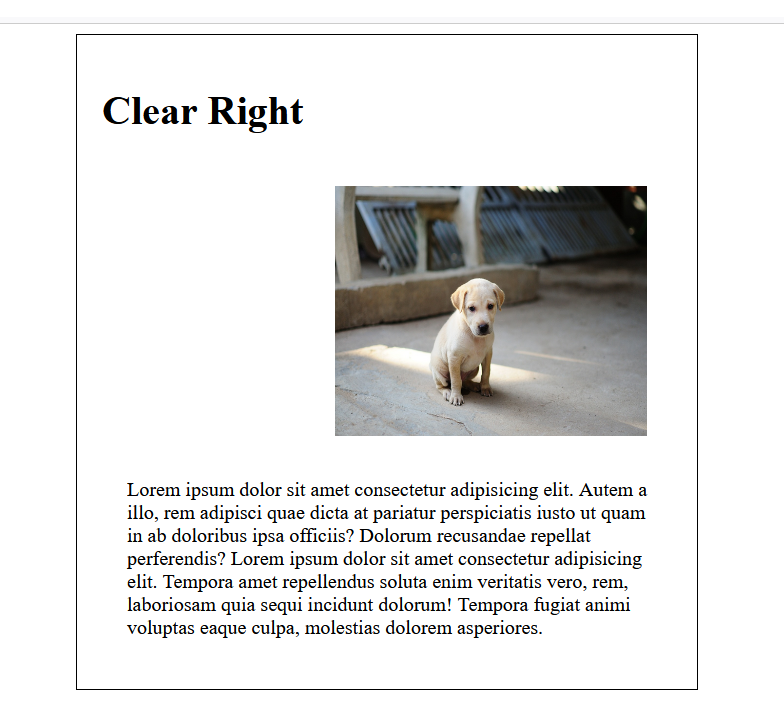
The element A is the image of a dog floating right of the container, and element B is the paragraph with clear right set. As a result, paragraph element will start in a new block below image.
clear: both;
The clear both value set on an HTML element will not allow any floating elements on either left side or right side of the element. This value is required when you want your element to standalone in it’s own block below floating elements. These floating elements could be left floating as well as right floating.
Let’s see an example,
The container block has two floating blocks – one left and one right , and central area is occupied by a paragraph element. You want a separate block for paragraph and floating blocks should occupy its own space above it. This is achievable through clear property with a value of ‘both‘.
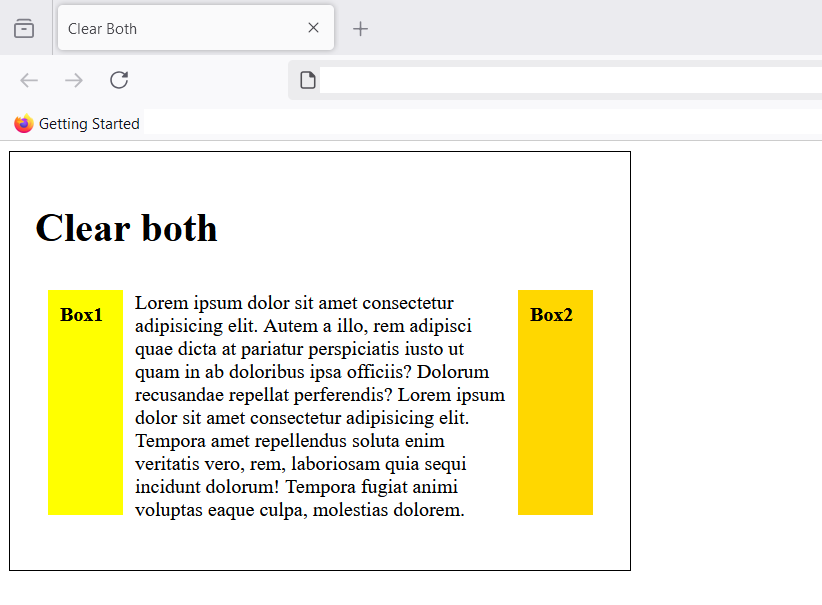
When you don’t set clear: both; for an element, in this case, the paragraph element, other elements can float to left or right of the paragraph. See image above.
<!DOCTYPE html>
<html lang="en">
<head>
    <meta charset="UTF-8">
    <meta name="viewport" content="width=device-width, initial-scale=1.0">
    <title>Clear Both</title>
    <style>
        .container{
            width:30%;
            border: 1px solid black;
            padding: 20px;
        }

        .box1{

            width:40px;
            height: 160px;
            float:left;
            padding: 10px;
            margin:10px;
            background-color: yellow;
        }

        .box2{

            width:40px;
            height: 160px;
            float:right;
            padding: 10px;
            margin: 10px;
            background-color:gold;
        }
        p{
           clear:both;
           padding:10px;
           margin:10px;
        }

    </style>
</head>
<body>

    <div class="container">
         <h1>Clear both</h1>
         <div class="box1">
           <strong>Box1</strong>
        </div>
            <div class="box2">
            <strong>Box2</strong>
        </div>
        <p>Lorem ipsum dolor sit amet consectetur adipisicing elit. Autem a illo, rem adipisci quae dicta
            at pariatur perspiciatis iusto ut quam in ab doloribus ipsa officiis? Dolorum recusandae repellat perferendis?
            Lorem ipsum dolor sit amet consectetur adipisicing elit. Tempora amet repellendus soluta enim veritatis vero, rem,
            laboriosam quia sequi incidunt dolorum! Tempora fugiat animi voluptas eaque culpa, molestias dolorem.</p>

    </div>

</body>
</html>
In the above code, I have set the clear property to ‘both’ for the paragraph element. You can see the output below.
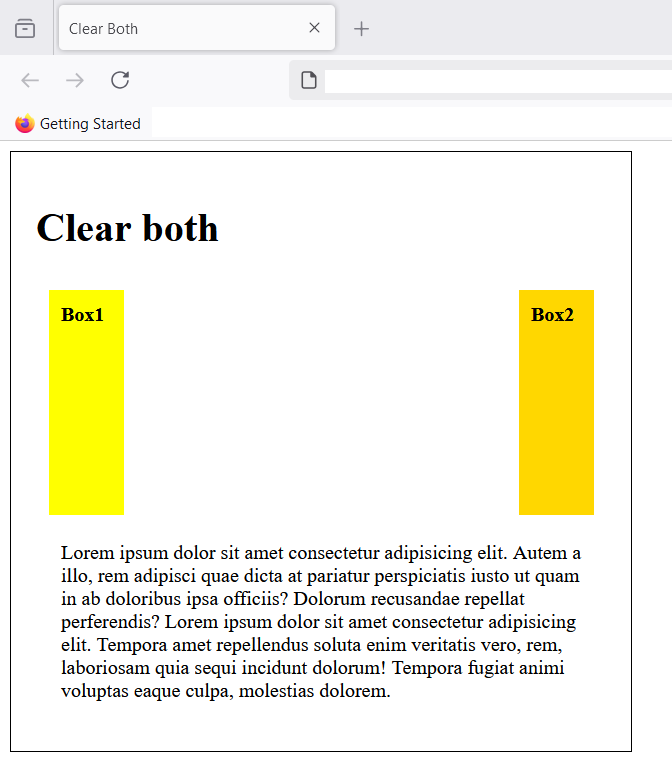
Figure 6: After applying clear: both; the element is contained in its own block
The element is displayed in its own block after clear:both; property is set on paragraph. It will not allow any right or left float.
Summary
In this article, you learned about CSS clear property which does not allow floating HTML elements around a specific HTML element to which it is applied.
The clear property take 4 values – none, left, right and both. They are important when you decide to make layouts using floating objects using HTML and CSS.
Next we will see some advanced layout options with Display property.
CSS float property
CSS float and clear are two important property that sometimes help in creating layouts with CSS. While position property take an element out of normal flow and position it relatively or absolutely in HTML document. It is interesting that CSS float will not take the element out of normal flow, but align either – left side or right side of its containing block..
Syntax
If you want to use CSS float property, use the following syntax.
selector_name {
   float : value; /* values are none, left , right, inline-start and inline-end /*
Here is an example;
div {
float: left;
}
In the above code, the float property is set to left for a div element. As a result, the div element will float to left side of the container, in which it exist still in the normal HTML flow.. If there is no container for floating element, the default container is HTML body.
The float property takes five values and some global values, about which I will write a separate article.
float : none;
float : left;
float : right;
float : inline-left;
float : inline-right;
float: left;
If you have two or more element, then float will stack them to the right of each previous floating element. The following example should make this clear for you.
<!DOCTYPE html>
<html lang="en">
<head>
    <meta charset="UTF-8">
    <meta name="viewport" content="width=device-width, initial-scale=1.0">
    <title>Stacking Elements to Right</title>
    <style>
        .container{
            background-color: blanchedalmond;
          float:left;

        }
        .box1{
            background-color: rgb(230, 80, 26);
            width:200px;
            height:300px;
            float: left;
        }
        .box2{
            background-color: greenyellow;
            width: 200px;
            height: 300px;;
            float:left;
        }
        .box3{
            background-color: rgb(47, 129, 236);
            width: 200px;
            height: 300px;;
            float:left;
        }

        .container > *
        {
            display: flex;
            justify-content: center;
            align-items: center;
        }
        p{
            font-size: 45px;
        }
    </style>
</head>
<body>
    <div class="container">
         <div class="box1">
            <p>1</p>
         </div>
         <div class="box2">
            <p>2</p>
         </div>
         <div class="box3">
            <p>3</p>
         </div>
    </div>

</body>
</html>
In the above example, we have created 3 boxes with different colors. The container is floating left relative to HTML body. All boxes are floating left and stacked right of previous block, while still remaining in the normal flow of HTML.
Note that <div> element used to create this boxes are block level element , their widths are reduced to 200px and float works. If the elements take full 100% of the width, there will not be enough space to float the elements.
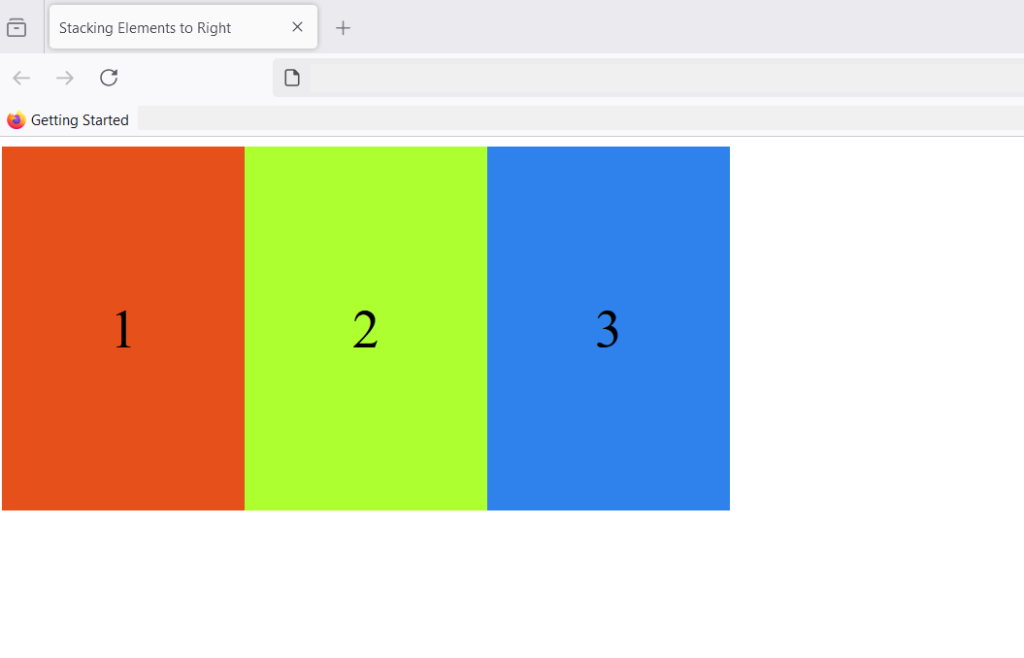
What happens if the number of boxes are greater than the width of the container?
If the number of boxes are greater than the width of the container, the boxes wraps and start from the next line.
<!DOCTYPE html>
<html lang="en">
<head>
    <meta charset="UTF-8">
    <meta name="viewport" content="width=device-width, initial-scale=1.0">
    <title>Stacking Elements to Right</title>
    <style>
        .container{
            background-color: blanchedalmond;
          float:left;

        }
        .box{

            width:200px;
            height:300px;
            float: left;
        }

        .container > *
        {
            display: flex;
            justify-content: center;
            align-items: center;
        }
        p{
            font-size: 45px;
        }
        .box1{
            background-color: red;
        }
        .box2{
            background-color: cyan;
        }
        .box3{
            background-color: lightgreen;
        }
        .box4{
            background-color: orange;
        }
        .box5{
            background-color: yellow;
        }
        .box6{
            background-color:pink;
        }
        .box7{
            background-color: violet;
        }
        .box8{
            background-color:brown;
        }
        .box9{
            background-color: steelblue;
        }
    </style>
</head>
<body>
    <div class="container">
         <div class=" box box1">
            <p>1</p>
         </div>
         <div class="box box2">
            <p>2</p>
         </div>
         <div class="box box3">
            <p>3</p>
         </div>
         <div class="box box4">
            <p>4</p>
         </div>
         <div class="box box5">
            <p>5</p>
         </div>
         <div class="box box6">
            <p>6</p>
         </div>
         <div class="box box7">
            <p>7</p>
         </div>
         <div class="box box8">
            <p>8</p>
         </div>
         <div class="box box9">
            <p>9</p>
         </div>
    </div>

</body>
</html>
In the code above, we created 9 boxes with different colors and once, the number of boxes exceed width of the containing block, it starts in a new line. Following image shows how boxes are stacked.
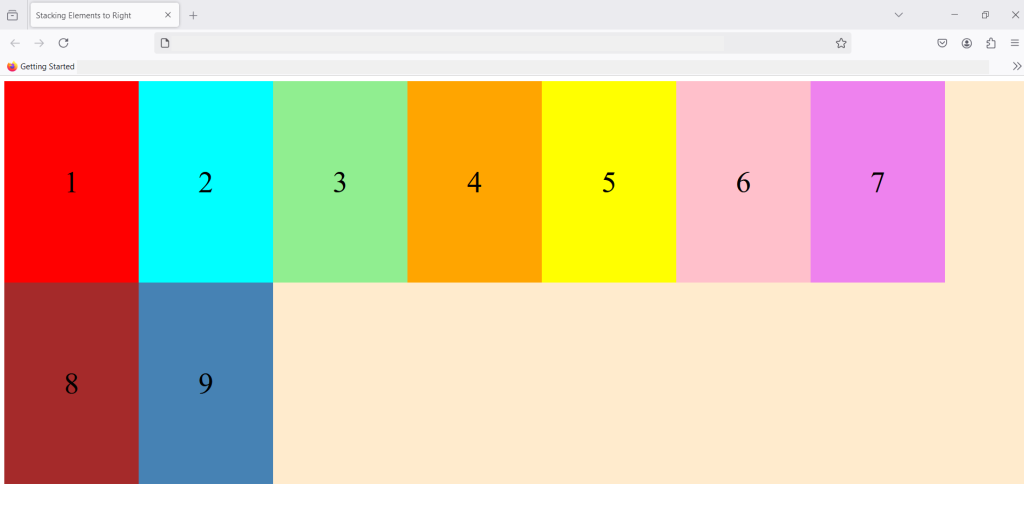
With multiple elements stacked from the second row, it still follow the HTML normal flow and floating left. The elements continue to stack on the right of the previous element.
float: right;
The float : right; works similar to float: left; and move the elements to right , thus stacking multiple elements on left side while maintaining the HTML flow. Consider an example code;
<!DOCTYPE html>
<html lang="en">
<head>
    <meta charset="UTF-8">
    <meta name="viewport" content="width=device-width, initial-scale=1.0">
    <title>Stacking Elements to Right</title>
    <style>
        .container{
            background-color:beige;
            float:right;

        }
        .box{

            width:200px;
            height:300px;
            float: left;
        }

        .container > *
        {
            display: flex;
            justify-content: center;
            align-items: center;
        }
        p{
            font-size: 35px;
            color: white;
        }
        .box1{
            background-color: red;
        }
        .box2{
            background-color: blue;
        }
        .box3{
            background-color: green;
        }
        .box4{
            background-color: magenta
        }

    </style>
</head>
<body>
    <div class="container">
         <div class=" box box1">
            <p>RED</p>
         </div>
         <div class="box box2">
            <p>BLUE</p>
         </div>
         <div class="box box3">
            <p>GREEN</p>
         </div>
         <div class="box box4">
            <p>MAGENTA</p>
         </div>

    </div>

</body>
</html>
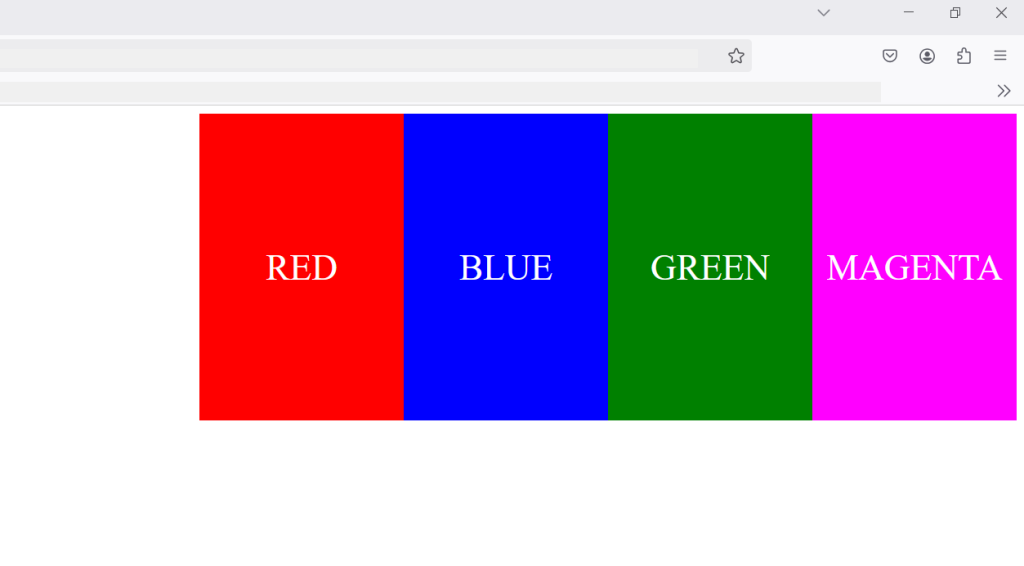
In the above code, I have created 4 boxes and floated them right, as a result they all stacked up to the left. So, stacking always happen in the opposite direction of floating elements.
float : inline-start;
The inline-start value let the element float to start of it’s container element. The element is floated to the start of the container block according to text direction of the container. If the container direction: rtl; means right-to-left , inline-start will align the box to the right corner, that is, inline-start, because the text starts from right.
If the container text direction is direction:ltr; means left-to-right , the inline-start is left corner of the container. Here is a small example to help you understand this better.
<!DOCTYPE html>
<html lang="en">
<head>
    <meta charset="UTF-8">
    <meta name="viewport" content="width=device-width, initial-scale=1.0">
    <title>Float-Inline-Start</title>
    <style>

        .container1, .container2{

           border: 1px solid black;
           width: 50%;
           direction: ltr;
           padding: 10px;
        }
.box1{
    float:inline-start;
    width: 100px;
    height: 100px;
    background-color: yellow;
    padding: 10px;
    margin:10px;
}
.box2{
    float:left;
    width: 100px;
    height: 100px;
    background-color:red;
    padding: 10px;
    margin:10px;
}

    </style>

</head>
<body>
    <div class="container">

        <div class="container1">


         <div class="box1">

         </div>
           Lorem ipsum dolor sit amet consectetur adipisicing elit. Eius veniam, asperiores ad ut cum quo, minus deserunt iste laboriosam omnis repudiandae necessitatibus accusantium voluptas, veritatis aperiam reiciendis pariatur! Veritatis, alias? Lorem ipsum dolor sit amet consectetur adipisicing elit. Odio consequatur fugiat obcaecati illo minima, expedita possimus nobis officiis quasi dicta ducimus ipsum laboriosam voluptas magni perferendis reprehenderit natus enim Lorem ipsum dolor sit, amet consectetur adipisicing elit. Culpa dolores commodi expedita non, consequatur eum alias, fugiat dolorem fugit quae ipsum sunt rerum laboriosam nisi, consequuntur temporibus reiciendis sequi repellendus.
        </div>

     <div class="container2">
        <div class="box2">

     </div>
     Lorem ipsum dolor sit amet consectetur, adipisicing elit. Modi, quasi voluptatum officia, repellat perferendis nam consectetur enim explicabo saepe nobis ducimus molestias facere, at hic. Ullam aperiam incidunt voluptatem. Lorem ipsum dolor sit amet consectetur adipisicing elit. Nulla quos, corrupti odio ad dignissimos vero illum distinctio laudantium sint vel facere ipsam, tempora in fuga assumenda consequuntur aperiam accusamus repellat?
    Lorem ipsum dolor sit amet consectetur adipisicing elit. Ipsum ullam dicta doloremque, praesentium sed sint error? Consequuntur voluptatem amet cupiditate iusto culpa explicabo debitis tempora! Veritatis sed eos officia nam!</div>
    </div>

</body>
</html>
In the example code, we have created two containers – container1 and container2. Each of these containers have box1 and box2 respectively. The direction for containers is set to direction:ltr; (left-to-right).
Here is the output on browser.
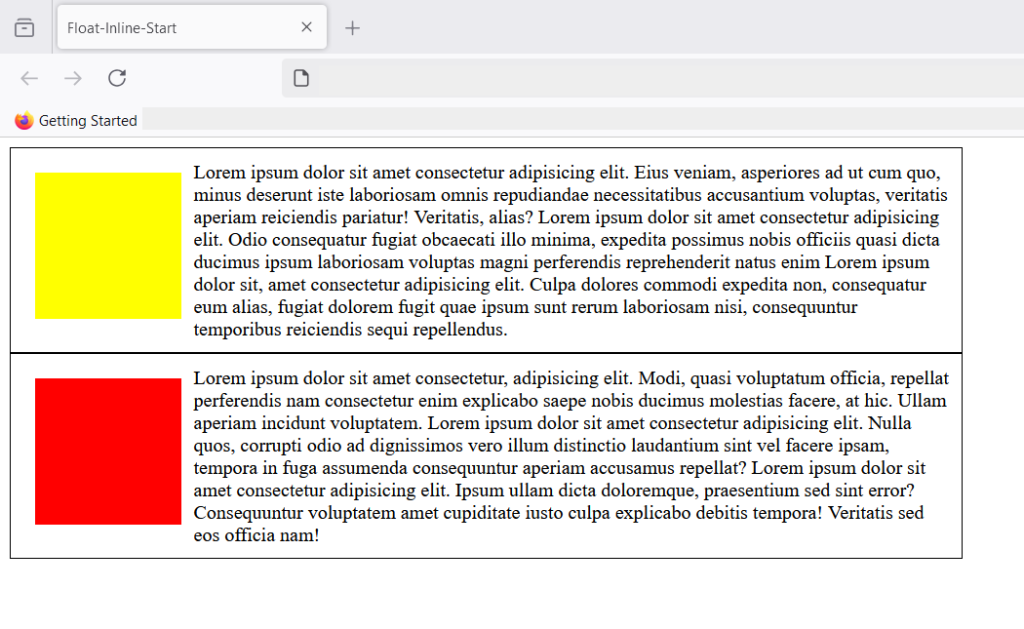
If you see both containers have similar looking output. The yellow and the red box is floating left. So, what’s the difference between float:left; and float: inline-start. To understand the difference, let’s change the direction property to right-to-left.
 .container1, .container2{

           border: 1px solid black;
           width: 50%;
           direction: rtl;
           padding: 10px;
        }
If you save , your changes and view the output in browser. You get following result.
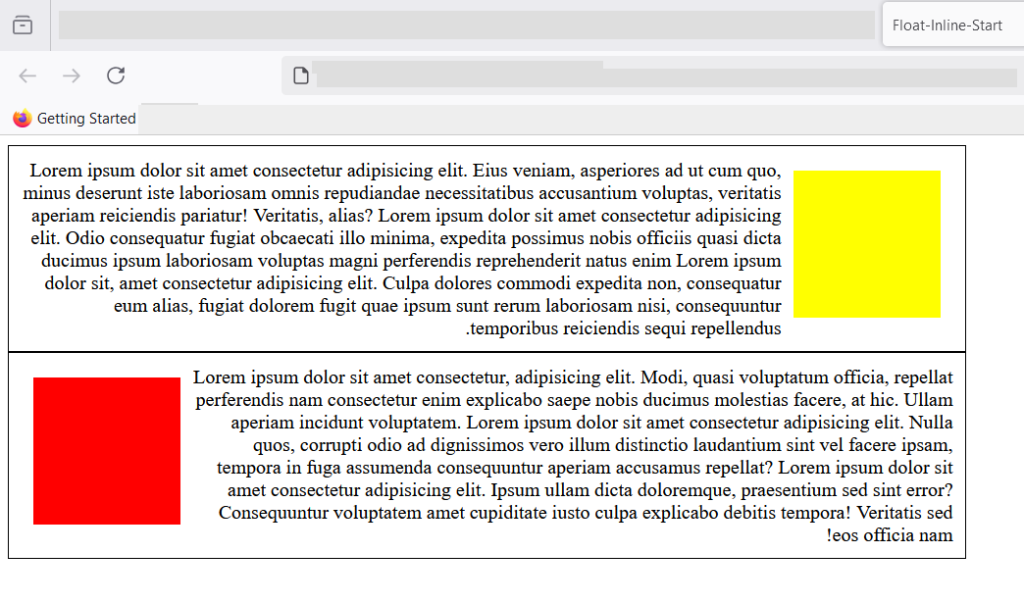
The box1 has shifted according to the direction of text, which is right-to-left now. However, this text direction has no effect on float: left. In other words, only, float: inline-start follows the direction of text inside it’s container.
float: inline-end;
This follows the end of the direction of text for element inside it’s container. It container text direction is set to left – to -right (ltr). The element inside the container with float: inline-end; value will float towards the end (right), because text starts from left and ends towards right.
See the example below.
<!DOCTYPE html>
<html lang="en">
<head>
    <meta charset="UTF-8">
    <meta name="viewport" content="width=device-width, initial-scale=1.0">
    <title>Float-Inline-End</title>
    <style>

        .container{

           border: 1px solid black;
           width: 50%;
           direction: ltr;
           padding: 10px;
        }
.box{
    float:inline-end;
    width: 100px;
    height: 100px;
    background-color: yellow;
    padding: 10px;
    margin:10px;
}

    </style>

</head>
<body>
    <div class="container">

         <div class="box">

         </div>
           Lorem ipsum dolor sit amet consectetur adipisicing elit. Eius veniam, asperiores ad ut cum quo, minus deserunt iste laboriosam omnis repudiandae necessitatibus accusantium voluptas, veritatis aperiam reiciendis pariatur! Veritatis, alias? Lorem ipsum dolor sit amet consectetur adipisicing elit. Odio consequatur fugiat obcaecati illo minima, expedita possimus nobis officiis quasi dicta ducimus ipsum laboriosam voluptas magni perferendis reprehenderit natus enim Lorem ipsum dolor sit, amet consectetur adipisicing elit. Culpa dolores commodi expedita non, consequatur eum alias, fugiat dolorem fugit quae ipsum sunt rerum laboriosam nisi, consequuntur temporibus reiciendis sequi repellendus.
        </div>


</body>
</html>
The text direction is left-to-right in the above example and the box is set to float: inline-end;. You will get following output in the browser.
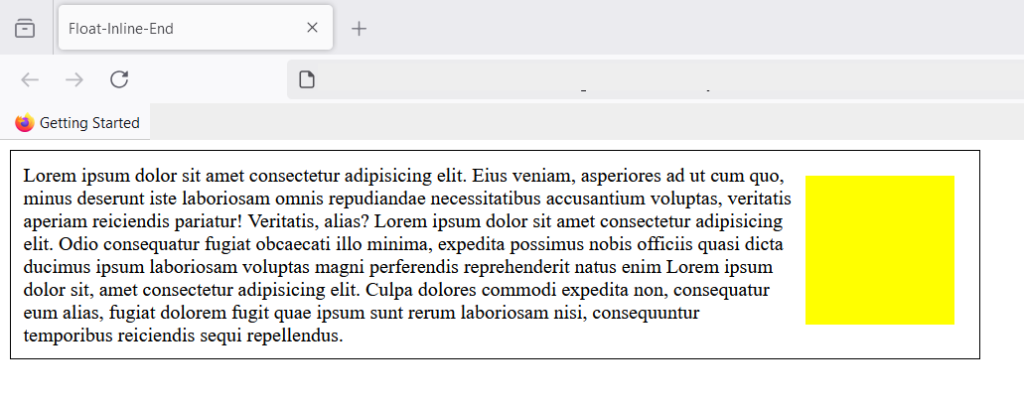
The container has a text direction set to left-to-right and since, end is towards right, the element is floating right.
Summary
To summarize what you learned, CSS float does not take element out of normal flow, but float an element left or right relative to it’s containing element. There are 4 well-known values that float property takes – left, right, inline-start, and inline-end. There are other properties directly related to float such as clear, about which you will learn in a separate article.
CSS position property
The CSS position property is not popular today, because there are excellent and efficient ways to do layouts in HTML. But, its still worth learning as many websites do use them to design layouts. It is mostly used with website design is of fixed width, that is, you already know the width of your web pages – the fixed width.
The position property applied to HTML elements. Once set, you can position the element anywhere on the page – top, right, left and bottom. The element is taken out of normal flow and shifted to the new position. Now, before we get started, you need to understand the HTML normal flow also known as flow layout.
HTML flow layout
There are two kinds of elements that dictate the flow of HTML layout – inline and block. A block type element takes up the entire width of the container( width of the webpage) and inline element only take width of the content, not more than that unless you modify it with CSS.
Consider paragraph element <p> and header element <h1> in the following; the width is equal to the width of the HTML body.
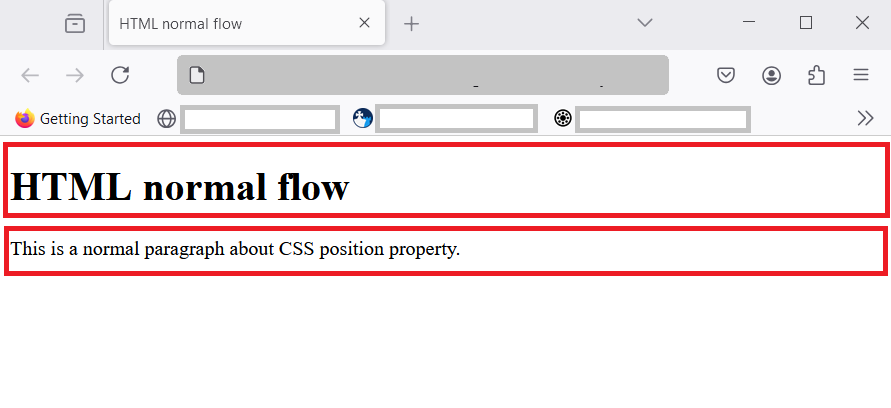
You notice that two block elements have taken the entire width of the container and does not allow any other element. Any new element must start in a new row or next line. Similarly, inline element takes just the width of the content. So, we can have many inline elements in a single line.
Consider another example, here is a paragraph element with one bold inline text.
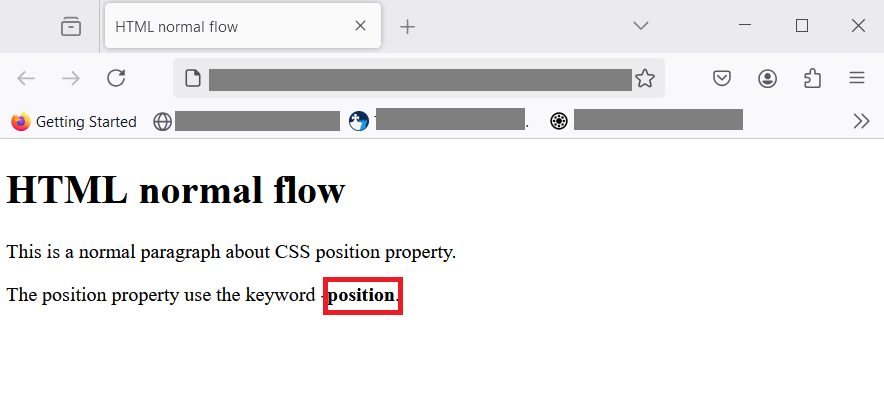
With inline element, it just takes enough space for the content. In the image above, word position is a bold text using inline element <strong>position</strong>. Instead of taking whole line ,like paragraph element, it only takes space enough to hold the word – position. This is normal flow in HTML.
CSS position property
If the CSS position property is set on an HTML element , then we can specify its position anywhere on the page. There are five different position values for this property.
- static
- relative
- fixed
- absolute
- sticky
I will explain each one of them with examples. You could use these examples to practice and understand it later. Let’s begin.
position: static;
By default, HTML flow is static. The normal flow itself is static and when you specify the top, right, left and bottom values, there is no effect on the element.
For example, let use a <div> element and set its position to static. Here is code.
<!DOCTYPE html>
<html>
 <head>
   <meta charset ="UTF-*">
   <title>HTML position - static</title>
 </head>
 <body>
   <h1>position: static</h1>
   <div>This element is static.</div>
 </body>
</html>
When you see the output in browser.
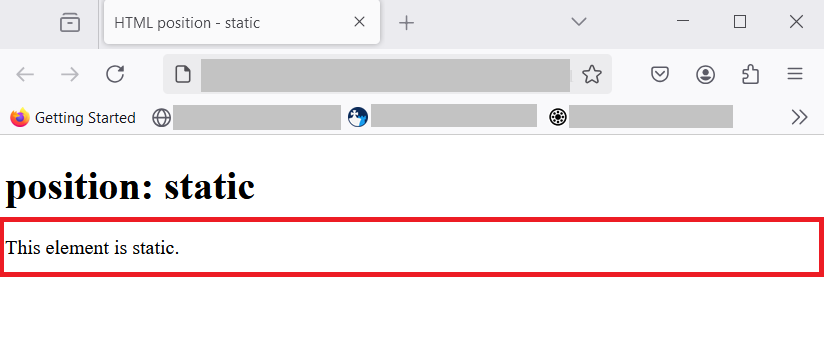
You can see from the figure above, that position is static and it does not make any change in the position. The <div> element is a block element, it takes the full width of the browser. That is normal flow in HTML. It is another way of saying “do nothing” to the element.
position: relative;
The relative position is a position relative to normal flow position. If an element is displayed in it’s normal position, you can shift it’s position to a new one, just by adjusting – top , bottom, left and right. You are allowed to set two or move values to position the element anywhere on the document.
Now before I show you, how relative position works, you must understand two important concepts – stacking context and the z-index.
Stacking context and z-index
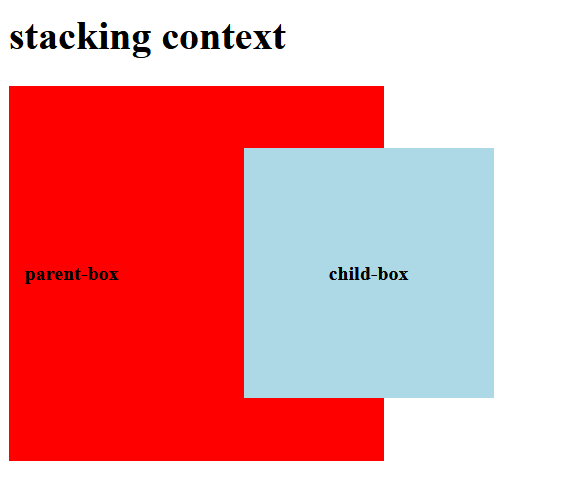
When we set relative property on an HTML element , sometimes one element appears above or below another element to the user viewing at the browser. This is called the stacking context. It appears that there is a z-coordinate other than (x,y)-coordinate system of CSS. This third coordinate is called z-index in CSS.
<!DOCTYPE html>
<html>
 <head>
   <meta charset ="UTF-*">
   <title>Stacking context</title>

   <style>
    /*style information */
     div{
      display: flex;
      justify-content: center;
      align-items: center;
      font-weight: bold;
     }
       .parent {
        background-color: red;
        width: 300px;
        height: 300px;
       }
       .child{
        background-color: lightblue;
         width: 200px;
         height: 200px;
         position: relative;
         left:100px;
       }
   </style>
 </head>
<body>
   <h1>stacking context</h1>
   <div class="parent">
       <p>parent-box</p>
       <div class="child">
           <p>child-box</p>
       </div>
    </div>
</body>
</html>
The stacking context happen according to rendering order of the elements if you have two or move elements on the page. It can also happen with or without z-index value. With z-index , you can control which element get preference and show on top of other elements. For now, just remember this basic concepts.
How does relative positioning works
Usually , CSS display HTML elements in 2 dimensional space using a coordinate system (x, y) on the view- port (visible area inside browser). Here x is horizontal offset from the original position and y is vertical offset from the original position. To understand it better, see the image below.
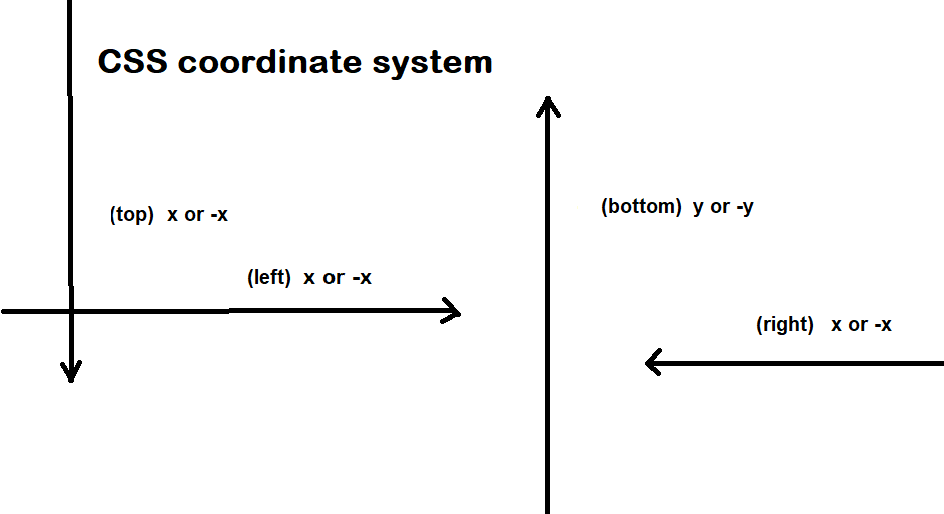
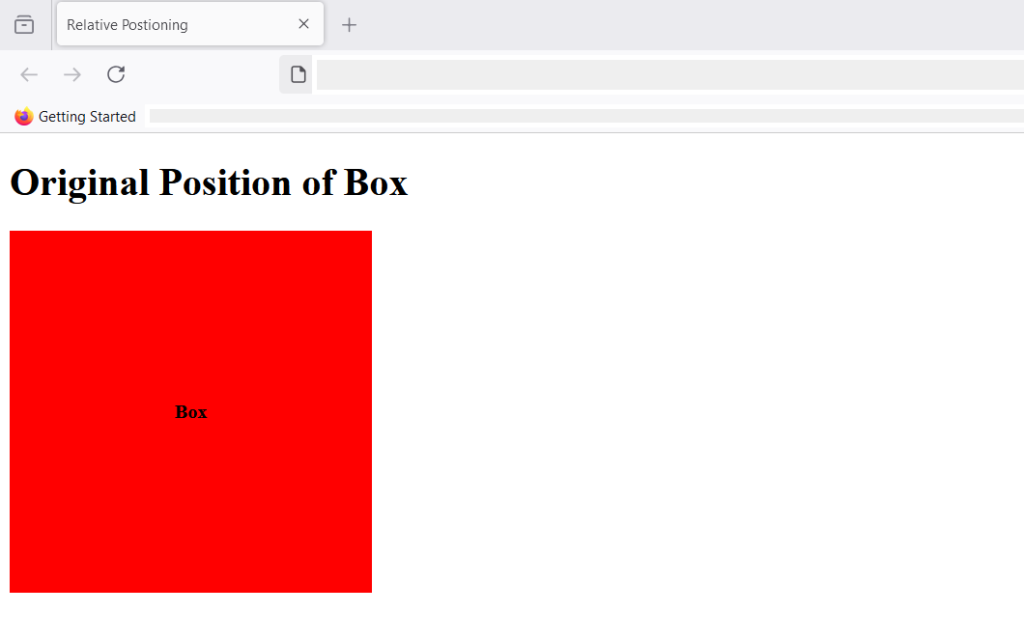
As we know , when you set position:relative on any element you can shift that element to top, right, bottom and left by an offset value. You can apply more than one values for an HTML element. Consider this example, the box is in it’s original position(HTML normal flow) has a background of red.
<!DOCTYPE html>
<html>
 <head>
   <meta charset ="UTF-*">
   <title>Original Box Position</title>

   <style>
    /*style information */
     div{
      display: flex;
      justify-content: center;
      align-items: center;
      font-weight: bold;
     }
       .box{
        background-color: red;
        width: 300px;
        height: 300px;
       }

   </style>
 </head>
<body>
   <h1>Original Position</h1>
   <div class="box">
       <p>Box</p>
   </div>
    </div>
</body>
</html>
Here is the result:
After we have applied the following CSS to the box, it’s position changes relative to the original position.
   .box{
        background-color: red;
        width: 300px;
        height: 300px;
        position:relative;
        top: 20px;
        left: 200px;
       }
Here is the result after position: relative; is applied with top and left values.
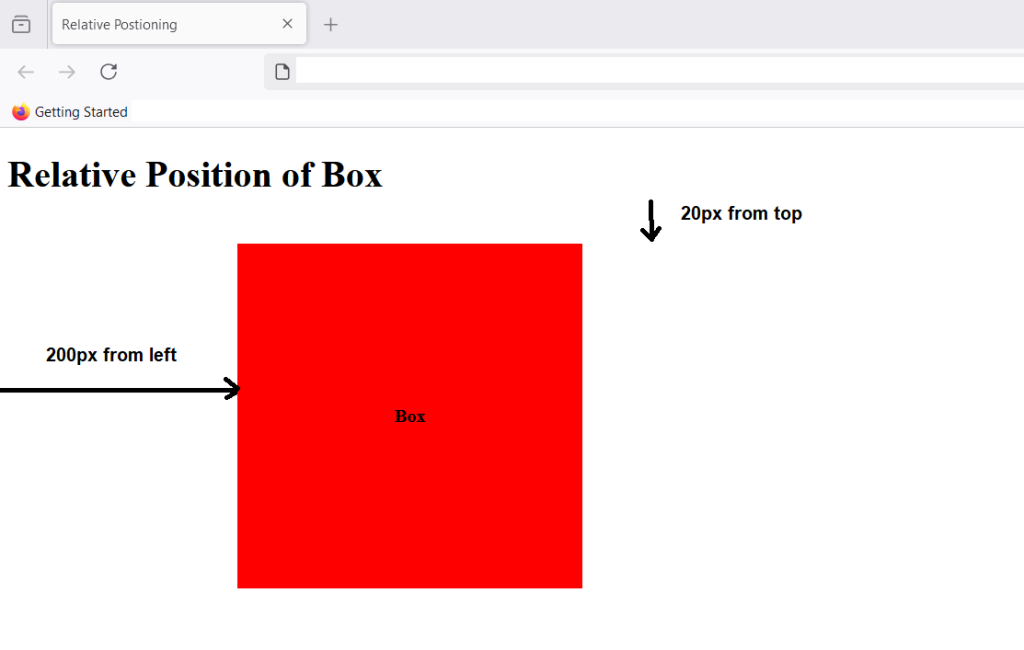
The element shifted 20px from the top relative to the original normal flow of the element, it also shifted 200px from left due the left value we set on the box in CSS.
position: absolute
Evey block in HTML has ancestor block, if a block has no ancestor , them body becomes its ancestor, which is another way of saying ” the HTML body contains that block”. Here block can be any layout elements like div, section,paragraph, etc.
When you set position; absolute; for an element, it aligns relative to the ancestor or the containing block. If there is no ancestor block, then the default ancestor is HTML body. The position is determined from the starting edge of the ancestor element. The offset values of top, left, right, and bottom is computed from the leftmost edge of the ancestor element.
Let’s understand this with an example.
<!DOCTYPE html>
<html>
 <head>
   <meta charset ="UTF-*">
   <title>Position Absolute</title>

   <style>
    /*style information */

       .box-parent{
        background-color: red;
        position:relative;
        top: 50px;
        left: 100px;
        width: 400px;
        height: 400px;
       }
      .box-child
      {
        background-color: lightblue;
        position: absolute;
        width: 300px;
        height: 200px;
       }

      .box-grandchild{
        position:absolute;
        width: 200px;
        height:50px;
        background-color: yellow;
      }

   </style>
 </head>
<body>
   <h1>Position Absolute</h1>
   <div class="box-parent">
       <p>Box-parent</p>
       <div class="box-child">
        <p>Box-child</p>
        <div class="box-grandchild">
          <p>box-grandchild</p>
        </div>
       </div>
   </div>

</body>
</html>
In the above example, there are three boxes – parent box, child box and grandchild box. The parent box is red contains child box and given blue background. The child box contains grandchild box whose background is yellow.
Here’s what you get when the page is displayed in the browser.
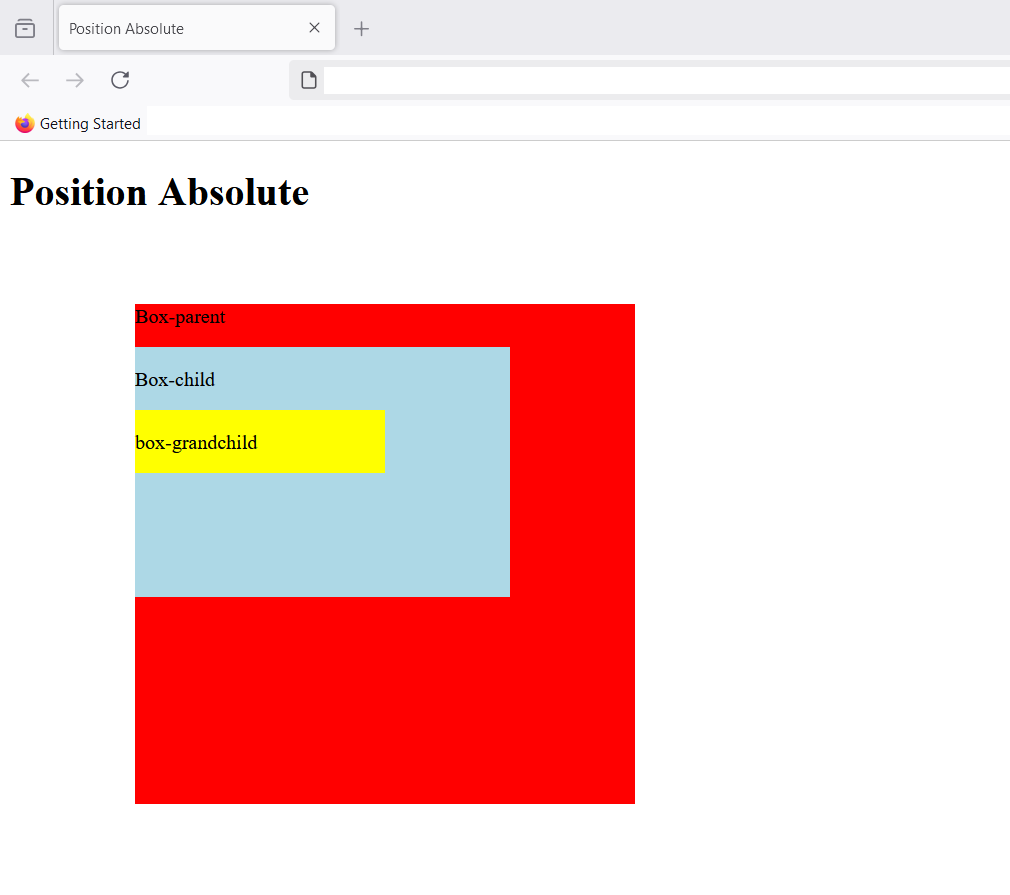
The child element is aligned to parent element , since no left , top, bottom or right is set, the child element (blue box) appears in a normal flow after the paragraph element , it is next block level element. You can still take it out of the normal flow by specifying new top, bottom, left and right values.If there is a margin value , it is included in the values of top, left, right and bottom if specified.
The grandchild box (yellow) also have similar properties, it is in normal flow, but position:absolute; allows to shift the box to a new position.
Note that absolute position is also like relative position, the element can overlap its parents in stacking context with or without z-index.
position: fixed;
The fixed position is also absolute positioning with a difference. It is absolute positioning relative to the viewport (Browser’s visible screen). Whatever is above-the-fold is part of viewport. The above-the-fold is that part of the screen which you can view without scrolling.
Since, the position is fixed, the element is stay in its absolute position even when you scroll down. It is used to display ads, banners, navigation or sidebars that has to remain fixed on a website. It does not goes away with scrolling as long as you remain on the same page.
Consider this example, here I have made a small blog with sidebar and the top navigation is fixed.
<!DOCTYPE html>
<html>
 <head>
   <meta charset ="UTF-*">
   <title>HTML position - fixed</title>
   <style>
    /*style information*/
   .container{
    margin: 0;
    padding:0;
   }
    .navbar > ul{
      background-color: #000;
      color:white;
      display:flex;
      align-items: center;
      list-style-type:none;
      width: 100%;
      padding: 20px;
    }
.mainsection{
  display: flex;
  padding: 20px;
}
.navbar ul {
  position:fixed;
  top:0;
}
.navbar ul li {
  width: 70px;
}
    .main{
      width: 60%;
      background-color: beige;
      padding: 30px;
    }
    .sidebar{
      width: 35%;
      background-color: gold;
      padding:30px;
    }
   </style>
 </head>
<body>
  <div class="container">

   <div class="navbar">
    <ul>
        <li><a>Home</a></li>
        <li><a>Products</a></li>
        <li><a>Blog</a></li>
        <li><a>About</a></li>
        <li><a>Contact</a></li>
    </ul>
   </div>
   <div class="mainsection">

   <div class="main">
    <h1>Header 1</h1>
    <p>Lorem ipsum dolor sit amet consectetur, adipisicing elit. Voluptas dolores natus eligendi, accusantium eaque tenetur ipsum adipisci officiis. Facilis, omnis ducimus atque illo eum facere pariatur mollitia veritatis inventore provident.</p>
   <p>Lorem ipsum dolor sit amet consectetur adipisicing elit. Explicabo exercitationem quo dignissimos odio nihil molestiae ipsum, officia eaque quod deleniti nesciunt dicta nemo reprehenderit esse assumenda architecto expedita suscipit? Iusto!
    Lorem ipsum dolor sit amet consectetur adipisicing elit. Perferendis, veritatis laborum iusto at nesciunt delectus, iste iure mollitia consequatur voluptatem, eum consequuntur nam incidunt architecto quis harum autem eligendi <id class="lorem">Lorem ipsum dolor, sit amet consectetur adipisicing elit. Eveniet doloribus fugiat quos sed totam consequuntur nulla assumenda ab itaque animi aliquam repellendus iusto beatae, eaque, eligendi tempore, delectus consequatur at.</id>
   </p>
   <p>Lorem ipsum dolor sit amet consectetur adipisicing elit. Explicabo exercitationem quo dignissimos odio nihil molestiae ipsum, officia eaque quod deleniti nesciunt dicta nemo reprehenderit esse assumenda architecto expedita suscipit? Iusto!
    Lorem ipsum dolor sit amet consectetur adipisicing elit. Perferendis, veritatis laborum iusto at nesciunt delectus, iste iure mollitia consequatur voluptatem, eum consequuntur nam incidunt architecto quis harum autem eligendi <id class="lorem">Lorem ipsum dolor, sit amet consectetur adipisicing elit. Eveniet doloribus fugiat quos sed totam consequuntur nulla assumenda ab itaque animi aliquam repellendus iusto beatae, eaque, eligendi tempore, delectus consequatur at.</id>
   </p>
   <h2>Header 2</h2>
   <p>Lorem ipsum dolor sit amet consectetur adipisicing elit. Explicabo exercitationem quo dignissimos odio nihil molestiae ipsum, officia eaque quod deleniti nesciunt dicta nemo reprehenderit esse assumenda architecto expedita suscipit? Iusto!
    Lorem ipsum dolor sit amet consectetur adipisicing elit. Perferendis, veritatis laborum iusto at nesciunt delectus, iste iure mollitia consequatur voluptatem, eum consequuntur nam incidunt architecto quis harum autem eligendi <id class="lorem">Lorem ipsum dolor, sit amet consectetur adipisicing elit. Eveniet doloribus fugiat quos sed totam consequuntur nulla assumenda ab itaque animi aliquam repellendus iusto beatae, eaque, eligendi tempore, delectus consequatur at.</id>
   </p>
   <h2>Another Header 2</h2>
   <p>Lorem ipsum dolor sit amet consectetur adipisicing elit. Explicabo exercitationem quo dignissimos odio nihil molestiae ipsum, officia eaque quod deleniti nesciunt dicta nemo reprehenderit esse assumenda architecto expedita suscipit? Iusto!
    Lorem ipsum dolor sit amet consectetur adipisicing elit. Perferendis, veritatis laborum iusto at nesciunt delectus, iste iure mollitia consequatur voluptatem, eum consequuntur nam incidunt architecto quis harum autem eligendi <id class="lorem">Lorem ipsum dolor, sit amet consectetur adipisicing elit. Eveniet doloribus fugiat quos sed totam consequuntur nulla assumenda ab itaque animi aliquam repellendus iusto beatae, eaque, eligendi tempore, delectus consequatur at.</id>
   </p>
  </div>
   <div class="sidebar">
    <h2>Sidebar Header 2</h2>
    <p>Lorem ipsum dolor sit amet consectetur adipisicing elit. At quibusdam, cupiditate possimus molestias facere earum veritatis ducimus praesentium recusandae molestiae vel nulla. Aliquid, omnis quam? Sunt ullam architecto natus quis?</p>
    <ul>
      <li>Lorem ipsum dolor sit amet consectetur adipisicing elit. Quisquam molestias asperiores ullam quidem commodi animi aperiam eaque ea facilis dicta amet neque deleniti, dolore cumque debitis adipisci assumenda eum vero.</li>
      <li>Lorem ipsum dolor sit amet consectetur adipisicing elit. Porro delectus modi adipisci quasi qui temporibus necessitatibus distinctio, beatae inventore sunt iure. Reiciendis veritatis quos qui aliquid vero sed ipsam molestiae.</li>
      <li>Lorem ipsum dolor sit amet consectetur adipisicing elit. Porro eius corrupti sed harum ullam qui asperiores nisi delectus, distinctio debitis ipsam aut. Asperiores cupiditate in possimus quisquam, ducimus incidunt minus.</li>
      <li>Lorem ipsum dolor sit amet consectetur adipisicing elit. Assumenda harum et vel, repellendus cum autem rerum dolorem iste, qui veniam eaque tempore unde maxime ea est quod, quia fugit id?</li>
      <li>Lorem ipsum dolor sit amet consectetur adipisicing elit. Quas doloremque numquam, in amet officiis odit quos fuga culpa corporis voluptates optio sapiente soluta ad nisi dolor asperiores eveniet deserunt maiores.</li>
  </ul>

  </div>
    </div>
    </div>
    </body>
    </html>
Here is the output in the browser.
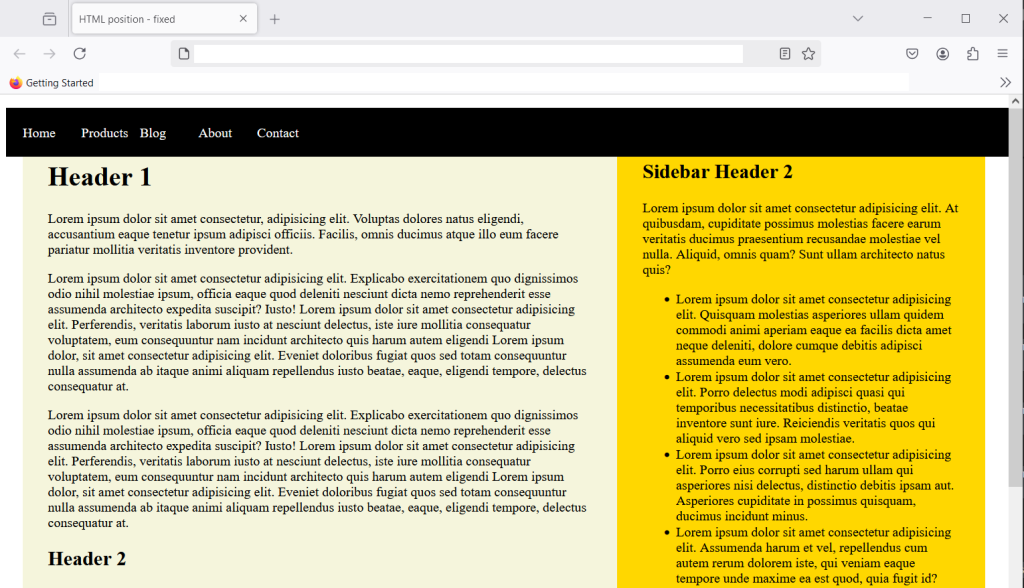
The blog has sidebar and main section with enough dummy content that you need to scroll down to see the text below the fold. Even if you scroll , the top navigation won’t go away as it is fixed relative to the viewport. The scrolling action don’t change viewport, so navigation is going to remain fixed.
position: sticky
The position:sticky; is both relative and fixed. The fixed position is fixed all the time, once you set it will remain fixed. However, sticky position is fixed only when a certain scroll position is reached. Until then it remain relative to normal flow.
Let’s understand this with an example,
<!DOCTYPE html>
<html lang="en">
<head>
  <meta charset="UTF-8">
  <meta name="viewport" content="width=device-width, initial-scale=1.0">
  <title>Position Sticky</title>
  <style>
    /*style information */
    .container{
       background-color: beige;
        margin:0;
        padding:20px;
        border:5px solid black;
        width:50%;
        height: 150px;
        overflow-y: auto;
    }
    .sticky-box{
      position:sticky;
      top:0px;
      background-color: yellow;
      padding: 20px;
    }
  </style>
</head>
<body>
  <div class="container">
    <h2>Position sticky </h2>
    <p>Lorem ipsum dolor sit amet consectetur adipisicing elit. Quo asperiores vitae nostrum quaerat maxime! Accusamus iusto, minima porro id maxime, laudantium cum quibusdam earum libero eum distinctio incidunt? Non, debitis.</p>
    <div class="sticky-box">
      <strong>This is a sticky box.</strong>
    </div>
    <p>Lorem ipsum, dolor sit amet consectetur adipisicing elit. Doloremque consequuntur error, quam perspiciatis nemo excepturi rerum suscipit ratione molestiae eligendi atque culpa enim saepe labore necessitatibus libero veniam esse est.</p>
    <p>Lorem, ipsum dolor sit amet consectetur adipisicing elit. Beatae voluptate aspernatur vero nisi itaque perferendis? Debitis id, a repellendus ipsa repellat ex sequi doloremque consequatur iure distinctio, vel facilis sunt! Lorem ipsum, dolor sit amet consectetur adipisicing elit. Ex, aliquam reprehenderit dolores adipisci est similique facere eveniet officiis numquam nostrum minus tempora voluptates, consectetur ab distinctio cupiditate repellendus labore quae.</p>
  </div>
</body>
</html>
The above HTML and CSS will create a box with a sticky element. User can scroll the box beyond 150px to see the rest of the content inside the box. Here is what you see in browser.
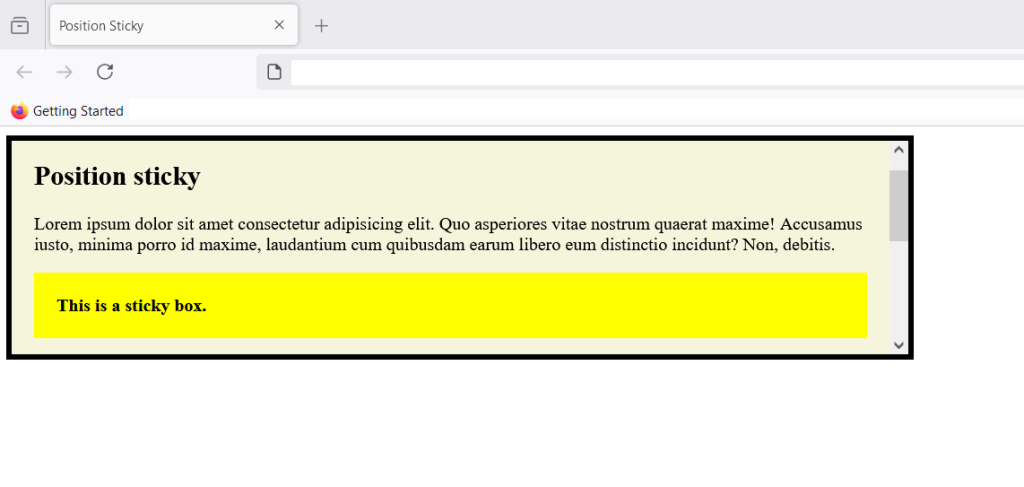
When you try to scroll the box and yellow sticky box goes up and reach top:0px and at that point the sticky element acts like a fixed element. You can set set four values – top, left, bottom and right to position the sticky element.
Note that any margin or padding value is included in the offset values of top, left, bottom and right.
Summary
You have learned about five different values of CSS position property. The static is the default position, relative is relative to normal HTML flow, the absolute position is a position relative to its immediate ancestor, fixed position is relative to viewport and remain fixed even when user scroll. The sticky position is both relative and fixed. It become fixed when reach a certain scroll position from user.
CSS Project – Burning Candle
In this project, you will learn to create a burning candle with flame with the help of HTML and CSS.
HTML Code: burning-candle.html
<!DOCTYPE html>
<html>
<head>
     <title>CSS Project - Burning Candle</title>
</head>
 <body>
     <div id="flame">
     </div>
     <div id="flamestick"></div>
     <div id="candle">
     </div>
 </body>
 </html>
CSS Code: burning-candle.html
Now we will insert the following CSS code in the <head> section of the HTML page – burning-candle.html.
<style>
body {
     background-color:black;
 }
 #flame{
      background-image:linear-gradient(to top,red,orange,beige);
      width: 80px;
      height: 200px;
      position:absolute;
      top:100px;
      left:500px;
      border-radius:75%;
      box-shadow: 10px 10px 60px 20px #cccc00;
      animation-name: bigflame;
      animation-duration: 4s;
      animation-delay:2s;
      animation-iteration-count:infinite;
      }
 @keyframes bigflame{
  0% {
       height: 200px;
       width: 80px;
     }
 20% {
       height: 210px;
       width: 90px;
     }
 30% {
       height: 230px;
       width: 90px;
     }
 50% {
       height: 250px;
       width: 95px;
    }
 70% {
       height: 230px;
       width: 90px;
     }
 100% {
       height: 210px;
       width: 90px;
     }
  }
 #candle {
         width:150px;
	 height:250px;
	 background-image:linear-gradient(to top,black,gray,lightgray,orange);
	 position:absolute;
	 top:325px;
	 left:470px;
     }
#flamestick{
        width:10px;
	height:40px;
	background:black;
	position:absolute;
	top:290px;
	left:540px;
	opacity:90%;
     }
</style>
The entire page will look like the following.
Whole Program Code
<!DOCTYPE html>
<html>
<head>
     <title>Lamp - Diya</title>
     <style>
     body {
         background-color:black;
     }
     #flame{

         background-image:linear-gradient(to top,red,orange,beige);
         width: 80px;
         height: 200px;
         position:absolute;
         top:100px;
         left:500px;
         border-radius:75%;
         box-shadow: 10px 10px 60px 20px #cccc00;
         animation-name: bigflame;
         animation-duration: 4s;
         animation-delay:2s;
         animation-iteration-count:infinite;
       }
 @keyframes bigflame{
  0% {
   height: 200px;
   width: 80px;
 }
 20% {
   height: 210px;
   width: 90px;
 }
  30% {
   height: 230px;
   width: 90px;
 }
 50% {
   height: 250px;
   width: 95px;
}
 70% {
   height: 230px;
   width: 90px;
 }
 100% {
   height: 210px;
   width: 90px;
 }

 }
 #candle {

     width:150px;
	 height:250px;
	 background-image:linear-gradient(to top,black,gray,lightgray,orange);
	 position:absolute;
	 top:325px;
	 left:470px;
}
#flamestick{
    width:10px;
	height:40px;
	background:black;
	position:absolute;
	top:290px;
	left:540px;
	opacity:90%;
}
</style>
 </head>
 <body>
         <div id="flame">
         </div>
         <div id="flamestick"></div>
         <div id="candle">
         </div>
 </body>
 </html>
Output : burning-candle.html

CSS Fonts In-Depth
Fonts define the typography of a web page or website. The font has certain properties that you can control using CSS. In other words, CSS can change the typography of a website directly.
In this article, you will learn about fonts, the characteristics of the font, font-families, and properties that can be changed using CSS in detail.
What are the features of a font?
In typography, a font is a typeface with specific style, size , spacing and weight. You can describe a font using its features.
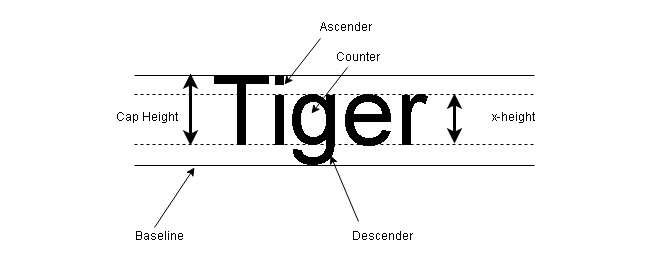
Here is a list of features shown in the above diagram.
- Cap Height is also known as the overall height of the capital letter.
- Ascender is the upward length of the letters like b, k, l.
- Descender is the downward length of the letters like q, g, y.
- X-height is the height of the letters without ascender or descender.
- The counter is the space inside the letter like q, p, o.
- A baseline is the line that touches descender.
There are two more properties of a font.
- Leading – it is space between two lines of text or sentences. CSS usually control these with line-height property.
- Kerning – it is space between two letters in a word. CSS controls this property using letter-spacing property.
What is a font-family?
Any change in the features of a font and the font will start looking different. That is why, there are so many font types. Fonts looking similar can be grouped into font familiy, then we can easily identify them.There are two types of font families.
Generic families
The members of generic font families look similar. They have one unique feature than separates them from other families.
For example,
- Sans-serif fonts
- Monospace fonts
- Cursive fonts
Each of the above types are different in their look and they are font families by themselves, but generic in nature.
Font Family
The second type of font family differentiate fonts based on specific features like height, letter spacing, boldness, but also retains the properties of generic family.
for example,
Sans-serif is a generic font family. The Ariel, Helvetica, and Verdana font family belong to Sans-serif.The features of Ariel, Helvetica and Verdana is different except that they retain the generic Sans-serif characters and letters.
Difference between Serif and Sans-serif fonts
The serif fonts and sans-serif fonts are the two popular types of fonts used in print and web. The other types are monospace and cursive fonts.The cursive types represent handwritten text or some stylish fonts. The monospace font has letters with equal space.
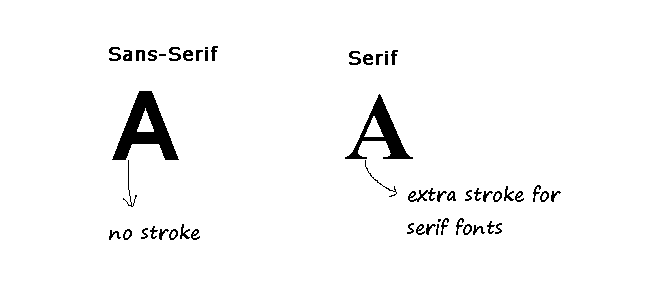
How CSS control Fonts ?
The CSS commands and properties control the look and feel of the web typography. It control the font and font properties in the HTML document.CSS uses following properties to control web typography.
- Font-family
- Font-style
- Font-size
- Font-weight
- Font-variant
Font-Family
CSS font-family will set the font family of the web page that use the CSS style. It works on a fallback mechanism, meaning it takes multiple values and if web page cannot use a font, fallback to another font type.
Example for font-family:
h3 {
     font-family: Ariel, Helvetica, sans-serif;
}
In the above example, Ariel is rendered by the web page, if not fall back to Helvetica or any other font type that belong to Sans-serif. Hence, it is a good practice to add a generic font-family.
Font-Style
The font-style property decides how to display the text and there are three options.
- normal
- oblique
- italic
For example, suppose we are changing font-style of a paragraph to oblique.
p  {
     font-style: oblique;
}
You can change the style of a header and display it in italic.
h2{
     font-style: italic;
}
Font-Size
This property is the most popular property used by web designers. The font-size changes the size of the font rendered on the web page.
There are three ways to set values for font-size.
- px
- em
- %
We will demonstrate each one of them.
h1 {
     font-size: 14px;
}
h2{
     font-size: 10em;
}
h3{
     font-size: 5%;
}
The percentage (%) take relative percentage size to its parent container. If the parent container length is 100px; then the 5% of 100px will be 5px.
Font-weight
Sometimes you want to set the boldness for your font. The font-weight property would do that for you.It takes following values.
- Normal
- Bold
- numeric values such as 300, 400, 700.
For example,
h1{
     font-weight: bold;
}
The resultant header text would appear slightly bolder than normal.
Font-variant
This property renders a different version of text than normal. Though the normal text is also a value for the font-variant property.
The font-variant takes the following values.
- normal
- small-caps
Suppose a paragraph is written with caps and small letters. The different variant of the paragraph would be small caps if we use the following CSS command.
p {
     font-variant: small-caps;
}
Thus, the CSS font property gives a powerful and extensive control over the web typography.
CSS Padding
The padding is the closest property to an HTML element in the box model. The padding gives some space around the HTML element, just like margin which given space around element from outside. There are 4 padding to an HTML element.
- padding-top
- padding-right
- padding-bottom
- padding-left
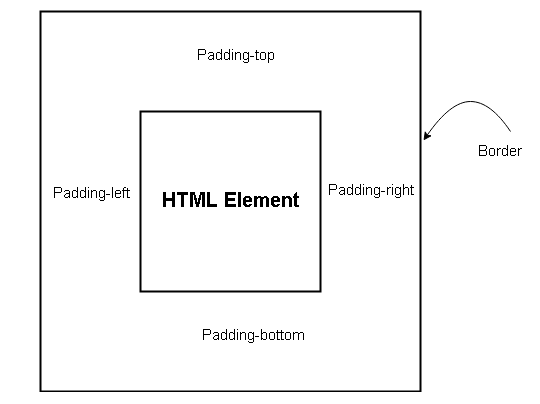
The syntax to specify padding is as follows.
p{
     padding-top:10px;
     padding-right: 25px;
     padding-bottom:40px;
     padding-left: 80px;
}
Shorthand for padding property
The above code is very difficult because you need to specify all sides one at a time. A much simple version of padding is allowed in CSS.
p{
     padding: 10px  29px  55px 40px;
}
The above will set the padding for all four side and it is same as below.
padding-top: 10px;
padding-right: 29px;
padding-bottom:55px;
padding-left: 40px;
There is other ways to set the padding. For example, we could use only two values.
p{
     padding: 10px 30px;
}
The above code use only two values and it is same as below.
padding-top: 10px;
padding-right: 30px;
padding-bottom:10px;
padding-left: 30px;
You could also set a single value for all four sides.
padding: 10px;Effect of Padding
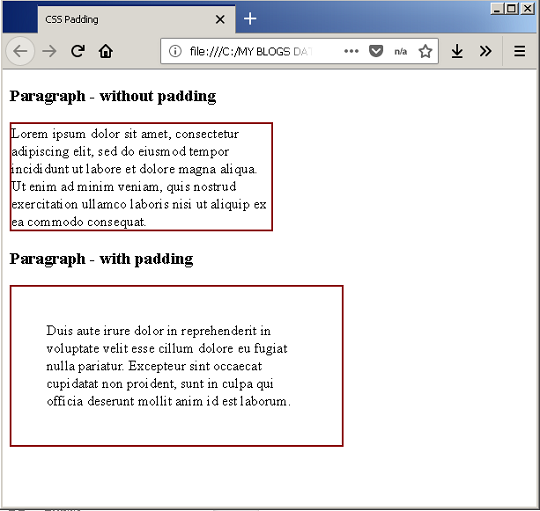
You can understand the effect of padding with an example. Create an HTML page called example-padding.html and insert the following code.
<!DOCTYPE html>
<html>
<head>
     <title>CSS Padding</title>
     <style>
     .box1{
          width:50%;
          border: 2px solid darkred;
          padding:0px;
     }
     .box2{
          width:50%;
          border: 2px solid darkred;
          padding:0px;
     }
     </style>
</head>
<body>
     <h3>Paragraph - without padding</h3>
     <p class="box1">
     Lorem ipsum dolor sit amet, consectetur adipiscing elit, sed do eiusmod tempor incididunt ut labore et dolore magna aliqua. Ut enim ad minim veniam, quis nostrud exercitation ullamco laboris nisi ut aliquip ex ea commodo consequat.
     </p>
     <h3>Paragraph - with padding</h3>
     <p class="box2">
     Duis aute irure dolor in reprehenderit in voluptate velit esse cillum dolore eu fugiat nulla pariatur. Excepteur sint occaecat cupidatat non proident, sunt in culpa qui officia deserunt mollit anim id est laborum.
     </p>
</body>
</html>
The padding more to the overall length of the border. Suppose the left border length of an HTML element is 200 px and padding is about 50px. The final border length is 250px. As shown in the output.To contain the padding within the border use following CSS command.
p{
     width: 200px;
     padding:50px;
     box-sizing: border-box;
}
Output
The output shows that the box1 without padding is much closer to border and not pleasing. But the box2 gives lot of space around text and aesthetically pleasing.
CSS Margin
CSS margin is the outer most element in the box model. The margin property creates space around an HTML element. It is a usual practice to define margin for HTML elements because white-space helps create beautiful designs. CSS defines 4 types of margin for an element.
- margin-top
- margin-left
- margin-bottom
- margin-left
You can treat CSS margin as an invisible border, though the element border do exist in box model.
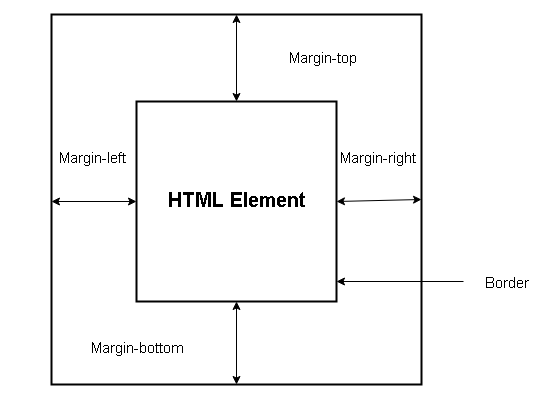
The syntax to specify the margin property is given below.
p {
     margin-left: auto;
     margin-top: 15px;
     margin-bottom: 34%;
     margin-right: inherit;
}
The margin properties in above example has 4 different types of values.
- auto – an automatic value is set by browser.
- length – px, pt, em and other kind of length is specified.
- percentage – length % is calculated based on the width of the containing element.
- inherit – length of margin inherited from parent element.
Shortcut Version of Margin
It is difficult to specify margin individually, so to solve this problem there is a shortcut version available. You can set all four margins in a single line of code.
margin: <length of top> <length of right> <length of bottom> <length of left>;For example
h3{
    margin: 10px 20px 50px 70px;
}
The above is similar to margin values assigned below.
margin-top: 10px;
margin-right: 20px;
margin-bottom: 50px;
margin-left: 70px;
Effect of Margin on HTML elements
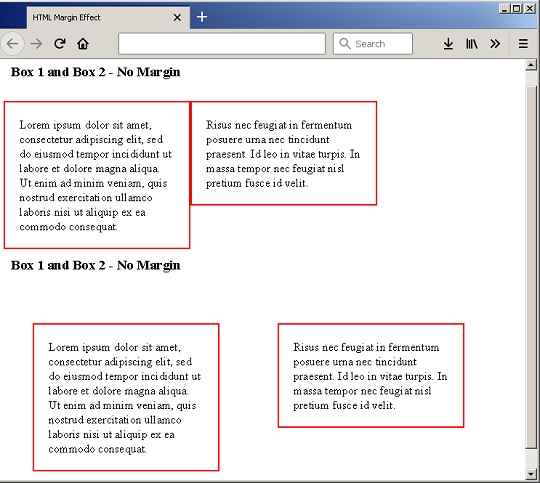
The effect of margin on HTML elements can be understood using following examples. Create an HTML page – example-margin-effect.html and insert the following codes.
<!DOCTYPE html>
<html>
<head>
     <title>HTML Margin Effect</title>
     <style>
          h3{
               padding:10px;
               clear:both;
          }
          .box1 , .box2 {
               padding:20px;
               width: 30%;
               margin: 0px;
               border: 2px solid red;
               float: left;
          }
          .box3 , .box4 {
               padding:20px;
               width: 30%;
               margin: 40px;
               border: 2px solid red;
               float: left;
          }
     </style>
</head>
<body>
     <h3> Box 1 and Box 2 - No Margin</h3>
     <p class="box1">
           Lorem ipsum dolor sit amet, consectetur
           adipiscing elit, sed do eiusmod tempor
           incididunt ut labore et dolore magna aliqua.
           Ut enim ad minim veniam, quis
           nostrud exercitation ullamco laboris nisi ut
           aliquip ex ea commodo consequat.
     </p>
     <p class="box2">
           Risus nec feugiat in fermentum posuere urna
           nec tincidunt praesent. Id leo in
           vitae turpis. In massa tempor nec
           feugiat nisl pretium fusce id velit.
      </p>
     <h3> Box 1 and Box 2 - No Margin</h3>
     <p class="box3">
          Lorem ipsum dolor sit amet, consectetur
          adipiscing elit, sed do eiusmod tempor
          incididunt ut labore et dolore magna aliqua.
          Ut enim ad minim veniam, quis
          nostrud exercitation ullamco laboris
          nisi ut aliquip ex ea commodo consequat.
     </p>
     <p class="box4">
          Risus nec feugiat in fermentum posuere
          urna nec tincidunt praesent. Id leo in
          vitae turpis. In massa tempor nec
          feugiat nisl pretium fusce id velit.
      </p>
 </body>
</html>
Output
In the example, you have two boxes on top with no margin – Box1 and Box2 and it resulted in two elements much closer to each other. The second set of boxes are Box3 and Box4 with a margin of 20px each. The result of bottom two boxes with margin is a cleaner design with white-spaces between both boxes.
CSS Border
CSS allows you to set border for your HTML elements and it is part of the CSS box model. The CSS border is the outer most property of an HTML element, beyond that two HTML elements are separated using CSS margin.
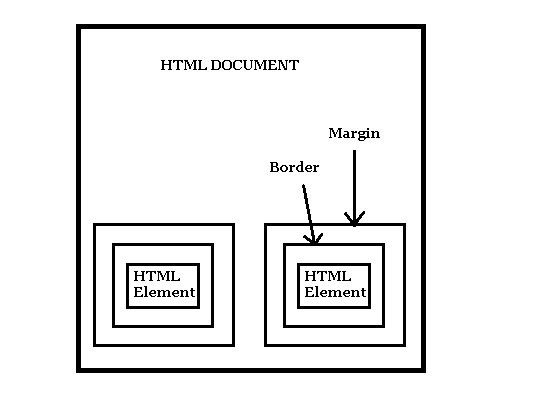
There are many CSS border properties that will change the look of the border of an HTML element.
- Border-style
- Border-color
- Border-size
Some people prefer the shorthand version because it set all of the above properties in a single line.
border: 1px solid red;The above code set border-size to 1px, border-style to solid and border-color to red, all done in a single line of code.
The shorthand version is much convenient to write and it is a popular amount of web designers.
Example: Border
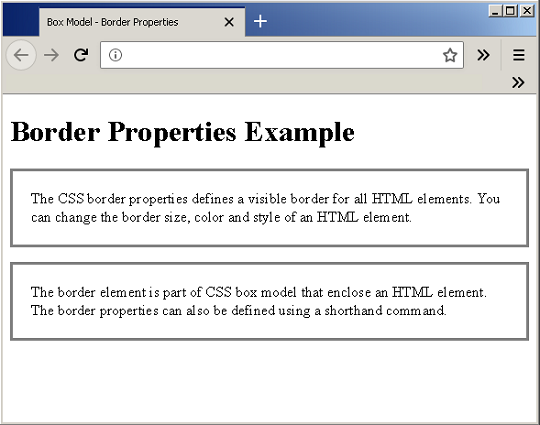
To understand the border property, let us create an HTML page – example-border.html and insert the following code.
<!DOCTYPE html>
<html>
<head>
     <title>Box Model - Border Properties </title>
     <style>
          p{
               padding:20px;
               border-style: solid;
               border-size:5px;
               border-color:gray;
          }
     </style>
</head>
<body>
     <h1>Border Properties Example</h1>
     <p>The CSS border properties defines a visible border for all HTML elements.
You can change the border size, color and style of an HTML element.</p>
     <p>The border element is part of CSS box model that enclose an HTML element.
The border properties can also be defined using a shorthand command.</p>
</body>
</html>
Output
CSS Width And Height
HTML elements are either block-level or inline elements. The inline elements are enclosed within a block level element. CSS treats each block-level HTML element as if it is in a box. This is known as CSS box model.
With CSS, you have control over the boxed HTML elements. You can change the look and feel of the element and change its position on a page. The CSS box model offers the following things
- Change the dimension of an element such as width and height.
- You can change the border of the elements.
- Change the margin of an element.
- You can change padding for an element.
- You can also show or hide an element on the page.
In this post, you will learn about components of CSS box model with examples. We encourage you to try the examples by yourself and see how it works, in this way, you will learn faster.
Width and Height Property
With CSS, you can change the dimensions of an HTML element using width and height properties. These CSS properties are
- Width
- Height
- Min-width and Max-width
- Min-height and Max-height
There are two ways to define these properties in CSS, they are
- Use fixed values such as px, pts., em.
- Use percentage (%) values for responsive design.
- Inherit – the values of width and height are inherited from parent elements.
Note: for who do not know, a responsive design is a type of CSS design optimized for multiple devices such as tablet, mobile and so on.
Example: Width and Height
In this example, you will create an HTML page with internal CSS codes that will set width and height of two <div> elements.
Step 1: Create a folder on your computer and call it box-model-example.
Step 2: Open notepad and create a new file inside box-model-example called index.html and save it.
Step 3: Open the file index.html in notepad and type the following HTML code into the file and save it.
<!DOCTYPE html>
<html>
<head>
     <title> Width and Height CSS Property</title>
     <script type="text/css">
     </script>
</head>
<body>
     <div class="box1">
          <h2>BOX 1</h2>
          <p>This is content of box 1.</p>
     </div>
     <div class="box2">
          <h2>BOX 2</h2>
          <p> This is content of box 2.</p>
     </div>
</body>
</html>
Step 4: Open index.html file again and type the following CSS code between <style> tags. This code will set do following changes
- Set background color for both boxes.
- Set width and height of only box 2.
- Add some padding for text content, you will learn about padding in next section.
.box1 {
     background-color: lightgreen;
     padding:10px;
}
.box2 {
     background-color: beige;
     padding: 10px;
     width: 200px;
     height : 300px;
}
Save the changes and view the result in the browser.
Output
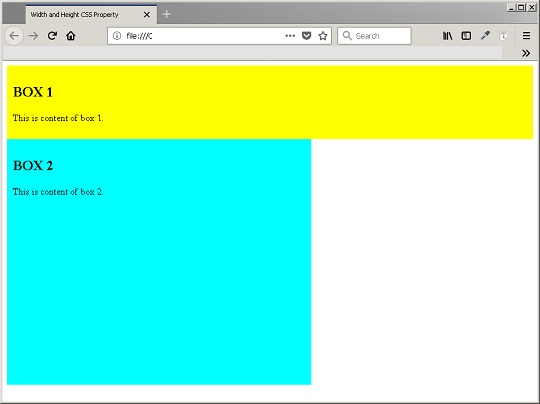
In the above example, box 2 is limited with width and the height property. However, box 1 is displayed as full block element.
Example: Max-width and Min-width
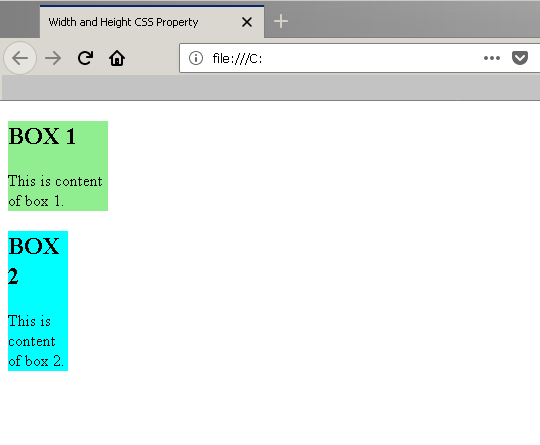
In an HTML page, the height and width property can change if you are using a responsive design, you have different screen width or height for different devices. To avoid problem with width or height property, you can set a min-height or min-width and max-height or max-width value. The content of the element cannot exceed this height or width values or start with a minimum value. In this example, you will use the previous example and set min-height and max-height, min-width and max-width for two boxes.
Step 1: go back to index.html page and open it with notepad.
Step 2: Add following CSS code between <style> tags, replacing the previous CSS codes.
.box1 {
     background-color:lightgreen;
     min-height: 50px;
     max-height: 100px;
     min-width: 50px;
     max-width: 100px;
}
.box2 {
     background-color:cyan;
     min-width: 40px;
     max-width: 60px;
}
Output in the browser
CSS Selectors
The CSS selector helps find (or select) elements from HTML document for style purpose. W3c has listed all the possible kinds of CSS selectors that you can use in your CSS documents, but only few are them are used frequently. For a complete list of CSS selectors visit W3c – CSS3 selectors.
Here is a list of selector types, important for any web designer working with CSS and HTML.
- Universal Selectors
- Element Selectors
- Class Selectors
- ID Selectors
- Combinator Selectors
- Pseudo-Classes
You will find examples for each selector that you can practice and understand the concept easily.
Universal CSS selectors (*)
The universal selector applied to all the elements. You can also use it for a particular element. You can select all elements with another HTML element using universal CSS selector. The scope of selection is narrowed in the later case.
Element CSS selectors (p, h1, h2)
You can apply css rule to HTML element directly using the element selector. Select the element and then create rules for individual properties of the element. Certain properties apply only to a specific element. There are two ways to select elements.
CSS for single element
In this case, you apply rules only for a single element. For example
p {
    text-align: center;
    font-size: 2em;
}
CSS for group of elements
CSS allows to select more than one HTML elements. Therefore, you can apply css rules to a set of elements. For example
p {
    text-align: left;
    color: gray;
}
h1 {
    text-align: left;
    color: gray;
}
h2 {
    text-align: left;
    color: gray;
}
You can create a common css rule for p, h1 and h2.
p, h1, h2 {
    text-align: left;
    color: gray;
}
This would save rewriting the CSS rule multiple times.
Class CSS selectors
The element selector gives the option to select more than one element. Another way to style a group of elements or a block in HTML is using the class selector. The class selector finds only those elements where a particular class name is used and applies the CSS rules on that class.
CSS code
. <user-defined class name> {
    declaration1;
    declaration2;
}
HTML Code
<div class="user-defined class name">
    <! -- Other HTML elements -->
</div>
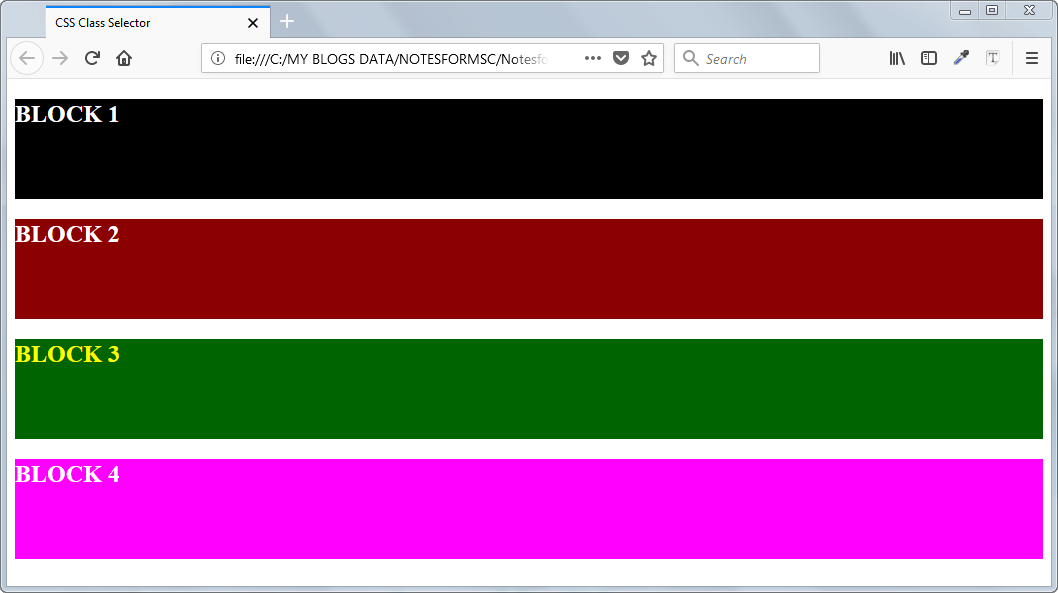
Example Class Selector
In this example, we will create an HTML page with four blocks and give each block a different style. You need to download and install Notepad++ software on your computer. Then follow the steps given below.
Step 1: Create a folder called “Class-Selector”.

Step 2: Open Notepad and create a file called Style.css and save it inside Class-Selector folder.

Step 3: Insert following CSS code into Style.css and save it.
.block1 {
     background-color: black;
     color: white;
     font-size: 18 px;
     height: 200px;
}
.block2 {
    background-color: darkred;
    color: white;
    font-size: 18 px;
    height: 200px;
}
.block3 {
    background-color: darkgreen;
    color: yellow;
    font-size: 18 px;
    height: 200px;
}
.block4 {
    background-color: magenta;
    color: white;
    font-size: 18 px;
    height: 200px;
}
Step 4: Create a new file called Index.html and save it in Class-Selector folder.

Step 5: Open the index.html file using notepad and insert following code and save it again.
<!DOCTYPE html>
<html>
<head>
    <title>CSS Class Selector</title>
    <link rel="stylesheet" type="text/css" href="style.css">
</head>
<body>
    <div class="block1">
        <h2>BLOCK 1</h2>
    </div>
    <div class="block2">
        <h2>BLOCK 2</h2>
    </div>
    <div class="block3">
        <h2>BLOCK 3</h2>
    </div>
    <div class="block4">
        <h2>BLOCK 4</h2>
    </div>
</body>
</html>
Step 6: Open the file in a browser.
Result of Example Code
Id CSS Selector
When you select a group of element or apply CSS on a class selector. You want just one element or a few element to appear unique or different from the rest of the group. These HTML elements could be selected using the ID selector and you can apply separate CSS rules for them.
There is another benefit of using ID selector, they are popular among JavaScript programmer. The JavaScript use ID selector to select form elements and write unique code for them.
Example of ID Selector
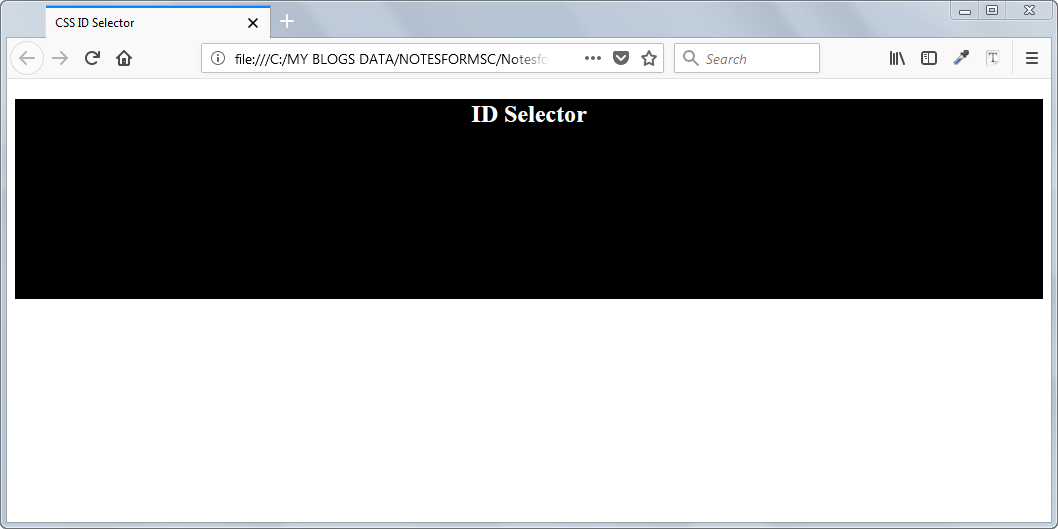
In this example, you will create an HTML page with one block and a single element with ID selector. Then apply CSS rules on it.
Step 1: Create a folder called “ID-Selector”.

Step 2: Open notepad and create a new file called style.css and save it in ID-selector folder.

Step 3: Open the style.css file and insert the following code and save it.
.block {
    background-color: black;
    color: white;
    height: 200px;
}
#head{
    font-size: 24px;
    text-align:center;
}
Step 4: Open notepad and create a new file called index.html and save it in ID-Selector folder.

Step 5: Copy the following code in to the index.html file and save it.
<!DOCTYPE html>
<html>
<head>
    <title>CSS ID Selector</title>
    <link rel="stylesheet" type="text/css" href="style.css">
</head>
<body>
    <div class="block">
        <h2 id="head">ID Selector</h2>
    </div>
</body>
</html>
Step 6: Open index.html file in a browser and verify the results.
Result of Example – ID selector
The Selectors find the elements based on a Document Object model or document tree which is an API ( Application Programming Interface) for HTML called HTML DOM. It describes the structure of the document and how to access the DOM tree. The Document Object Model treat the HTML document as a tree structure. Each element in this tree is an object.
Combinators CSS Selectors
Another type of selector in CSS is called Combinators. It checks whether the element is a child, descendant or sibling in the document tree.
Syntax of Combinators
E F - where F is descendant of E
E > F - where F is child of E
Example of Combinators
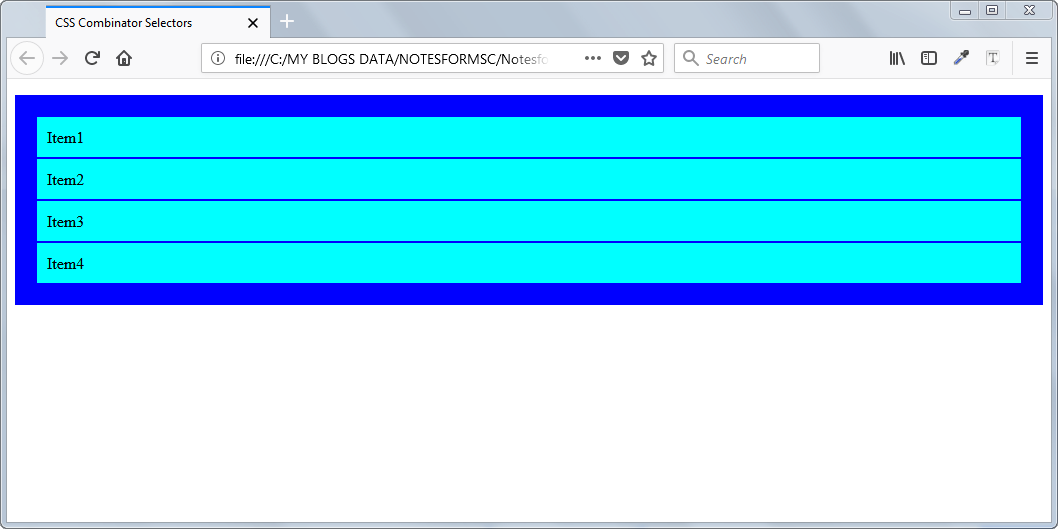
In this example, you will create an HTML element with a list and then change style for the list elements.
Step 1: Create a folder called Combinators.

Step 2: Open Notepad and create a file called “style.css” and copy following code into the file and save it.
.list {
    background-color: blue;
    padding: 20px;
    list-style:none;
}
.list li {
    background-color:cyan;
    padding: 10px;
    margin: 2px;
}
Step 3: Open notepad and create a file called index.html. Now copy following code in index.html and save it.
<!DOCTYPE html>
<html>
<head>
    <title>CSS Combinator Selectors</title>
    <link rel="stylesheet" type="text/css" href="style.css">
</head>
<body>
    <ul class="list">
        <li>Item1</li>
        <li>Item2</li>
        <li>Item3</li>
        <li>Item4</li>
    </ul>
</body>
</html>
Step 4: Open the index.html file in a browser and verify the results.
Result –Combinators Selector
The result of the above code is given below.
Pseudo-classes CSS Selectors
This is another group of elements that does not belong to the document tree. These selectors are outside of document tree, hence, in CSS you use them with a colon ( : ).
E: hover, :active, :focus – where hover is an user-action pseudo-class and E is the element.
E: visited,: link – where visited and link are a link pseudo-classes and E is the element.